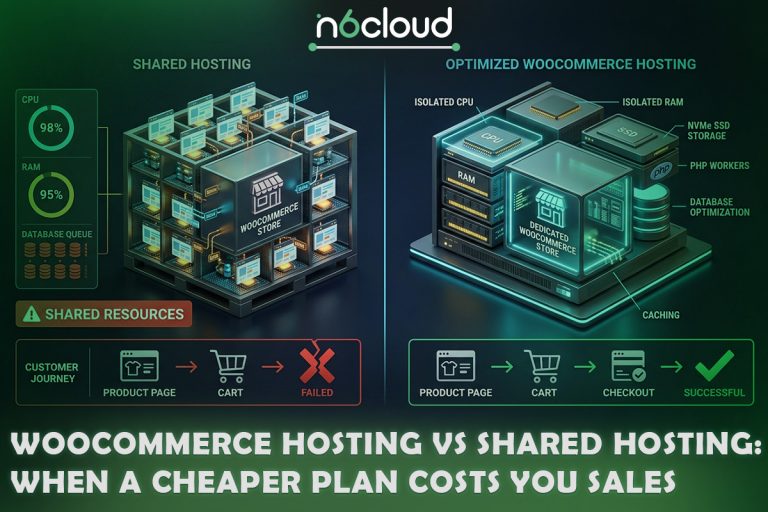
A store can seem quick until real orders arrive: “Place order” spins for several seconds, and it’s worse during a sale. If you’re asking “what is WooCommerce hosting?”, the short answer is a server set up for a store’s kind of work, not a different kind of server. Your store’s own screens show most of that work, so you can check whether the host is to blame before you pay for a bigger plan.
What Is WooCommerce Hosting? A Plain-English Definition
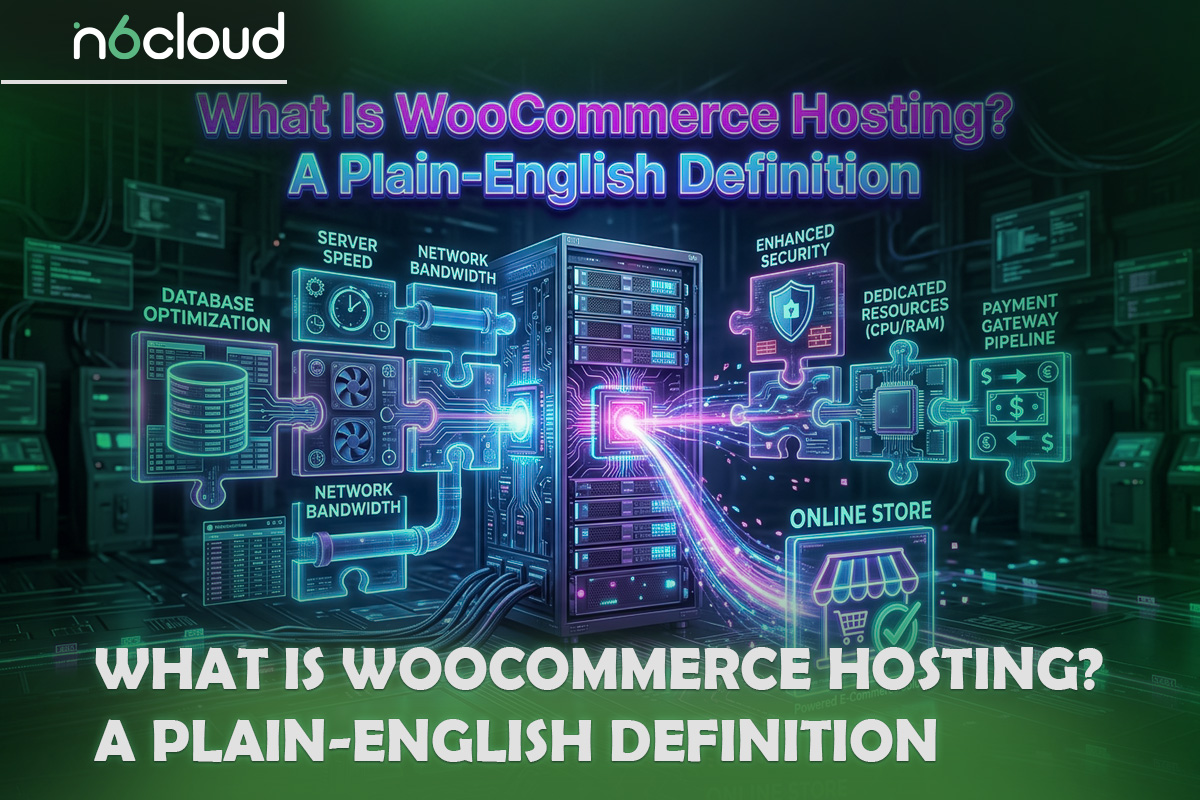
WooCommerce hosting is web hosting configured for a WordPress site that runs WooCommerce. Its page caching skips the cart and checkout, and it leaves enough capacity for pages that can’t be cached. It also keeps a persistent object cache for frequent database queries and runs the store’s background jobs reliably. WooCommerce itself is a free plugin that turns WordPress into a shop, with products, a cart, a checkout, orders, and customer accounts. Underneath, a store is still a WordPress site with more work to do on every visit.
WooCommerce Hosting Is a Setup, Not a Different Kind of Server
A WooCommerce store runs on the same web server, operating system, PHP, and database software as any WordPress site. What changes is how they’re configured. Four settings make the difference: cache rules that skip personal pages, capacity for the requests that skip the cache, a persistent object cache, and background jobs that don’t depend on visits. Each one is explained below.
Capacity mostly comes down to PHP workers. A PHP worker is one of the processes that builds a page when someone asks for it. Each uncached request (a cart, a checkout, an admin screen, or a background job) holds one worker until it’s done. If every worker is busy, the next request waits in line or, on some hosts, gets an error. The number of workers a plan allows sets how many uncached requests, such as checkouts, the server can work on at the same moment.
Hosts set that number per plan, so it’s worth finding your own. On CloudLinux shared hosting, the closest limit is called entry processes. Your plan details may list it, and if they don’t, your host’s support can tell you the number. In cPanel on those hosts, Metrics > Resource Usage lists faults, the moments your account hit a limit, and what each shared hosting limit does when you hit it explains the rest.
Some providers sell the same plan under a store name, with nothing changed but the label. That isn’t wrong if the four settings are already there, so judge a plan by its settings rather than its name. A plan sold as WooCommerce-tuned hosting should be able to say yes to each of them, in writing, before you buy.
Does WooCommerce Need Special Hosting Just to Run?
No. Any host that meets WooCommerce’s recommended setup can run a store, and the difference between hosts shows up under load, not at install. For WooCommerce 10.8 and later, WooCommerce’s official server requirements ask for PHP 8.3 or newer (tested up to PHP 8.4), HTTPS, and a WordPress memory limit of 256 MB or more. The list says WordPress 6.9 or newer, but the current release, WooCommerce 11.2.1, requires WordPress 7.0 itself. If you keep WooCommerce up to date, plan on WordPress 7.0 or newer.
The memory limit is the figure that’s easiest to misread. It’s how much memory one PHP process may use while WordPress builds a page, set in WordPress and PHP settings rather than by the server’s RAM. WooCommerce still works on PHP 7.4, but that version has reached its end of life and gets no security fixes. A store that takes payments should run a current PHP version, and the System Status report covered later lists your own values.
Why a Store Is Heavier Than a Blog: What Happens on the Server
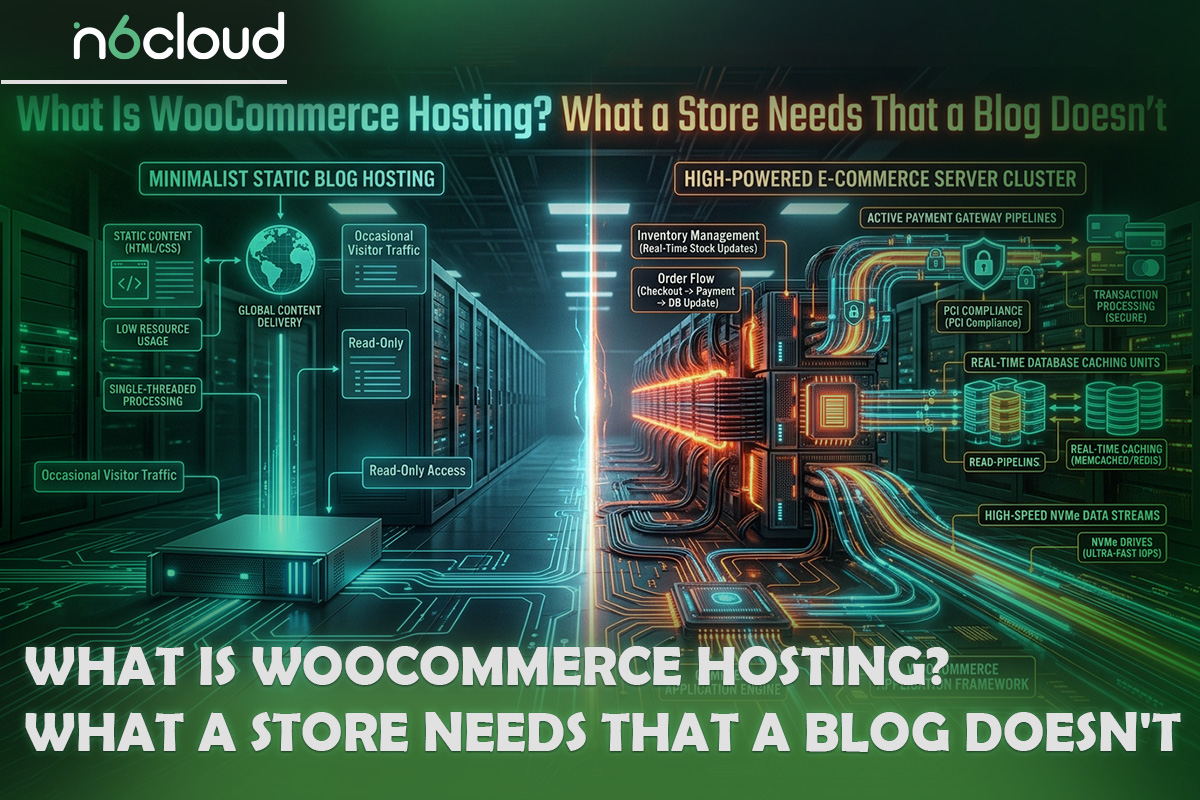
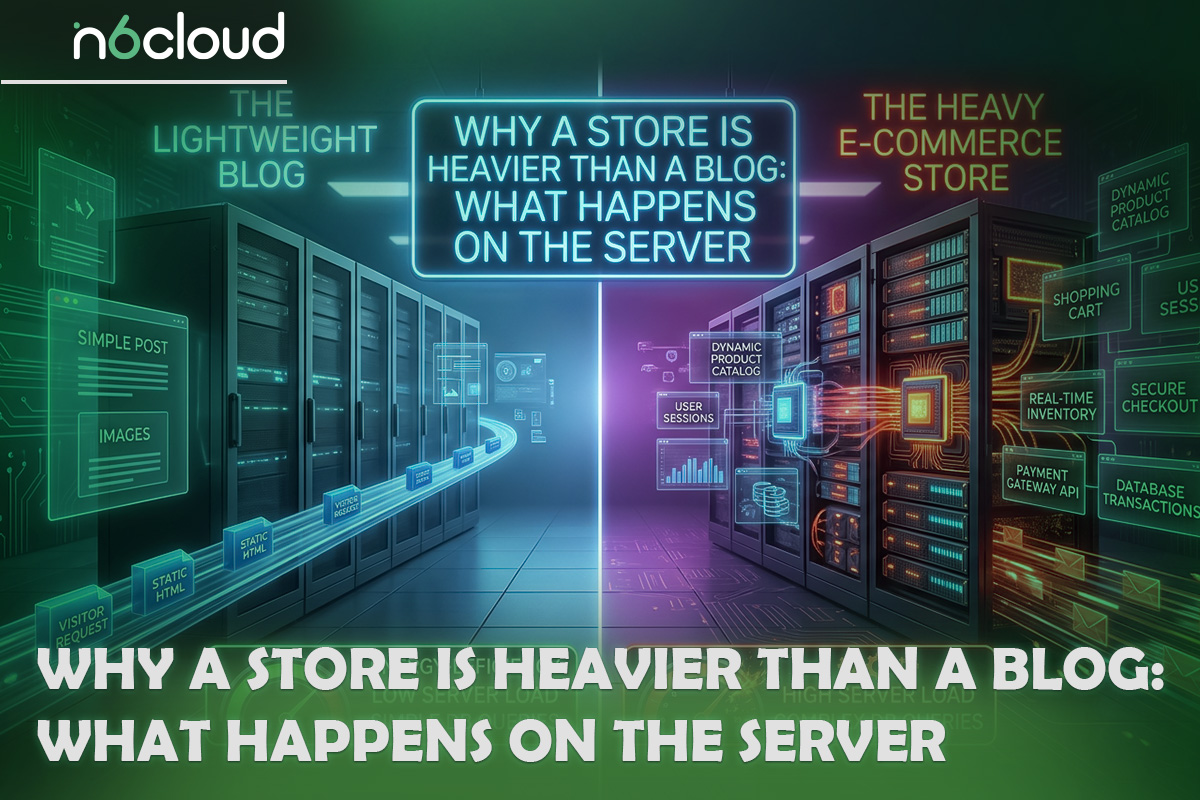
If any compliant host can run WooCommerce, the difference lies in what a store asks of it. A blog sends the same page to everyone. A store builds personal pages, uses its database on almost every click, and waits on outside services at checkout, so it can feel fast while you browse and slow at the till.
Pages That Can Be Cached and Pages That Never Can
Product and category pages can be saved once and reused for every visitor, but the cart, the checkout, and the My Account area show one shopper’s details, so they’re built from scratch each time. A blog post is like a printed flyer: you print it once and hand the same copy to everyone. A cart is a conversation, and it’s different for every customer.
WooCommerce’s caching guidance tells caching plugins to leave those three pages out, because they show information specific to the current customer. WooCommerce finds each shopper’s cart through a session cookie, a unique code that tells it where that cart’s data sits in the database. LiteSpeed Cache excludes the same pages by default and can treat the mini-cart in the header as a private block, as described in how LiteSpeed Cache handles cart and checkout pages.
The pages that skip the cache are the ones that need a PHP worker. A store’s server load therefore follows the number of shoppers in carts and checkouts at the same time, much more than its page views. A sale that fills many carts at once is a heavier load than a busy day of browsing.
Every Click Asks the Database a Question
A store reads from and writes to its database far more often than a blog does. Picture one shopper. Filtering a category by size and colour reads many product rows, and adding a shirt to the cart writes a session row. Placing the order writes the order, reduces the stock count, and adds order notes. A blog visitor usually gets one cached page and never touches the database.
A persistent object cache helps a host cut down on repeat questions. It keeps recent database answers in memory, so WordPress doesn’t have to ask the database again, and “persistent” means those answers last between page requests instead of being thrown away after each one. Redis is a common choice. WordPress’s own Site Health screen includes a “Persistent object cache” test that recommends one once a site passes certain sizes, such as 1,000 entries in its posts table (which also holds pages and products) or 1,000 users. With one connected, temporary data called transients moves out of the database too.
Outside Calls: Payment Gateways, Shipping Rates, Tax Services, and Emails
At checkout, the store waits on other companies’ servers, so a slow payment, shipping, or tax service can slow checkout even on the fastest host. WooCommerce’s System Status notes explain the mechanics. A payment gateway contacts its own servers to authorize the card, and some send the payment result back to the store in a separate call. Live shipping quotes work the same way, calling a carrier’s servers, such as FedEx’s.
Hosting can’t speed up another company’s server. If a gateway takes several seconds to approve a card, a bigger plan won’t change that, and a plugin that makes slow outside calls is a store problem. The gateway’s own log and WooCommerce’s Logs tab can help show where the time went. Checkout also queues work for later, such as webhooks and jobs from extensions, which Figure 1 shows below the main path.
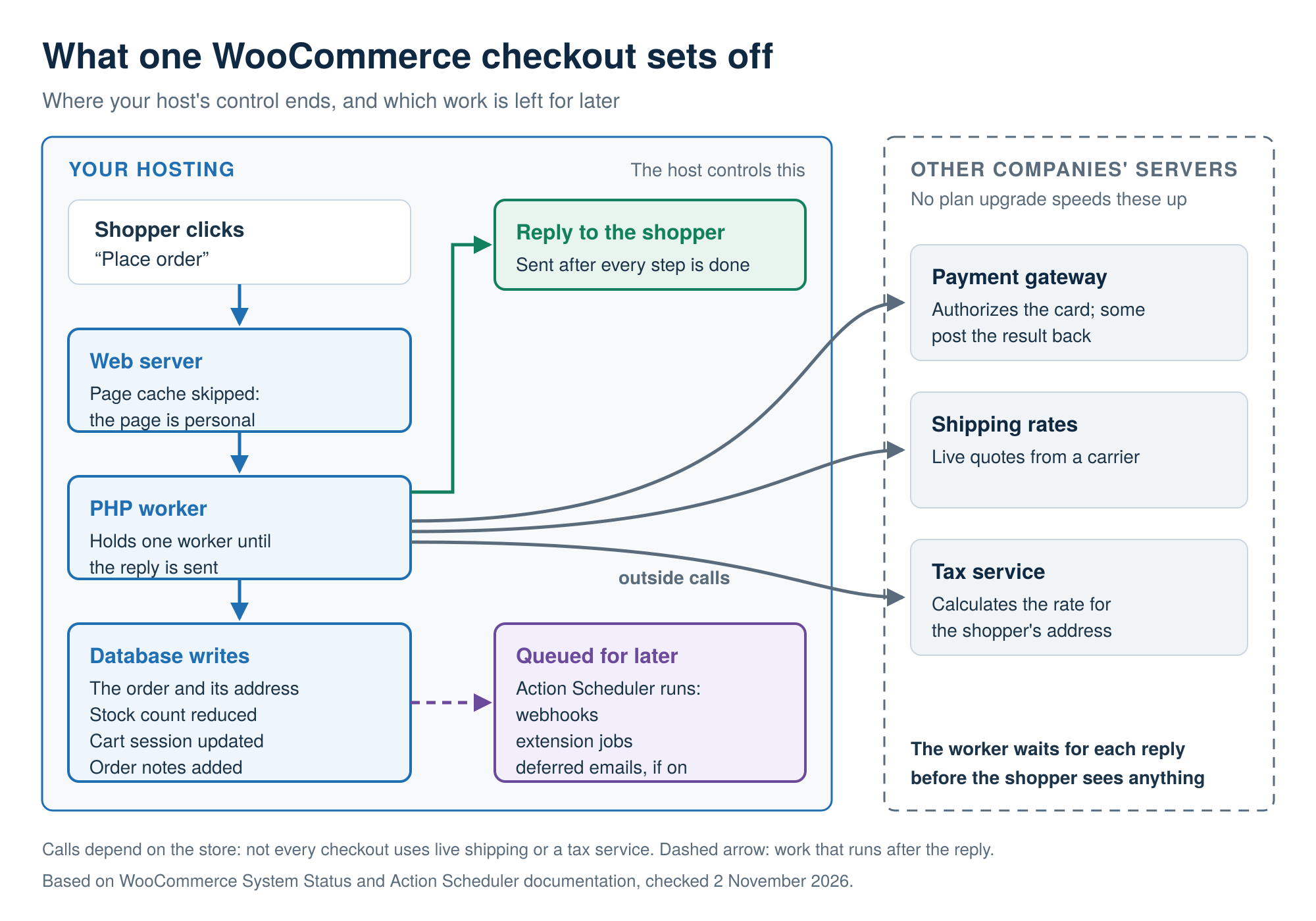 Figure 1. Your host controls everything inside the shaded box; the payment and shipping services outside it run on other companies’ servers.
The Work Your Store Does When No One Is Shopping
Shoppers’ clicks explain only part of a store’s load. WooCommerce also runs a queue of background jobs, keeps its orders in its own tables, and stores data that builds up over time. This hidden work is why a store can get slower over months while its traffic stays flat.
Action Scheduler: The Background Queue Behind Emails, Webhooks, and Renewals
Action Scheduler is WooCommerce’s to-do list for jobs that happen later, and it runs only when something sets it off. It handles subscription renewals (with the Subscriptions extension), webhooks (messages your store sends to other apps when something happens), some customer emails, and the cleanup of expired cart sessions every 12 hours. Extensions add their own jobs too.
On most hosts, a visit is what sets it off. WP-Cron, WordPress’s built-in scheduler, isn’t a real clock: it checks for due jobs when someone loads a page. Action Scheduler tries to run every minute through it, working through a small batch of jobs each time. On a quiet store, jobs wait for the next visitor, and on a very busy one, the constant checks add load of their own.
WooCommerce’s guide to scheduled actions warns that jobs can run late on a store with little traffic, and Action Scheduler’s own FAQ says some past-due jobs are normal because of how WP-Cron works. A growing Pending count, or the same job failing repeatedly, is a warning sign. Completed and cancelled jobs are deleted after 31 days, and failed ones after 3 months since Action Scheduler 4.0, so a very large queue usually means jobs are failing or piling up faster than they run. A host can also run WP-Cron from a real server schedule, as the FAQ below explains.
HPOS: How WooCommerce’s Dedicated Order Tables Changed Database Load
High-Performance Order Storage (HPOS) moved orders out of WordPress’s shared posts tables into four tables of their own. Before WooCommerce 8.2, orders sat by default in the same tables as posts, pages, and products. Now they go into tables built only for orders, such as wc_orders, with their own indexes. WooCommerce says this means fewer read and write operations and fewer busy tables, though its HPOS guide gives no speed figures.
New stores have had HPOS turned on since 8.2, but existing stores aren’t moved over automatically. The switch is at WooCommerce > Settings > Advanced > Features, where incompatible extensions are listed, and they block it until they’re updated or deactivated. Compatibility mode copies your orders across in the background, 25 at a time, as jobs in the Action Scheduler queue. While both copies match, you can switch back to the old storage at once. Figure 2 shows what happens when they don’t. Make the switch well before a busy period, and try it on a staging copy first if you’re unsure about an extension.
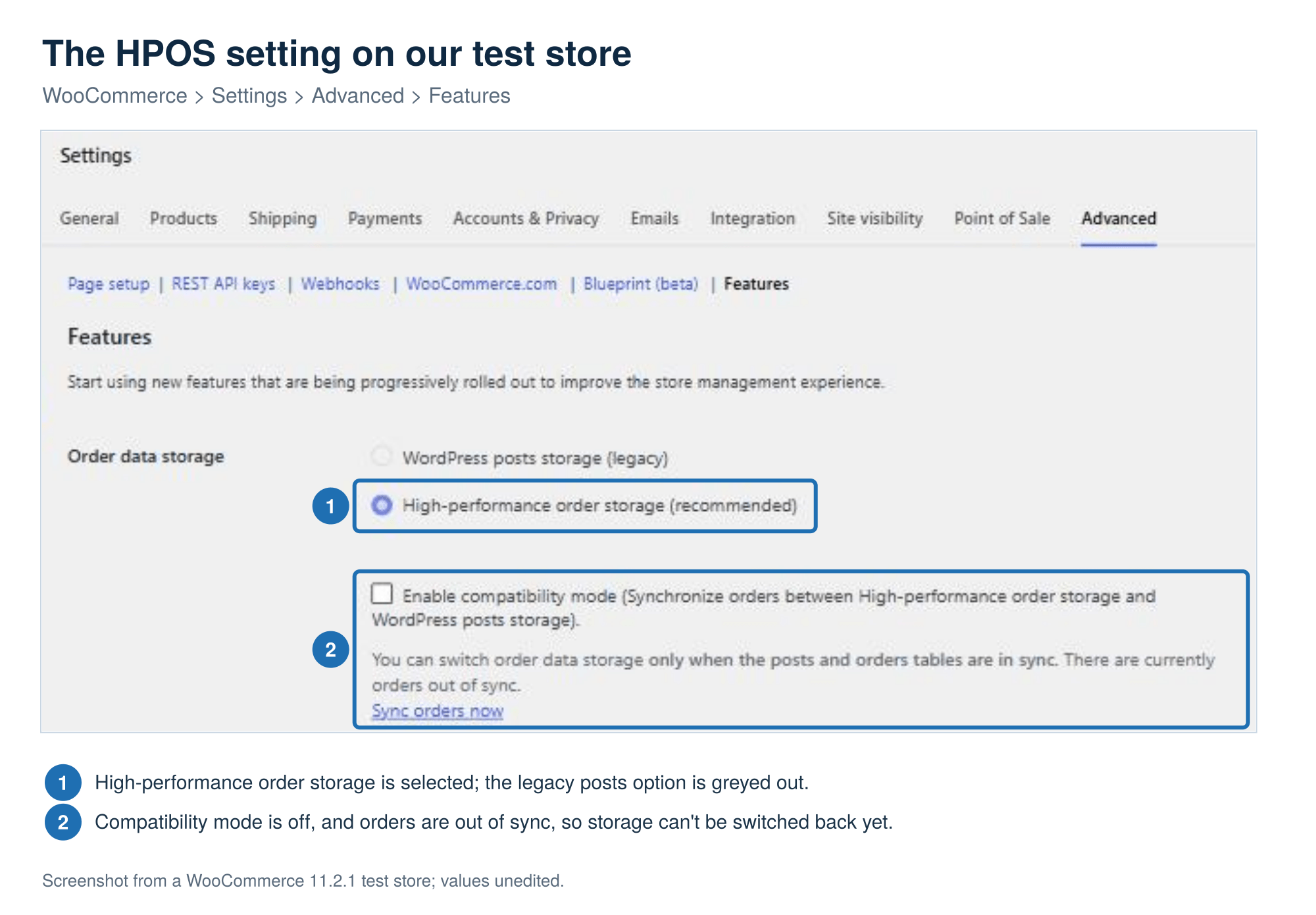 Figure 2. On our test store (WooCommerce 11.2.1, WordPress 7.1.4), HPOS is selected with compatibility mode off, and switching back stays locked until the orders are synced.
WooCommerce’s guide to High-Performance Order Storage says there are no hosting restrictions: any host that can run WordPress and WooCommerce can run HPOS. An older store that never switched may be carrying the old load for no good reason. The status report shows which storage your store uses.
Sessions, Transients, and Autoload Bloat That Pile Up Over Months
Three kinds of leftover data grow quietly in a store’s database and get read on many requests, so the same traffic can feel slower each year. Every shopper who adds something to a cart gets a row in the woocommerce_sessions table, kept for 2 days for guests and 7 days for logged-in customers. The 12-hour cleanup job removes expired rows, but it runs through Action Scheduler, so a stuck queue lets the table keep growing.
Transients are the second kind. A transient is a saved result of slow work, such as a product count or an outside service’s reply, stored with an expiry time. WordPress keeps transients in the options table, the same table that holds the site’s settings, unless a persistent object cache holds them in memory.
Autoloaded options are settings WordPress loads on every page request in a single query, and plugins often add them and leave them behind. Since WordPress 6.6, Site Health flags “Autoloaded options could affect performance” when the total passes 800 KB. All three are store-side housekeeping, and the checks below show where your store stands.
WooCommerce Hosting vs Regular Web Hosting: What Actually Differs
Compared with regular hosting, WooCommerce hosting differs in the four settings described earlier and in how much of a server you get. The right choice depends on your store’s stage, not the plan’s label. Table 1 compares four kinds of hosting, and its last row says when to pick each.
Read the table as a pattern, not a verdict. One slow evening is a fluke, while several symptoms together, week after week, point to a cause worth fixing. The last column matters as much as the first: a slow WooCommerce checkout caused by a gateway or shipping service won’t improve on any plan. A bigger server also hides a failing job or a bloated options table for a while without removing it, so check the store itself before blaming the host.
How to Check Your Own Store Before You Change Anything
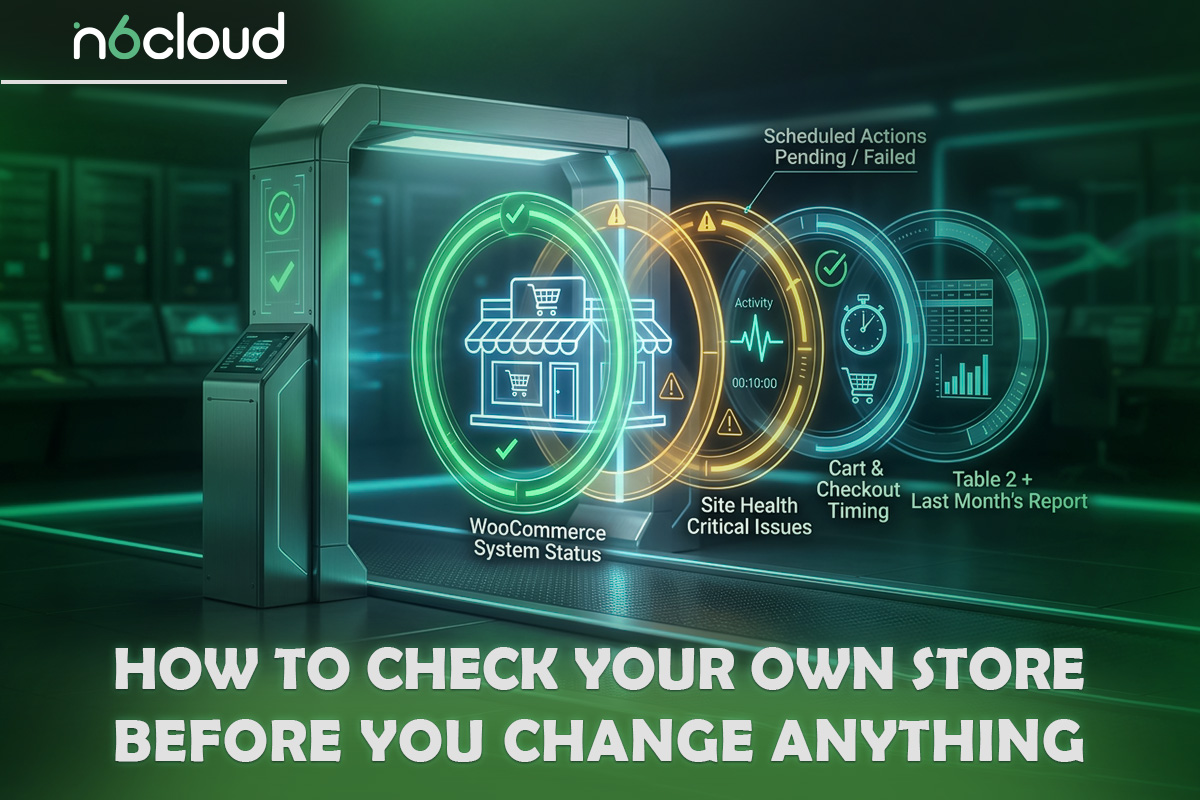
Three screens already in WP Admin and one timed checkout answer most of Table 2. None of them needs a new plugin or access to the server. Repeat the routine each month and after every sale:
- Download the WooCommerce System Status report and read the lines listed below.
- Open Site Health and note any critical issues.
- Filter Scheduled Actions by Pending, then by Failed.
- Time the cart and checkout at your quietest hour and your busiest.
- Compare the results with Table 2 and with last month’s report.
Read Your WooCommerce System Status Report
WooCommerce > Status shows your store’s settings and how big its data has grown on one long screen. Only a handful of lines answer the questions in Table 2, and they’re listed here in roughly the order they appear. Read them against the recommended setup and your own earlier reports.
- WordPress memory limit and PHP version. Compare them with the recommended setup listed earlier.
- WordPress cron. A tick means WordPress runs its scheduler when people visit the site, and a dash means that’s been turned off, so a server cron job has to start it instead.
- External object cache. This line shows whether an object cache such as Redis is connected to your store.
- Total Database Size, and the sizes of the woocommerce_sessions and actionscheduler_actions Large or fast-growing tables point to the leftover data described earlier.
- HPOS enabled and Order datastore. These show whether your orders live in the dedicated order tables.
- Action Scheduler. This table counts completed, failed, pending, and cancelled jobs, each with its oldest and newest date.
Then click Get system report and Download for support, and save the text file with today’s date. WooCommerce says the example values in its documentation aren’t software requirements, so don’t compare your numbers with someone else’s screenshot. Your own report from a month or two ago is the clearest way to see a table growing.
Figure 3 shows where those lines sit on a test store’s report. There, WordPress cron and External object cache are both ticked, and HPOS is on, with the orders table data store named under Order datastore. Its Action Scheduler table counts 257 completed, 20 failed, and 14 pending jobs, and the next section shows how to read the failed ones.
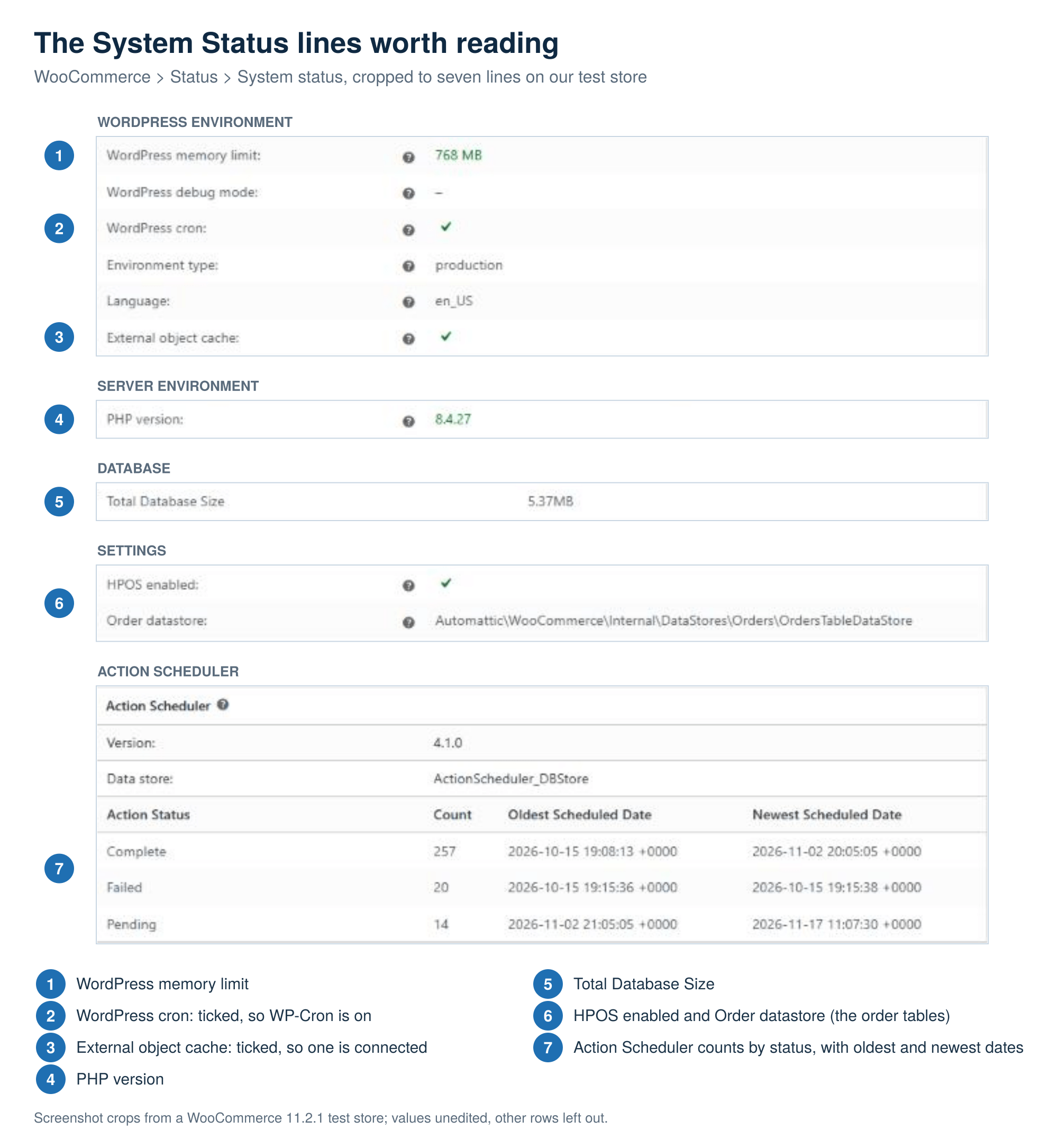 Figure 3. On our test store (WooCommerce 11.2.1, WordPress 7.1.4), the seven lines worth reading sit in five different blocks of a long report.
Check Site Health and Your Scheduled Actions Queue
Site Health flags the problems WordPress and WooCommerce know how to detect, and the Scheduled Actions screen shows whether the background queue is keeping up. Open Tools > Site Health > Status first. WooCommerce adds its own store checks there, such as HPOS synchronization, next to WordPress’s “Persistent object cache”, “Scheduled events”, and “Autoloaded options” tests. Fix critical issues first, and note recommended improvements for your next round of housekeeping. On the test store, Site Health found no critical issues, and the object cache, scheduled events, and autoloaded options tests all passed, with 516 autoloaded options totalling 62 KB.
Next, open WooCommerce > Status > Scheduled Actions and filter by Pending, then by Failed, sorting each list by date. Judge both lists by the warning signs described in the Action Scheduler section, not by their length. Open a failed job’s log to see the error and the job’s hook name, which usually tells you which extension owns it.
The test store’s queue shows what normal looks like. Every pending job in Figure 4 is scheduled in the future, including the session cleanup. Its 20 failed jobs all date from a single day, and none has failed since. One log says the job was “in-progress for at least 300 seconds without completing”, which means it ran past Action Scheduler’s five-minute limit. The other logs checked said no code was registered to run the job, which usually means the plugin that added it is no longer active. A one-off burst like that isn’t the warning sign described earlier, because the same job isn’t failing repeatedly.
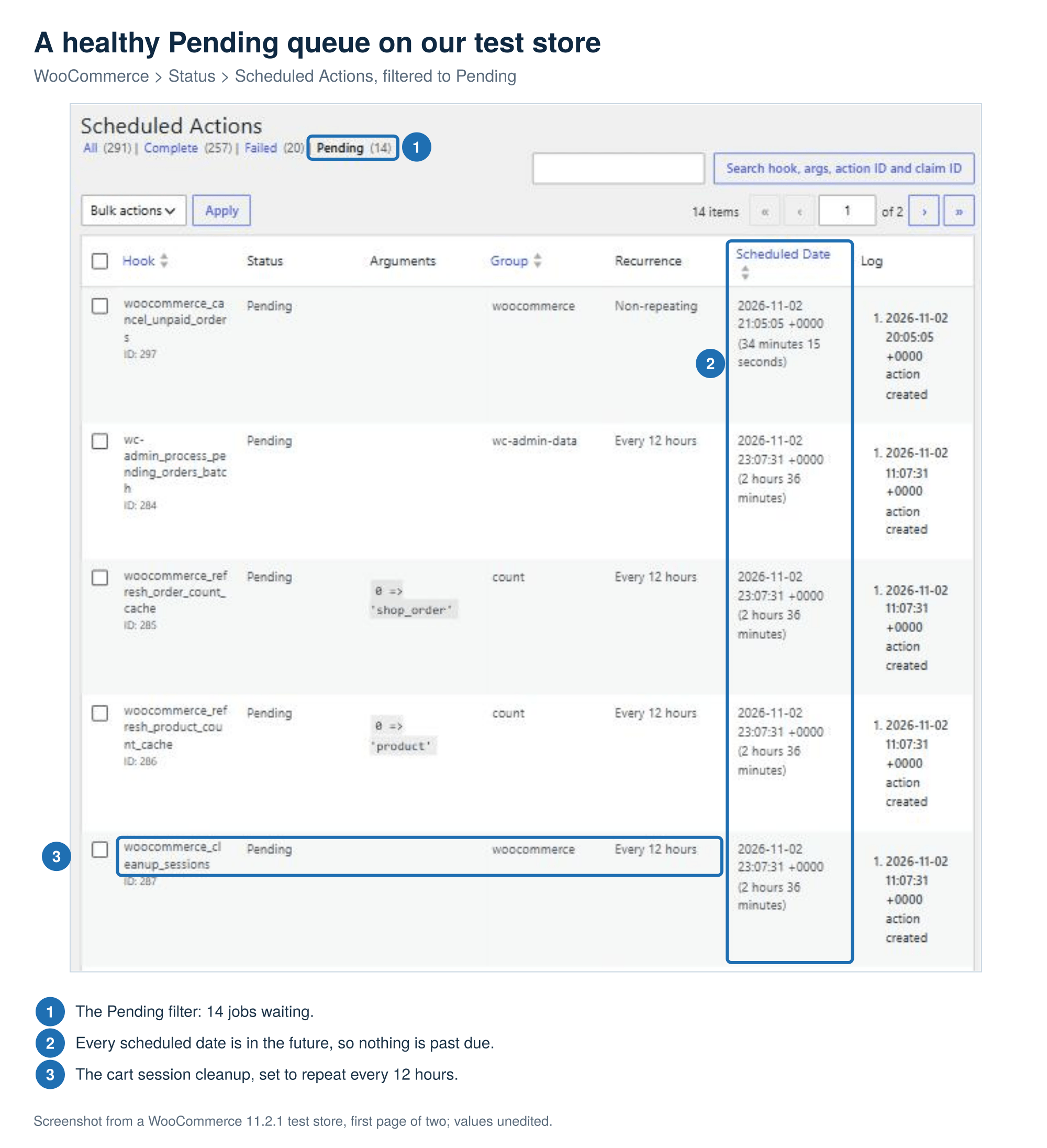 Figure 4. On our test store (WooCommerce 11.2.1, WordPress 7.1.4), every pending job is scheduled in the future, which is what a queue that keeps up looks like.
Test the Checkout, Not the Homepage
Speed tools test one page as a first-time visitor, usually a cached one, so the only fair test of a store’s server is the checkout itself. PageSpeed Insights loads a single URL in a controlled lab. It never adds anything to a cart or pays, so a good homepage score says little about the moment a shopper clicks “Place order”. Time your own cart and checkout pages instead, once at your quietest hour and again at your busiest:
- Add a product to your cart and open the cart page.
- In Chrome or Edge, press F12, or right-click the page and choose Inspect, to open the developer tools. Click the Network tab.
- Reload the page, then click the first row in the list, which is the page itself.
- Open the Timing tab and read “Waiting for server response”. Compare it with the threshold in Table 2.
- Repeat steps 3 and 4 on the checkout page, then place a test order to make sure “Place order” goes through.
A test order on a live store acts like a real one, so the store sends its order emails and reduces the stock count. Pay with a manual method such as Cash on delivery (or a gateway’s test mode), buy a cheap or hidden product, and use your own email address. Then change the order’s status to Cancelled, which puts its items back in stock, and check the stock count before you move the order to the trash.
The two readings tell you where to look. If checkout is slow at both hours, check the gateway and shipping logs under WooCommerce > Status > Logs before you blame the host. If it’s quick when quiet and slow when busy, the server is most likely running short of capacity at peak times.
What to Do With What You Find: Fix, Stay, or Move Up
Fix what the checks show is store-side first. Failing jobs, autoload bloat, an older store without HPOS, and a slow plugin or gateway can all be fixed without a bigger plan. Start with the store-side fixes worth trying before you upgrade, then run the checks again a week later and compare the new system report with the one you saved.
Move up when the host-side rows of Table 2 keep coming back, especially checkout errors during sales, while the queue and Site Health look clean. Good WooCommerce hosting should include the four settings described at the start, and that’s where the extra money goes. Whether it pays for itself depends on your orders and margins, and the price gap between shared and WooCommerce plans works through that decision with real numbers. If you do move, plan it for a quiet week rather than the days before a sale, and run the same checks on the new plan before your next promotion.
A VPS makes sense for large catalogues, heavy or custom plugins, or a team that wants to control server settings such as PHP limits or a custom cron schedule. VPS hosting with dedicated resources asks more of you or your developer, so choose it when the checks show a store has outgrown its limits, not as a first fix. The other two steps cost less and often settle the question.
Why Trust N6 Cloud for WooCommerce Hosting?
N6 Cloud is a Canadian company based in British Columbia, with a team that has more than 20 years of experience in web hosting and domains. Its servers sit in data centres in BC, which keeps your store’s data in Canada and close to Canadian shoppers. Support is available 24/7, including on a Saturday night when a checkout breaks.
N6 Cloud’s WooCommerce plans are its Managed WordPress Lightning plans under a store name, and you can install WooCommerce in a few clicks with WP Toolkit. The LiteSpeed web server and LiteSpeed Cache keep cart and checkout out of the cache, and Redis gives the store a persistent object cache. Files sit on SSD SAN storage with RAID 10. cPanel comes with WP Toolkit Deluxe, which adds staging, cloning, and a “Take over wp-cron.php” switch. That switch was off on N6 Cloud’s own test account, which had no server cron job, so WordPress’s WP-Cron runs on visits unless you set one up. Daily backups are kept for 30 days, SSL is free, and the plans work with Cloudflare’s free CDN.
Moving an existing store is free, with expert help. The plans carry a 99.9% uptime commitment and a 30-day money-back guarantee, which gives you time to run the checks above on your real store. If the evidence says your store needs more than it has now, look at N6 Cloud’s hosting built for WooCommerce stores.