Prices checked on 15 October 2026, per month, before tax, paid upfront for 36 months. Prices for every billing term are in the price-gap section below.
How Shared Hosting Splits One Server Between Many Sites
Shared hosting puts many customer accounts on one physical server and gives each one a fenced-off slice. Think of an apartment building: your unit has its own lock, but the plumbing serves every floor. Splitting one machine this way is what keeps shared hosting cheap.
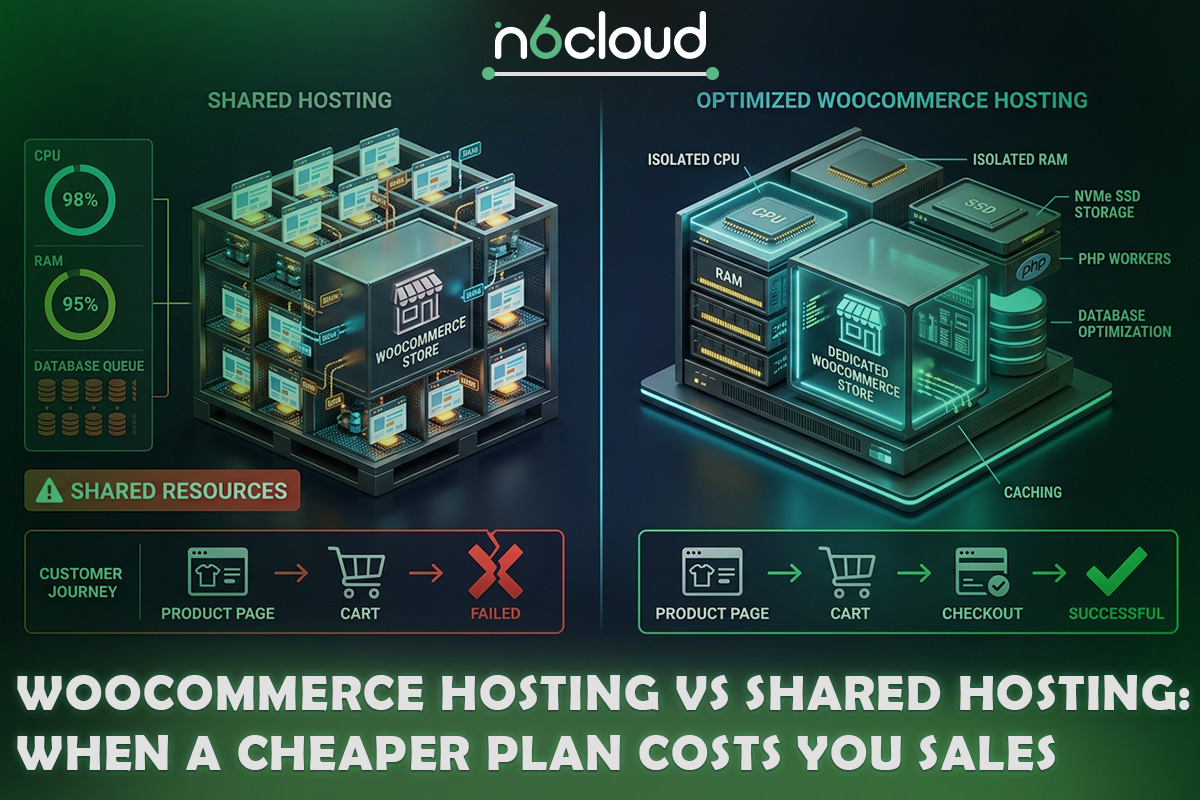
On N6 Cloud’s shared and WooCommerce plans, CloudLinux gives each account its own ceiling for processor time, memory, and requests handled at once. A busy neighbour hits its own limit instead of using up yours. CageFS hides each account’s files from the others. The disks and network connection stay shared, so a rush across the whole server can slow every site on it a little.
For a store, your own ceiling matters far more than a neighbour’s traffic. When your shoppers use up your slice, your checkout is the one that suffers, while other sites carry on as normal. Your plan sets the size of that slice, and Figure 1 shows where the walls stop.
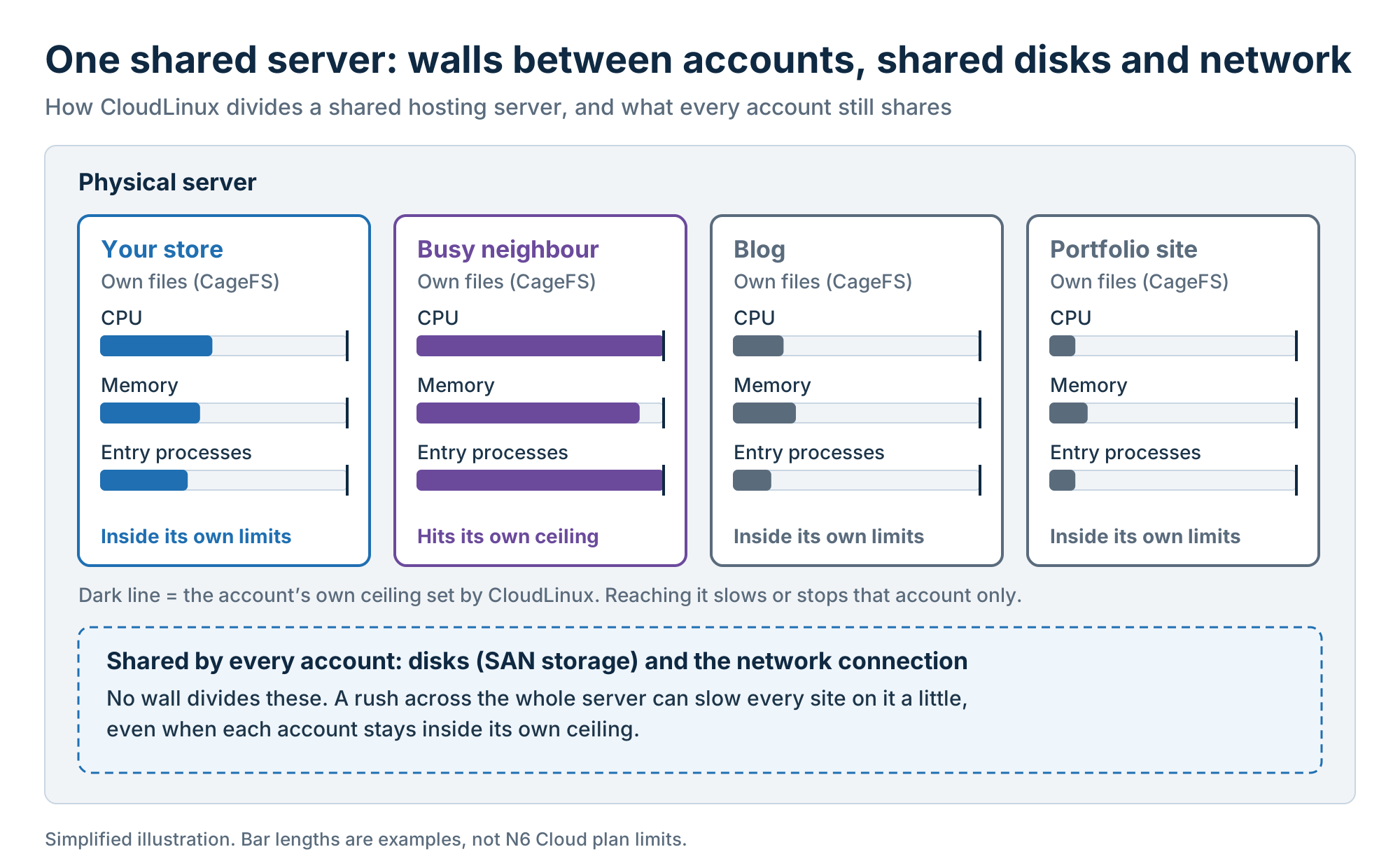 Figure 1. CloudLinux gives each account its own ceiling, but every account on the server still shares its disks and network.
What a WooCommerce-Tuned Plan Adds on Top
With managed WooCommerce hosting, N6 Cloud’s team handles WordPress updates, backups, and server performance tuning, while you keep the store running. You install WooCommerce in a few clicks with WP Toolkit, the WordPress manager inside cPanel.
The extras protect a live store and give it room to grow. Smart Update tests plugin or theme updates on a copy of your site first, and 1-Click WP Hardening applies a set of security settings at once, which Security Rollback undoes if something breaks. Redis object cache keeps answers to frequent database questions in memory, so WordPress asks the database less often. Memory climbs to 4, 8, and 16 GB on larger plans.
LiteSpeed isn’t a WooCommerce-only extra. It’s the web server, the software that answers each request, and its LiteSpeed Cache plugin saves finished pages so it doesn’t rebuild them for every visitor. Lightning Premium includes both, and on either plan the plugin works best with a few WooCommerce settings, covered in N6 Cloud’s step-by-step guide to configuring LiteSpeed Cache.
Why an Online Store Stresses a Server Differently Than a Blog
A blog can serve most visitors from a saved copy of each page, while a store runs every cart and checkout through PHP and the database. PHP builds WordPress pages on request, and the database stores your products, customers, and orders. The difference shows up in pages that can’t be cached, the limits they hit, and the days they hit those limits hardest.
Cart, Checkout, and My Account Pages Can’t Be Fully Cached
Cart, checkout, and My Account pages skip the page cache by design, because each one shows a single shopper’s details. WooCommerce’s caching guidance says they must be excluded from page caching, and LiteSpeed Cache excludes them by default. Otherwise, the next shopper could see someone else’s cart.
With nothing saved in advance, the server builds each of these pages for the shopper, using the plan’s processor and memory. The usual measure of that wait is time to first byte (TTFB), the time from a shopper’s request to the first piece of the server’s reply. Google’s guidance on TTFB treats 0.8 seconds or less as good and more than 1.8 seconds as poor, as a rough guide.
That’s why a store can feel quick in the catalogue and still be slow at the step that earns money. A slow WooCommerce checkout can be the first sign of a stretched plan, and testing your home page won’t show it. Figure 2 shows the two paths.
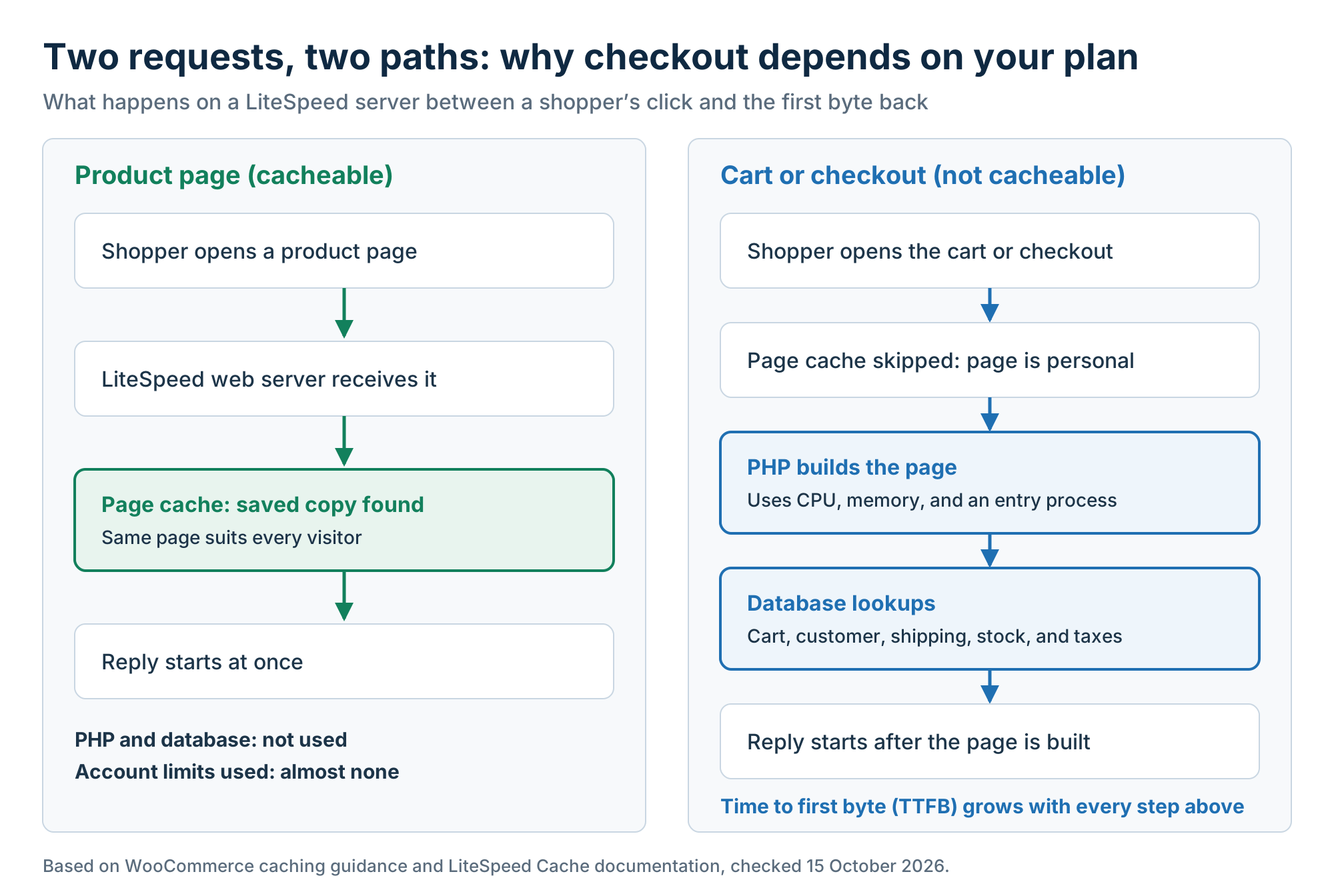 Figure 2. A product page comes back from the cache, but every cart and checkout request has to wait for PHP and the database.
You can check your own cart’s TTFB in Chrome in a few minutes. Open a private window (so you’re logged out), add a product, and open the cart. Press F12 to open DevTools, go to the Network tab, and reload. Click the cart page request at the top and open Timing: “Waiting for server response” is how long the server took to start replying, which is most of your TTFB. Reload a few times and compare the typical value with Google’s 0.8-second guide.
A single shopper is the easy case, because one checkout at a time rarely reaches a plan’s ceilings. The move from Starter buys headroom for several shoppers checking out at once. The next section explains those ceilings and what happens when a store reaches them.
The Resource Limits You Hit First on Shared Plans
Shoppers aren’t the only source of uncached requests. Cart fragments, the background requests (wc-ajax) that refresh the mini-cart in your header, are one: WooCommerce warned they could severely affect load on busy stores when they ran on every page. Since WooCommerce 7.8, they run only on pages that show the cart widget. Action Scheduler, WooCommerce’s queue for background jobs such as webhooks and Analytics data, tries to run every minute in batches of 25 tasks.
All of that load draws on the fixed limits CloudLinux sets for your account. CPU is your share of processor time, and memory is the RAM your PHP processes may use. Entry processes are the page requests your site’s PHP can handle at the same time, and I/O is how fast it can read and write to disk. According to CloudLinux’s documentation, running out of entry processes returns a 508 “Resource Limit Reached” page, and running out of memory usually returns a 500 or 503 error.
A shopper who hits the entry-process or memory limit sees an error instead of a slow page, and that order is gone. In cPanel, Metrics > Resource Usage shows your use against each limit and a table of faults, the moments you reached one. Faults during a campaign mean your store has found its ceiling.
Sales Spikes: Black Friday, the Week Before Christmas, and Your Own Campaigns
Canadian card transactions peak on Black Friday and just before Christmas, so size your plan accordingly. Moneris data for the 2025 holiday season, reported by Retail Insider, ranked Black Friday as the busiest day from 1 November to 31 December. December 23 reached 95% of Black Friday’s volume, and December 22 reached 94%, while Cyber Monday ranked 11th at nearly 79% and Boxing Day came in under half.
These figures count card payments across Moneris merchants, not visits to online stores, so they show which days are busy, not how much web traffic to expect. In 2026, Black Friday falls on 27 November and Cyber Monday on 30 November. Do the cart check described earlier in early November, while there’s still time to change plans.
Your own email campaign creates the same burst on a smaller scale. Much of its traffic arrives in the hours after it’s sent, and every shopper who reaches the cart draws on your entry processes. That’s how a small group of shoppers can reach your limits before a crowd of blog readers would.
The Price Gap Math: How Many Lost Orders Erase Your Savings?
If busy hours can slow checkout, the next question is whether a bigger plan costs more than the orders it protects. Moving from N6 Cloud’s Starter plan to WooCommerce Lightning Startup costs CAD 5.00 to CAD 17.00 more a month, depending on the billing term. For the sample store below, that’s less than one lost order a month.
The Real Price Gap Depends on Your Billing Term
The gap changes with the billing term, because the two product lines discount different terms. Shared plans give their biggest discount in the first year of a 12-month term, then renew at the regular price, as N6 Cloud’s guide to what hosting costs after the first year explains. WooCommerce Lightning Startup has no lower first-year price, but its 36-month price is half its monthly price. The table gives the monthly price for each term and the gap the WooCommerce plan adds.
Prices per month, checked on 15 October 2026, before tax. Domains aren’t included. Shared first-year prices need the intro code at checkout (for example, intro-starter), and 36-month prices are paid upfront for the full term. Gap = WooCommerce plan price minus shared plan price. Three-year totals assume today’s prices still apply at renewal.
The last column holds the surprise. On the 36-month term, the WooCommerce plan costs CAD 1.00 less per month than Lightning Premium, its closest shared match. Over three years, with each plan on its cheapest billing term, Lightning Premium costs CAD 491.64 (USD 368.64) on 12-month billing (an intro year and two renewals). Lightning Startup costs CAD 467.64 (USD 350.64) prepaid, which leaves CAD 24.00 (USD 18.00) in favour of the plan with the store tools.
A Break-Even Formula, Worked for a Small Canadian Store
The break-even point is the number of lost orders a month that wipes out the cheaper plan’s savings. Work it out with profit rather than the order total, because a lost sale also saves you the cost of the product. Your profit is what’s left after product cost, shipping, and payment fees.
Lost orders that cancel the saving = monthly price gap ÷ profit per order
Take a hypothetical store (not N6 Cloud customer data): an Ontario candle shop with an average order of CAD 70.00 and a 30% margin, or CAD 21.00 profit per order. On monthly billing, the CAD 17.00 gap divided by CAD 21.00 comes to 0.81 orders. On the 36-month term, the CAD 5.00 gap needs only 0.24 orders.
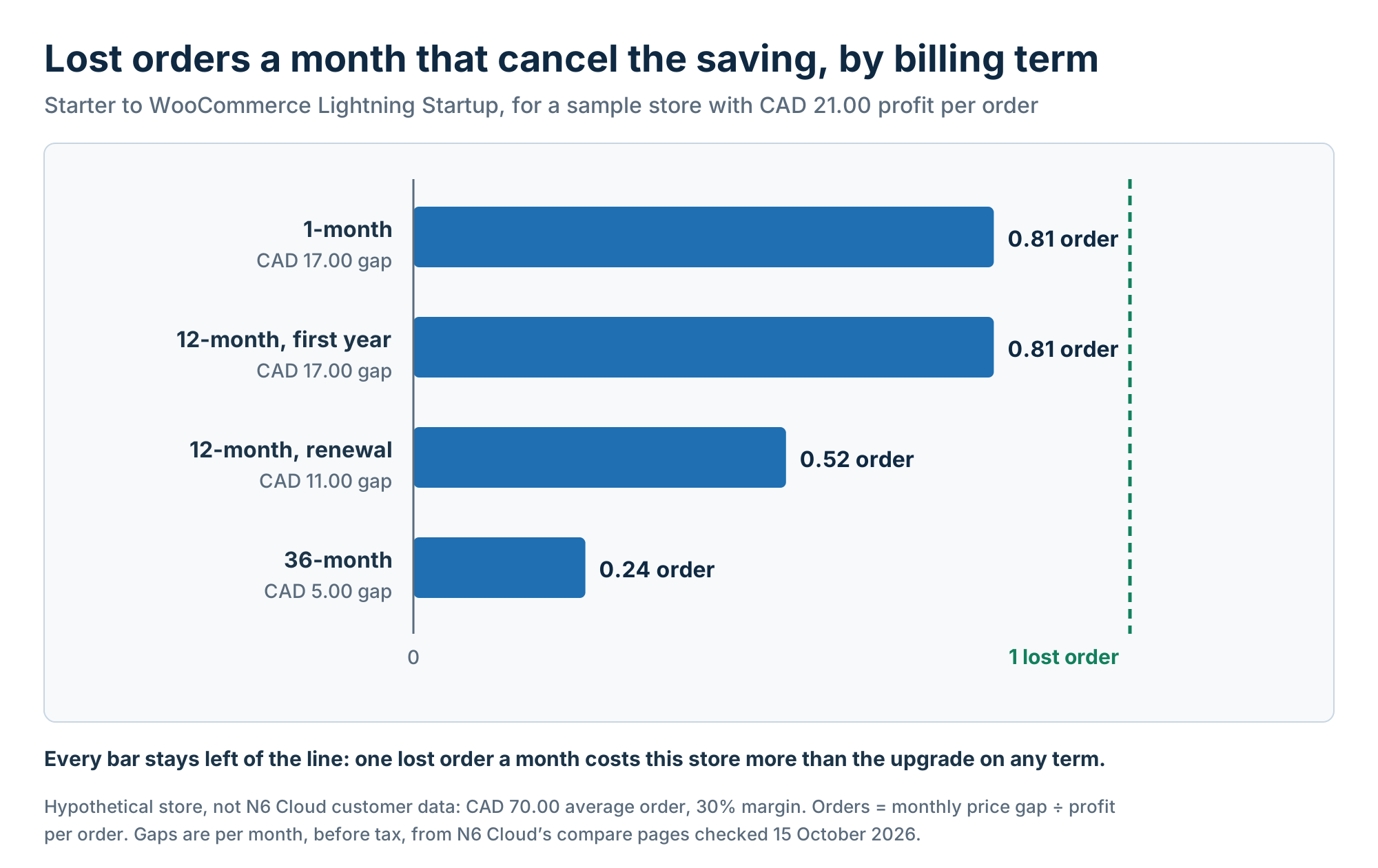 Figure 3 plots all four terms. The formula tells you how few orders the upgrade must save to pay for itself, not that it will save them; the six signs below show whether your store reaches its ceiling. Plug in your own order value and margin: a thinner margin lengthens every bar.
Figure 3. For a store earning CAD 21.00 per order, the upgrade costs less than one lost order a month on every billing term.
What Speed Research Says About Conversions
The best available study links faster mobile pages to more retail orders, making a lost order a realistic risk rather than a scare. In Deloitte’s 2020 report Milliseconds Make Millions, written for Google, a 0.1-second improvement in mobile site speed went with 8.4% more retail conversions and a 9.2% higher retail average order value. The study covered 37 brands and about 30 million mobile sessions over four weeks.
The study has limits for a small store. The brands were large European and US companies, the data was mobile-only, and the 0.1 seconds had to improve across four measures, including server response time. It’s an observed link, not a controlled experiment, so it can’t promise a set gain for your own store. Checkout TTFB is the part of page speed that your hosting controls most directly, so treat the report as a reason to measure your own checkout, not as a forecast.
Backups and Customer Data: What Changes When Your Site Takes Orders
Once a site takes orders, it holds records that have to survive a failure and be handled lawfully. N6 Cloud’s server security, backups, and data centre are the same across all three plans, so what changes is your duty as a store owner. It has two parts: backups that protect every order, and care with customer data.
Why a Store Needs a Tighter Backup Plan Than a Blog
A blog that rolls back a day might lose one draft. A store that restores last night’s backup after a failed 4 PM update gets its site back but loses every order placed since, as Figure 4 shows. That gap is why a store needs its own backups.
N6 Cloud takes daily backups on all three plans and keeps them for up to 30 days. Its Terms of Service say the included shared backup is mainly for N6 Cloud’s own disaster recovery, and that you’re responsible for copies of your content. Treat it as a safety net, not your whole plan.
The habit that protects orders is a manual backup right before every plugin, theme, or WooCommerce update. WP Toolkit in cPanel can back up your WordPress files and database together in a few clicks. If an update fails, you can restore a copy from minutes earlier. Download a full copy every week as well, so one account problem can’t take both the site and its backups.
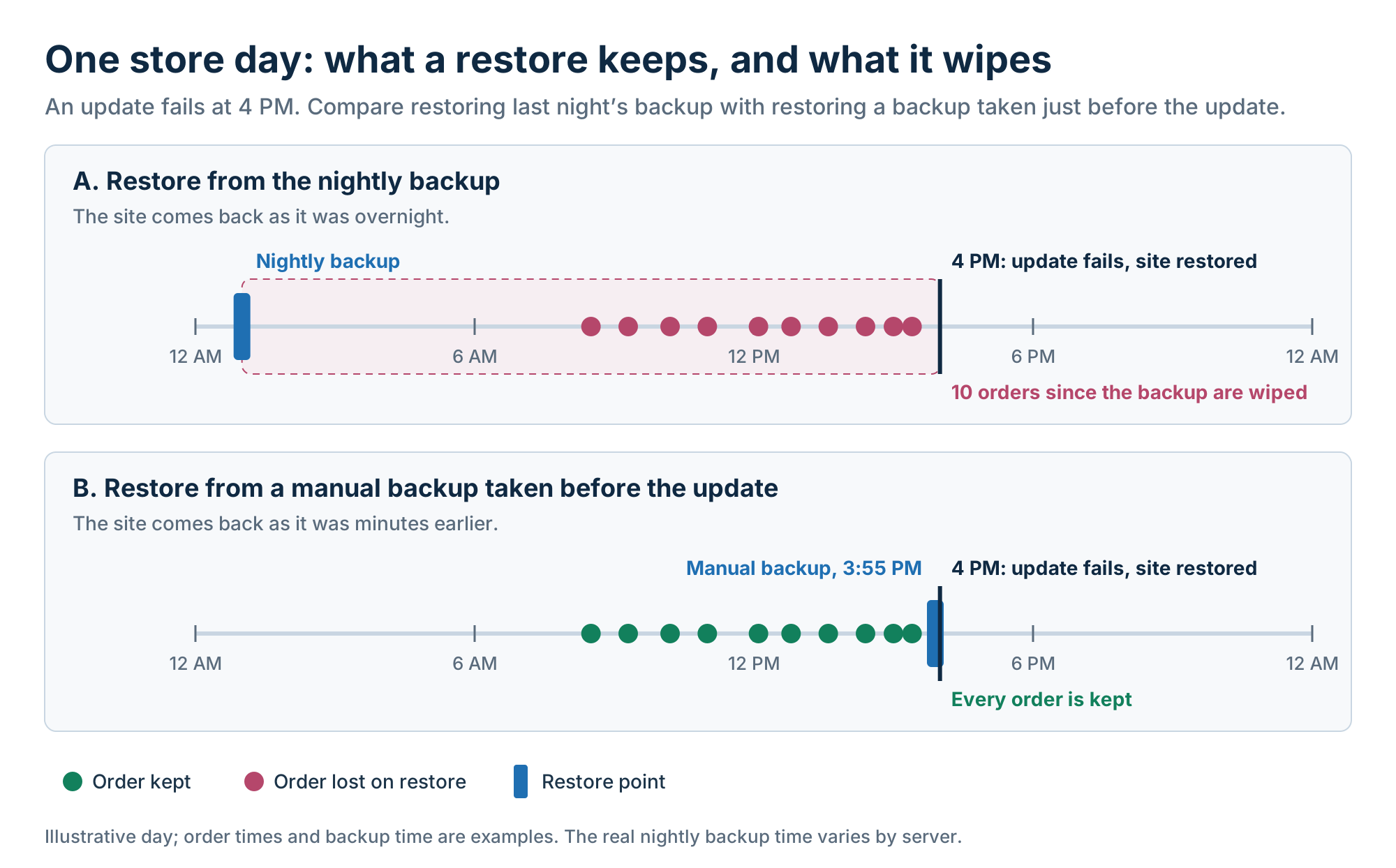 Figure 4. Restoring the nightly backup after a 4 PM failure wipes the day’s orders; a manual backup just before the update keeps them.
Where Your Customers’ Data Lives: The Canadian Angle
A WooCommerce database holds each customer’s name, contact details, addresses, and order history, so where the server sits is part of your privacy duties. Canada’s federal privacy law, PIPEDA, covers businesses that collect personal information in commercial activity. British Columbia, Alberta, and Quebec have their own laws for activity inside the province, while PIPEDA still covers data that crosses borders.
PIPEDA doesn’t require you to store data in Canada. The Office of the Privacy Commissioner of Canada (OPC) allows transfers abroad, but your business stays accountable and must tell customers, in plain language, that their data may be processed in another country. You must report a breach with a real risk of significant harm to the OPC and to the people affected. You must also keep a record of every breach for two years, whether or not it’s reportable.
Keeping data stored in Canada removes one of those questions. N6 Cloud’s data centres are in British Columbia, so your store’s customer records stay in the country. Location doesn’t replace good habits such as strong admin passwords, and card numbers are a separate matter, covered in the SSL question below.
When Shared Hosting Is Enough (and When It’s Costing You)
Shared hosting is a sound start for many stores. The move up should follow evidence rather than a hunch, and that evidence comes from screens you already have in cPanel and WooCommerce. Read them well; they tell you whether to stay, which plan comes next, and when to move.
Stores That Can Safely Start on Shared Hosting
A new store, a small catalogue with steady sales, a product test, or a shop beside a service business can run well on shared hosting. It’s the cheapest way to start: N6 Cloud runs the server while you learn what sells, and its affordable web hosting plans cover the initial setup. Shared hosting for WooCommerce stays a fair choice until your numbers say otherwise. Starter suits a product test or a very quiet shop, while Lightning Premium adds LiteSpeed caching from day one; the upgrade-path section below weighs it against the entry WooCommerce plan.
Product count matters less than most people think. A large catalogue is mostly cached pages, while each shopper at checkout needs a page built from scratch. A shop with a few orders spread across the day rarely has two shoppers paying at the same moment. No fixed number of products or orders marks the limit of shared hosting, so your Resource Usage screen is the better guide.
6 Signs Your Store Has Outgrown Shared Hosting
These six signs suggest the plan, not your store’s setup, is the bottleneck, especially when several appear together. One sign on a single day can be a fluke. If you’re asking when to move a WooCommerce store off shared hosting, the same sign during every campaign is your answer.
- Resource limit faults. Resource Usage in cPanel shows faults on busy days.
- A 508, 500, or 503 at checkout. Shoppers or test orders land on an error page.
- A slow Orders screen. WooCommerce > Orders takes seconds to open, even when the store is quiet.
- Failed payments during campaigns. Payment errors rise in the hour after an email goes out.
- Uncached cart or checkout TTFB that climbs on busy days. Repeat the cart check from the checkout section on a quiet day and a campaign day.
- Late scheduled actions. WooCommerce > Status > Scheduled Actions lists past-due or failed tasks.
Which Plan Comes Next: The Upgrade Path From Shared to VPS
From Starter, the next two steps are Lightning Premium and WooCommerce Lightning Startup, which share the same processor and memory. The WooCommerce plan adds the Redis object cache and store tools described earlier, plus larger plans to grow into, and it costs less only on the 36-month term. For a store with regular weekly sales and campaign bursts, choose WooCommerce Lightning Startup on the longest term you can commit to. Lightning Premium is a fair choice if you don’t need the store tools or you run several sites.
How you move differs too. From a Lightning shared plan, a WooCommerce plan is a simple upgrade. From Starter or Business (the larger shared plan without LiteSpeed), it’s a migration to a new account, and N6 Cloud’s guide explains the steps for a hosting plan upgrade and what changes you’ll need to make. Within WooCommerce, move up a tier when Resource Usage shows memory faults or your peaks keep growing.
A VPS (virtual private server) gives your store its own virtual server, with set processor cores (vCPU) and memory, and no other customers’ accounts on it. N6 Cloud’s Managed VPS Hosting plans, starting with Managed Start and Managed Business, suit a store with steady high traffic, heavy plugins, or settings a shared account can’t change. Managed VPS plans use the DirectAdmin control panel instead of cPanel, and Figure 5 shows what each step costs and adds.
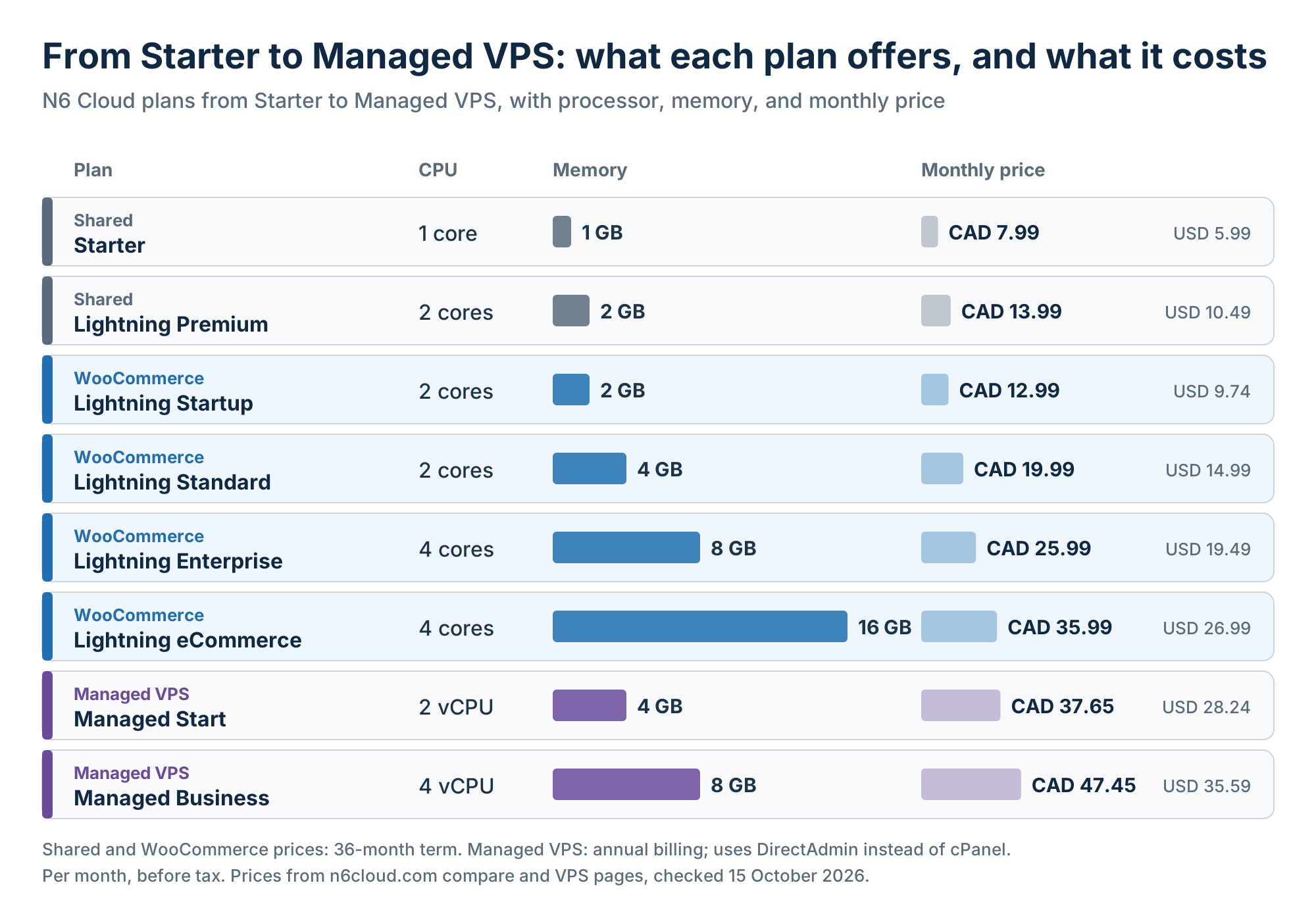 Figure 5. Processor, memory, and monthly price at each step from Starter to Managed VPS; shared and WooCommerce prices are on the 36-month term and Managed VPS prices on annual billing, checked on 15 October 2026.
How to Move Your Store Without Losing Orders
A move done in the right order, at your quietest hour, shouldn’t lose an order. If you’re moving from Starter or Business to a WooCommerce plan, or from another provider, N6 Cloud migrates the site for free. The risk is the short window when both servers could take orders, so follow these steps or agree on them with support.
- Back up everything. Download a full backup of files and the database.
- Build and test first. Set up the new site and place a test order on a temporary URL.
- Lower the DNS TTL at least a day ahead. TTL (time to live) is how long networks remember where your domain points, so a low value speeds the switch.
- Pick your quietest hour. WooCommerce > Analytics shows when orders are fewest.
- Freeze the old store. Turn on maintenance mode, then copy the database one last time.
- Switch DNS. Point the domain to the new server while the old store stays frozen.
- Check the orders. Confirm the old server’s last order is on the new one.
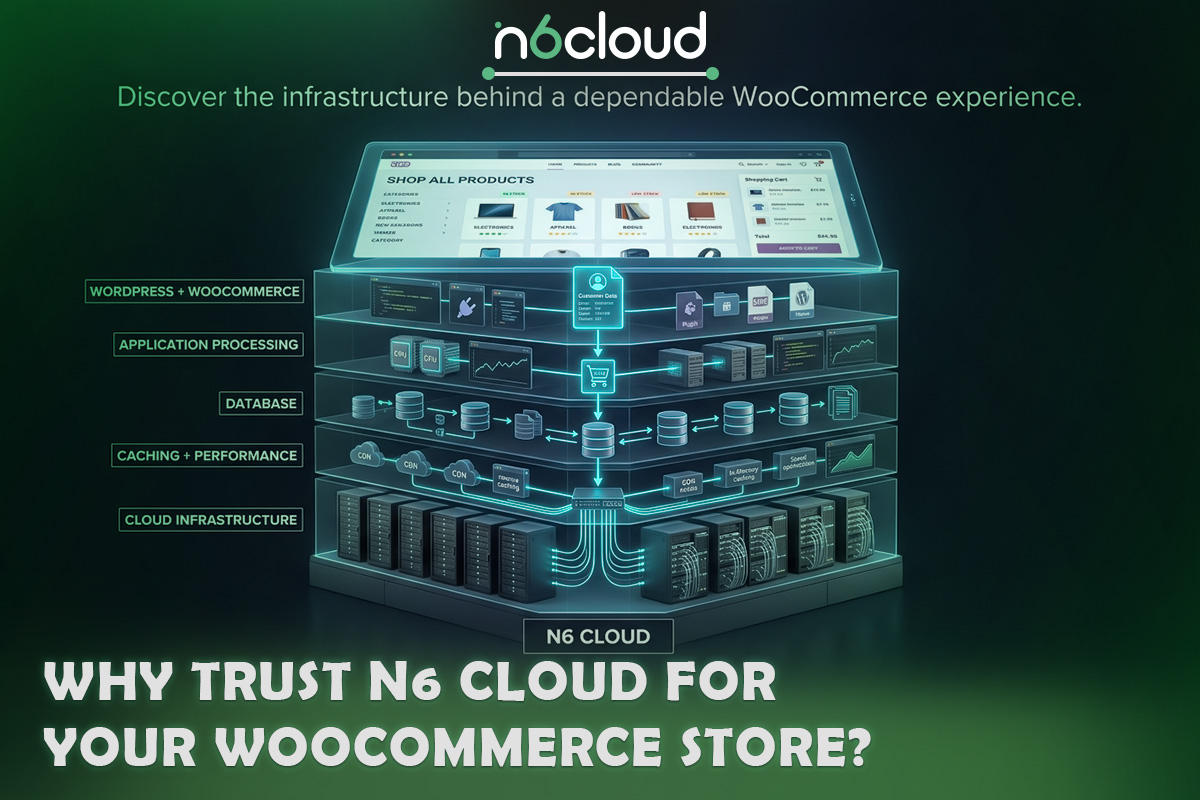
Why Trust N6 Cloud for Your WooCommerce Store?
N6 Cloud gives Canadian stores the same accountable service on every plan, keeping each step low-risk. Based in British Columbia, the company has more than 20 years of experience in web hosting and domains. Shared and WooCommerce plans keep your files on SAN storage, a separate network of solid-state drives (RAID 10 SAS SSDs). It keeps each piece of data on more than one drive, so one failed disk doesn’t take your store down. Shared, WooCommerce, and VPS plans carry a 99.9% uptime commitment, allowing about 43 minutes of downtime in a 30-day month. On shared plans, N6 Cloud gives service credits under its service level agreement (SLA) if uptime drops below that level.
A 30-day money-back guarantee lets you test a plan with your real store: move it, watch Resource Usage through a campaign, and keep the plan only if the numbers improve.
The other reasons appear above where they matter: account isolation, customer data kept in British Columbia, a path from Starter to Managed VPS, and free migration. When you weigh WooCommerce hosting vs shared hosting, start on the plan your store’s numbers support today. Then check those numbers again a few weeks before your next big sale.