At five client sites, a hosting problem costs you an evening. At 50, the same setup brings a 3 a.m. uptime alert, a plugin update that broke 12 sites at once, and 50 logins nobody has reviewed in a year. WordPress hosting for agencies is less about the server than how you run the sites on it. This guide treats hosting multiple client websites as an operation, with something to copy at each step and N6 Cloud’s own test results.
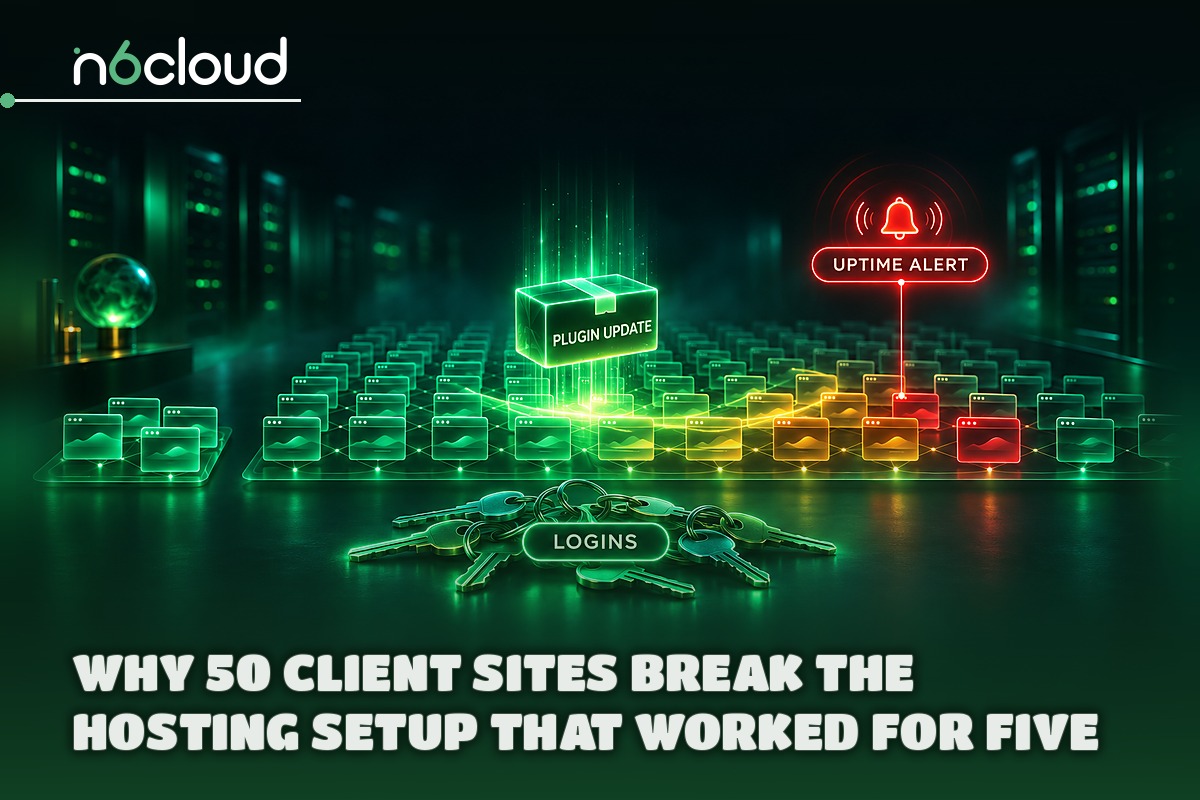
Why 50 Client Sites Break the Hosting Setup That Worked for Five
At 50 sites, the expensive part of hosting is the hours and the risk, not the server bill, so judge agency-ready hosting by what it lets you do across many sites at once. A 10-minute plugin update becomes more than eight hours when you repeat it by hand 50 times. In a 2026 vendor survey of 210 WordPress agencies and freelancers by WebPros (which makes cPanel) and CloudLinux, 65% named keeping plugins and themes updated a top security challenge.
Agency-ready hosting lets you do six things well:
- Choose your isolation: separate accounts per client or per tier, not everyone in one.
- Stage and clone each site, so changes are tested on a copy.
- Restore daily backups yourself, without waiting on a ticket.
- Update many sites from one place.
- Give staff and clients their own logins and roles.
- Reach support at any hour, at least by ticket.
Price isn’t on the list because hosting is rarely the highest cost behind a client site, as the margin example shows. The first item, isolation, is an architecture decision. It sets how far any failure can spread.
Multisite vs Separate Installs vs Separate Servers: Pick Your Architecture
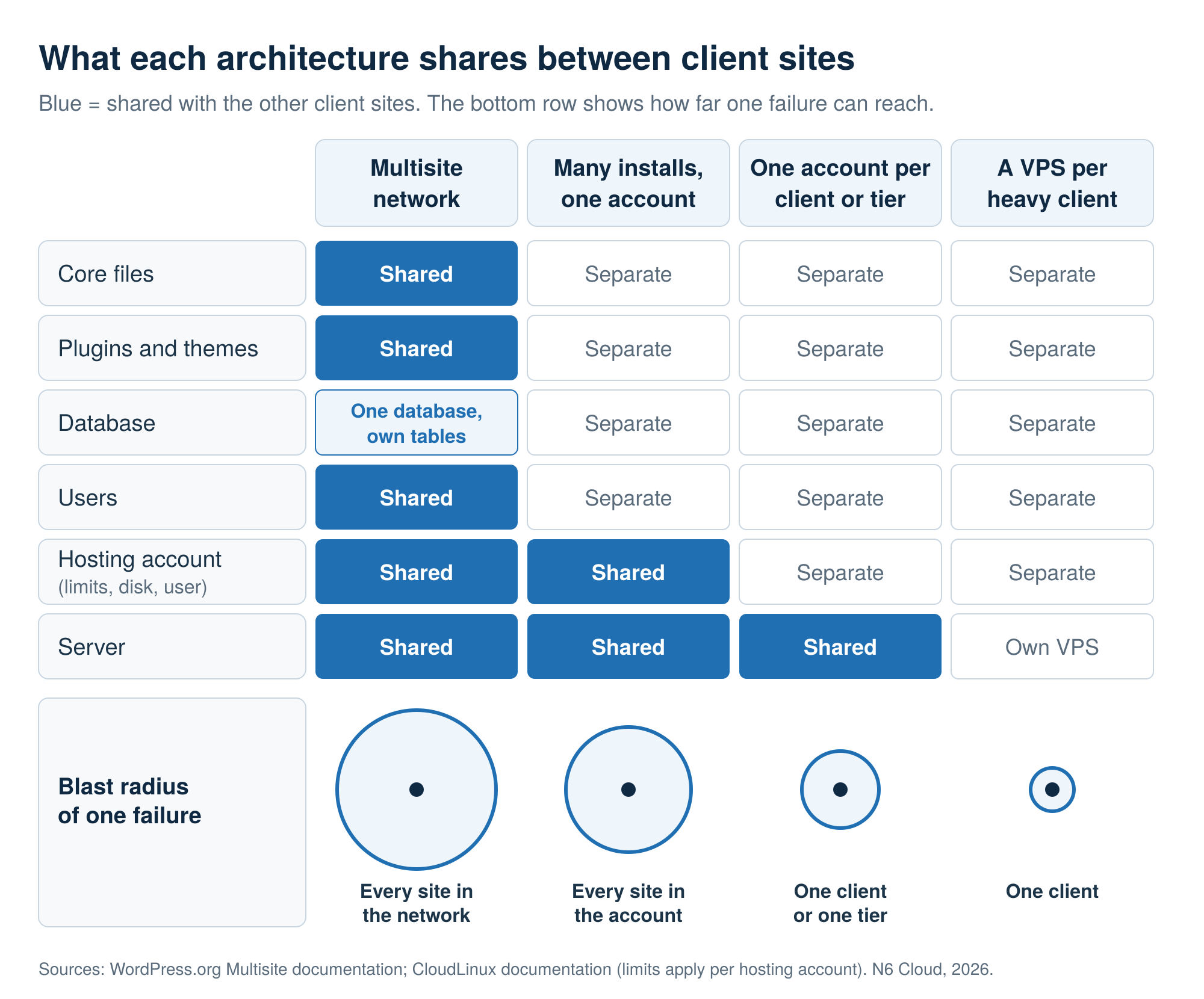
Choose your architecture by its blast radius, meaning how many client sites one failure can reach. A bad plugin or a stolen password stops at the edge of whatever the sites share. Figure 1 shows what four common setups share.
WordPress Multisite: When It Helps and When It Traps You
Multisite suits one organization’s family of similar sites and suits unrelated clients badly, because a network shares far more than a server. The WordPress Multisite documentation describes it as “a collection of sites that all share the same WordPress installation core files”, which “can also share plugins and themes”. Users sit in common tables, and only the Network Admin can install a plugin, so one update reaches every client at once. That fits a franchise with one owner and one plugin set.
The exit is where the cost shows. Moving one site out “is possible but requires some manual steps”: export its content, create a new install, import, copy the uploads folder by hand, and replace the URLs. Plugins, themes, and settings don’t come with the export, so you rebuild them. For unrelated clients, separate installs are the safer default, and the rest of this guide assumes them.
One Account or Many? Shared Fate and Noisy Neighbours
A noisy neighbour on another customer’s account is mostly your host’s problem, but the sites inside your own account share one set of limits. On servers running CloudLinux, each hosting account has caps on CPU, memory, and entry processes (PHP processes and other jobs, such as cron tasks, running at once). The caps protect other customers from you, not your sites from each other. At the entry-process limit, the server returns a 508 error “without affecting other users” (see how CPU, memory, and entry-process caps work).
The sites also share files. A cPanel account is one Linux user, and every site’s folder sits in that user’s home directory. CageFS, the CloudLinux tool that walls users off from each other, separates accounts rather than the sites inside one. Malicious code in one install can therefore read and change every other install’s files, so security is a reason to split accounts too.
N6 Cloud’s test measured this on six WordPress installs on subdomains of one Managed WordPress Lightning Startup account (a one-site plan; installs in one cPanel account share that account’s limits). While install a1 sat idle, ran a CPU-bound WP-CLI loop, and then took four concurrent uncached requests for 60 seconds, curl on the server requested a2‘s home page. Each request used a unique query string and paused 2 seconds between requests, so every request ran PHP.
Table 1. N6 Cloud’s shared-fate test: uncached time to first byte of install a2 while its neighbour a1 was busy.
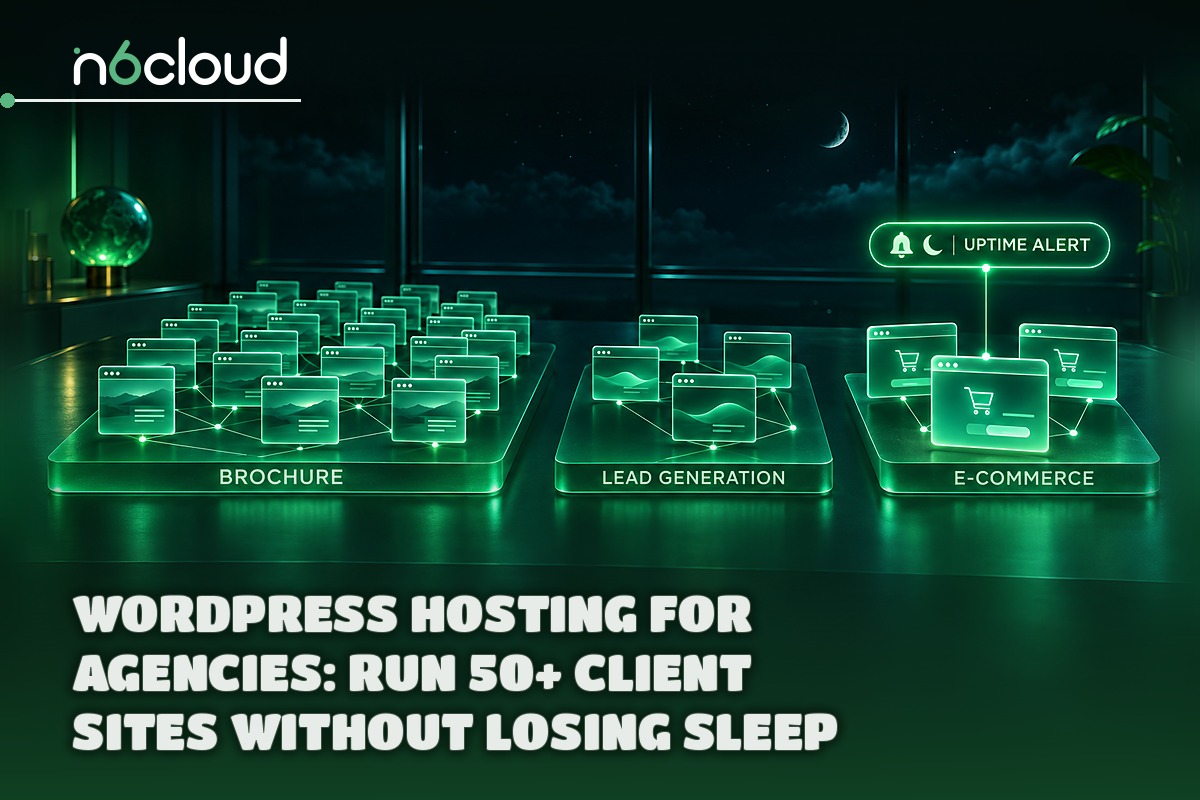
Brochure and lead-generation sites sit well on standard WordPress hosting, with one tier per account. A brochure site rarely needs managed hosting, since its pages are cached. The tiers also set who gets woken at night.
Capacity and Cost Math for 50+ WordPress Sites
Capacity is set mainly by how many PHP requests run at the same moment, not by how many sites you host, and your margin is set by hours, not by the hosting line. Both examples below are hypothetical. Swap in your own numbers.
Estimating Load per Site: Traffic, PHP Workers, RAM, and Storage
You can estimate a portfolio’s peak load from three inputs per tier. They’re peak requests per second, the share that misses the cache, and how long PHP takes to build one uncached page. A PHP worker builds one page at a time, and a request that finds every worker busy waits.
Hosting is about 3% of the brochure site’s cost and 13% of the store’s. Team hours are by far the largest line in both examples, so hosting plus a markup leaves out most of what the client is buying. Use the hosting price you’ll pay after the first year, since introductory rates end.
The Operations Stack: Updates, Staging, and Backups at Scale
Many outages at agency scale start with a change you made, so the operations stack makes every change small, tested, and reversible. Updates are the most common change. Backups undo a bad one.
Safe Updates at Scale: Staging, Batches, and Management Tools
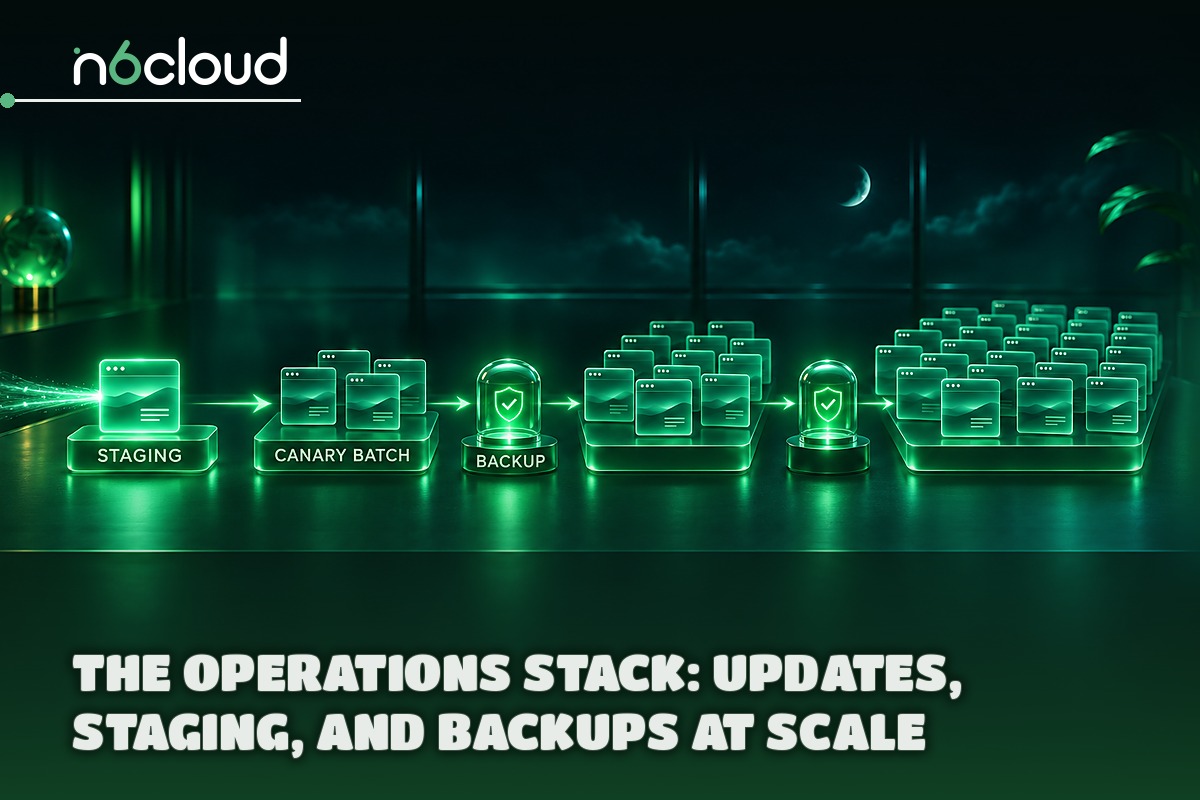
Start every client site from one base stack (a theme framework, approved plugins, and a written banned list), so one staging test covers many sites. In the WebPros survey, 45% of agencies with more than 100 sites still update sites one by one. Batches mean a bad release breaks a few sites you’re watching, not all 50:
- Test the update on a staging copy of one site per tier.
- Update a canary batch: your own site and two or three brochure sites.
- Wait about a day, watching uptime alerts and error logs.
- Update the rest of the brochure tier.
- Update the lead-generation tier, then submit a test form on each site.
- Update the stores in a quiet window, right after a backup, and place a test order.
Each batch needs a backup taken just before, one named person who decides, and a time limit. If a batch doesn’t look healthy within 30 minutes, that person rolls it back and stops the rollout. The update-and-rollback routine for one site covers the steps on each install.
Table 5. Four tools that update many sites, compared.
In N6 Cloud’s test, WP-CLI 2.12.0 ran in cPanel’s web terminal, and a dry-run loop listed one pending plugin update on all six installs in 11 seconds without changing anything. Updating that plugin on all six took 17.1 seconds with a WP-CLI loop and about 35 seconds with WP Toolkit’s mass update. WP Toolkit worked through the installs one at a time, with no confirmation step. Each tool ran once on six identical installs with one inactive plugin, and WP-CLI reused a copy it had already downloaded, so the times are a rough guide. The dry run only previews, as WP-CLI’s plugin update command documents, so it never replaces staging.
If you’d rather hand the first test to the host, managed WordPress hosting can run it, as the section on N6 Cloud near the end describes. Its checks look for page errors, not a working checkout. Keep step 6’s test order for stores.
Backups You Can Actually Restore
A backup counts only once you’ve restored from it, so keep three copies on two kinds of storage with one off-site, and time a test restore every month. That’s the 3-2-1 rule in NIST’s backup guidance for service providers. The host’s daily backup may sit in the same data centre as the site, so export each client’s files and database to storage you control, not to the hosting account’s own disk. Daily is the floor, but back up a store’s database every few hours and before every update batch, since it takes orders between backups.
A monthly restore test proves the copies work:
- Pick one site per tier, rotating through the portfolio.
- Restore its database under a new name or into a staging copy, never over the live site.
- Check pages, forms, and, for stores, recent orders.
- Write down how long it took, because your runbook depends on that number.
In N6 Cloud’s test, restoring one install from the daily backups in cPanel’s Acronis Backup took a median 39 seconds for its database over three runs. The range was 35 seconds to 2 minutes 3 seconds, with the first run the slow one. Its 250 MB folder came back in 3 to 9 seconds, but it had barely changed since the backup, so a folder that has to be rebuilt in full will take longer. The five other installs in the account were untouched. The limits are one small site, one recovery point, one server, and lab content.
By default, a file restore keeps any file created after the backup, so select “Delete any files in the original location that were created after the backup” to return the folder to its backed-up state. That matters after a hack. A database can also be restored under a new name, so you can inspect it without overwriting the live one. On N6 Cloud’s WordPress and Managed WordPress plans, the daily backups are kept for 30 days. N6 Cloud’s terms still expect your own copy off its network, which the export above covers.
The 3 a.m. Runbook: What to Do When a Client Site Goes Down
A written runbook, a checklist your team follows the same way at any hour, turns a panic into a sequence. The two parts that matter most are the first 15 minutes and what the client hears. Write it while nothing is broken.
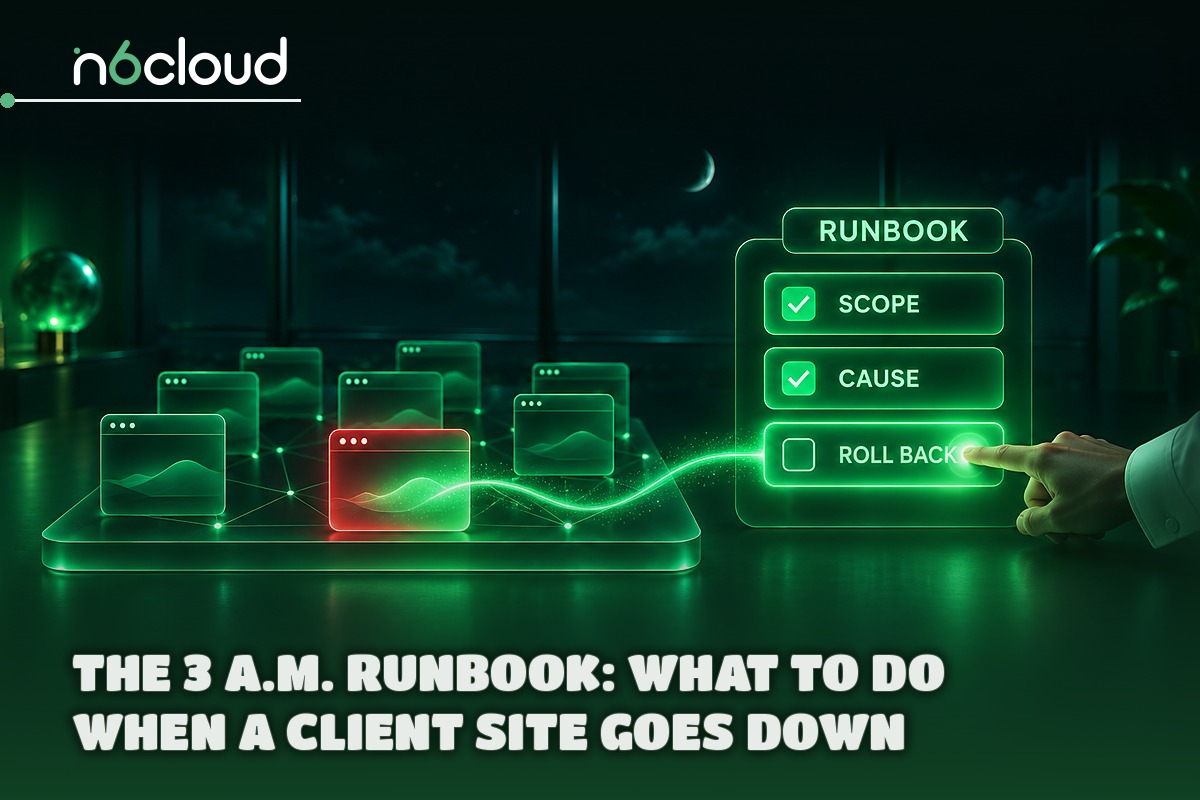
The First 15 Minutes: Scope, Cause, Roll Back
Learn about the failure before the client does. Run outside uptime checks from several locations with the text checks from Table 2, since a blank page can still return a success code. Add SSL and domain expiry checks and your host’s status page. When an alert fires, the person on call works through this checklist:
- Minutes 0 to 3, scope. One site, one account, or the whole server? One account points to a shared cap; the whole server points to the host.
- Minutes 3 to 7, cause. What changed last: an update batch, a deploy, a DNS or SSL change, or a traffic spike? Then read the error log.
- Minutes 7 to 12, roll back. Deactivate the last-updated plugin with WP-CLI or by renaming its folder, or put back its previous version. Restore the pre-update backup only when that fails, because on a store or a form site, a database restore also removes the orders and entries made since the backup. Your monthly restore test tells you how long that takes. After a hack, use the delete-newer-files option from the backups section.
- Minutes 12 to 15, tell people. Send the client the first notice below, and open a host ticket with the affected sites, the start time, and what you’ve ruled out.
- Within two business days, review. Write down what failed, why your process let it through, and one change: a banned plugin, a new batch order, or a new check.
Who Gets Paged and What the Client Hears
Decide in advance who answers which tier at night. The on-call schedule follows Table 2: stores page someone at any hour, lead-generation sites wait for business hours unless forms stay down, and brochure sites go to the morning queue. Name a backup person for alerts not acknowledged within 15 minutes, and rotate the role weekly.
The client hears from you in three short, honest messages, kept as templates. The first one promises a time for the next update, so the client doesn’t have to chase you. Leave out two things: blame before you know the cause, and a fix time you can’t keep.
1. First notice
Subject: [Site name] is down, and we’re on it
Hi [name], [site or feature] has been unavailable since [time]. We’re working on it now. Next update by [time], even if nothing has changed.
2. Progress update
Hi [name], the likely cause is [cause in plain words]. We’re [action] and expect the site back by [time].
3. Resolved
Hi [name], [site] has been working normally since [time]. The cause was [cause in plain words]. To stop it happening again, we’re [one change].
Clients, Access, and Data: The Business Side of 50 Sites
Put ownership, access, and data location in the contract before the first invoice, because each is far harder to settle during a dispute or an exit. Ownership and access decide how cleanly a client can leave. Data location decides which clients’ rules you can meet.
Ownership and Offboarding: Set Up the Exit on Day One
Put the domain and, where you can, the hosting account in the client’s name, with your agency given access, so the client keeps both if the relationship ends. Whoever holds the hosting account, write the exit terms into the contract: what you hand over, in what format, and with what notice. Every staff member and client user gets a separate login, and client editors get the Editor role rather than Administrator, so removing one person never means changing a password on 50 sites.
For a domain registered in your name, changing the registrant (the legal owner) is an update at the same registrar, while a transfer moves it to another registrar and needs an authorization code. Change the registrant for every client. When a client leaves, work through this checklist:
- Hand over a final full backup of files and database, and confirm the client can open it.
- Confirm the domain’s registrant and DNS access are the client’s, and start a transfer only if they’re changing registrars.
- Check the licence register (each plugin and theme licence, who bought it, its renewal date, and its sites), then hand licences over or explain when they lapse.
- Remove agency users, API keys, and management-dashboard connections.
- Switch off your monitoring and alerts.
- Send the documentation: plugin list, custom code, and where each login now sits.
- Get written sign-off.
- Cancel the old hosting account only after the client confirms the new host is live, since many hosts delete all data on cancellation.
- Delete your own copies on the contract’s schedule.
Keep the licence register from day one, because it’s the hardest item to rebuild later. Moving the site itself is a separate job, as the knowledgebase explains in moving a site vs transferring its domain. With these in place, an exit takes an afternoon.
Where Your Clients’ Data Lives: Residency and PIPEDA
PIPEDA, Canada’s federal privacy law for businesses, lets client data be stored outside Canada but keeps the client accountable, while some public-sector clients still need Canada-only storage. The Office of the Privacy Commissioner of Canada says PIPEDA “does not prohibit” transfers abroad for processing. The business stays responsible and must use “contractual or other means to provide a comparable level of protection”. So the protection runs down the chain of contracts, as Figure 2 shows.
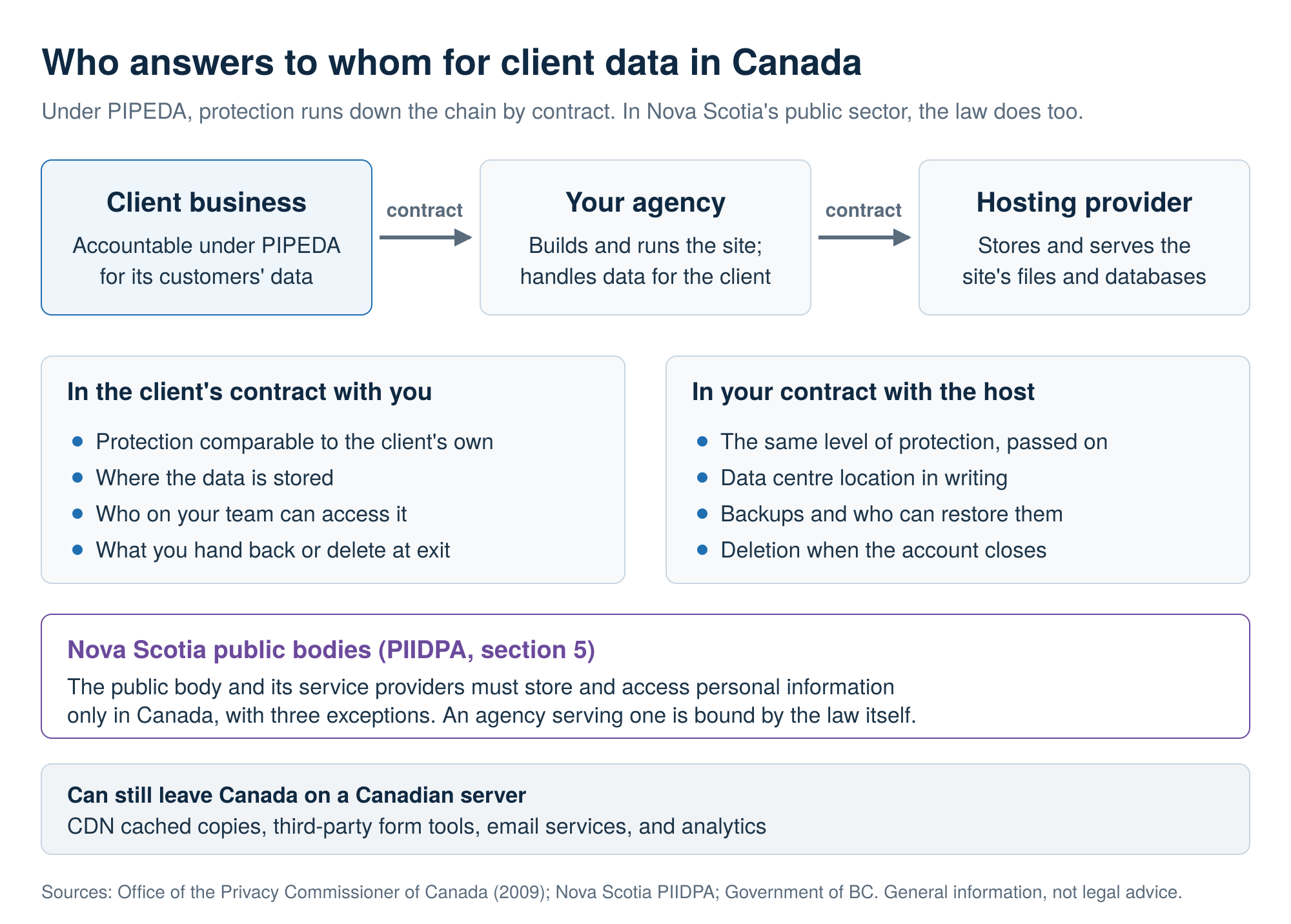
Nova Scotia is the strict case. Nova Scotia’s PIIDPA requires public bodies and their service providers to store personal information only in Canada and access it only from Canada. The exceptions are the person’s consent, a disclosure the Act allows, or the public body head’s approval. An agency building a site for a Nova Scotia municipality is bound directly. Ask the host and every form, email, and analytics provider where the data is stored and from where staff can access it, and get the answers in writing.
BC replaced its Canada-only rule on 25 November 2021 with an extra assessment for sensitive data stored abroad, as BC’s guidance on storing data outside Canada explains. In Alberta, BC, and Quebec, a provincial law covers most private businesses instead of PIPEDA. This is general information, not legal advice.
Why Trust N6 Cloud for Agency WordPress Hosting?
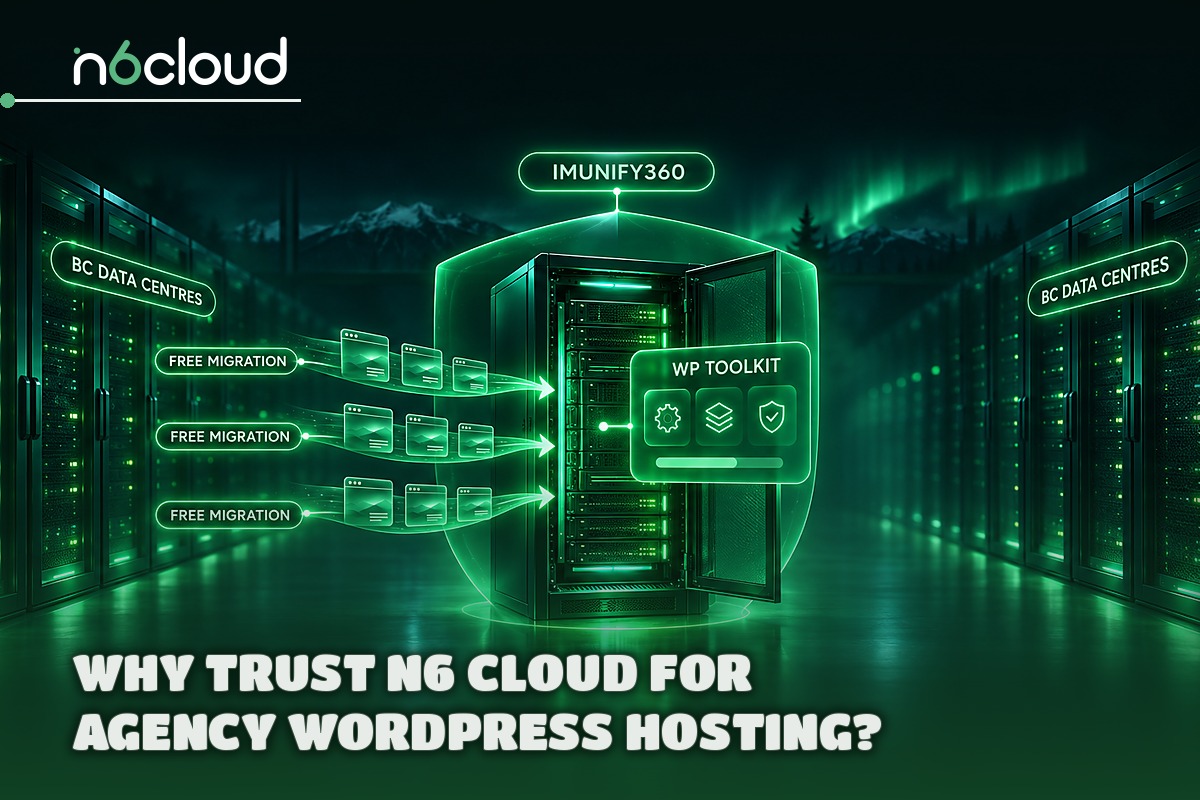
N6 Cloud’s WordPress plans cover most of the agency-ready checklist through cPanel, and its VPS line covers clients that outgrow them. N6 Cloud is a Canadian company based in British Columbia, and website files, databases, and backups are stored in its BC data centres. Clients with Canada-only rules should still ask N6 Cloud, in writing, who can access the data and from where.
On WordPress Hosting, the Business plan holds 10 websites, and the Lightning Premium and Lightning Ultimate plans have no fixed site count, within N6 Cloud’s fair-use terms and the account’s shared limits. WP Toolkit adds staging and cloning, and WP-CLI runs in cPanel’s web terminal in your browser. Imunify360 adds malware scanning, a firewall, and intrusion detection, and on Managed WordPress, Smart Update runs each update on a temporary copy first and applies it only when its checks find no new problems.
Clients who outgrow a shared account can move to a VPS with NVMe storage and full root access; the managed VPS comes with DirectAdmin (cPanel is a paid add-on), and backups are an optional add-on. Support tickets are open 24/7, live chat runs from 9:00 AM to 5:00 PM Pacific, and a 99.9% uptime guarantee and public status page back the service. Free migration has no limit on the number of sites, so each tier can move as its own batch to WordPress hosting in Canada.