
Your Express API or Flask app runs fine on localhost:3000, then you upload it and get a blank page, a 500 or 503 error, or an “It works!” message that isn’t your app. Node.js shared hosting and Python apps on shared plans are real options, and many small apps run well there, but only the way the host’s process manager runs them. Once you see how that manager works, the failures stop looking random.

Can Shared Hosting Run Node.js or Python? The Short Answer
Yes, on hosts that offer cPanel’s Setup Node.js App or Setup Python App. There, shared hosting runs small Node.js and Python apps with light traffic. The catch is that the host, not your code, decides when your app starts and stops, and most of the limits below come from that.
Why Shared Hosting Was Built for PHP, Not Long-Running Apps
Shared hosting grew up around PHP, which starts fresh for each request and stops. A Node.js or Python app is a process that starts once and stays running to answer requests. Think of a hotel front desk. PHP is a clerk paged to the desk when a guest walks in, while a Node app is a clerk who stays at the desk all night. A building with hundreds of tenants can’t give every tenant one.
Shared servers solve this with a process manager, most often Phusion Passenger, which also acts as a reverse proxy: it sits between the web server and your app and passes each request on. Passenger starts your app on the first request and keeps it for the next ones. Passenger’s default idle timeout is 300 seconds, and hosts can set it to stop even the last copy of an idle app to free memory, as our test server did. On many shared servers, Passenger runs inside the Apache web server, and servers running LiteSpeed use LiteSpeed’s own version with its own settings. The host and the plan you buy decide which of the two you get, not you. On a server you control, you choose the web server and decide when your app runs (see how shared, VPS, cloud, and dedicated hosting differ).
The price is a cold start: the first visit after the app was stopped waits while it starts again. In our test on an Apache-based shared plan, the first request after a restart, or after about 55 idle minutes, took 2.2 to 2.8 seconds. Once the app was running, 10 requests sent with a 2-second pause between them had a median of 380 milliseconds (range 229 to 629 ms). We measured from one location, so the numbers show the size of the effect, not the server’s speed.
“Supported” vs “Actually Usable”: Three Levels of Node.js and Python Support
“Node.js support” or “Python support” on a plan page can mean three different things, depending on how much of the server the host lets you use. Only the second and third let you run a web app. Here’s what each level gives you:
- A runtime for scripts and scheduled tasks. You can run a script from the terminal or from a cron job, a task the server runs on a schedule you set. A nightly script that tidies an upload folder fits, but nothing answers web requests.
- A web app through the host’s app tool. cPanel’s app tool for Node.js or Python lets the host’s process manager run your app on your domain. This is what most readers need.
- Full process control. You start and restart processes yourself, choose ports, and install system packages, which requires root access on a virtual private server (VPS) or cloud server.
To tell the levels apart, look past the language name: a plan at level 2 names the app tool. If support can’t name the app tool, assume level 1 until you’ve tested it. A Python app, such as a small booking app, needs only the Python app tool, not Node.js.

How Node.js Runs on cPanel Shared Hosting
You create the app in Setup Node.js App in cPanel, and the process manager runs it and hands it the requests arriving on ports 80 and 443, the standard web ports. That one design explains both what works and what breaks. It’s also why the port in your code stops mattering.
Set up Node.js App and Phusion Passenger, Explained
Setup Node.js App is a tool from CloudLinux, an operating system many cPanel hosts run, and its documentation calls it the Node.js Selector. CloudLinux’s guide to Setup Node.js App describes every field and button on the form. A first cPanel Node.js app takes these steps:
- In cPanel, open Setup Node.js App (under Software) and click Create Application.
- Choose the Node.js version: the one the menu marks as recommended, or a newer long-term support (LTS) release if your project needs it.
- Set the Application root (your code’s folder) and the Application URL (its web address).
- Enter the Application startup file, such as js, or bin/www with the Express generator.
- Fill in the Passenger log file field, for example myapp/passenger.log.
- Upload your code and json into the Application root, then reload the page: the Run NPM Install button appears only then.
- After each change, restart the app: click Restart, or open cPanel’s Terminal (under Advanced) and run mkdir -p tmp && touch tmp/restart.txt in the app folder.
On Create, the app tool writes an “It works!” stub under your startup file name, and your own file of that name replaces it. Before you run npm or node in the Terminal, run the activate command the page shows, so they use the app’s own environment. Packages install into that environment and are linked into your app as node_modules, so you don’t upload your own.
Both app tools take code from cPanel’s File Manager (upload a zip and extract it), from cPanel’s Git Version Control, or from the Terminal. Git Version Control clones only into an empty folder, so clone first and use that folder as the Application root. Secrets such as API keys can go in the form’s Environment variables section, so you don’t need a .env file on the server.
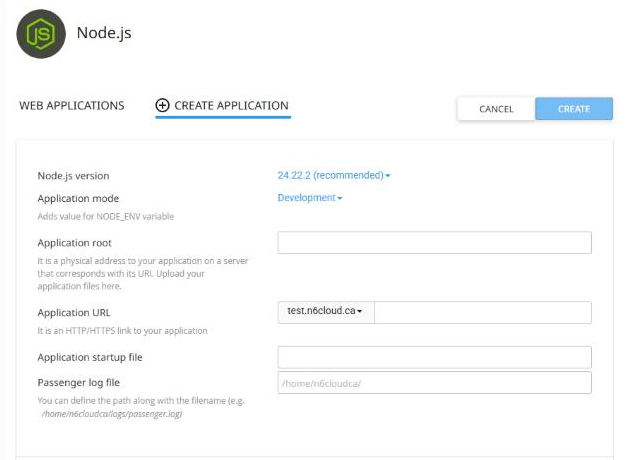
Figure 1. The Create Application form on our Apache-based test plan; the Passenger log file field is optional, and leaving it blank makes errors hard to find.
A minimal app for this setup looks like any other Express app, including the last line:
That listen() call stays, though its port does nothing. Passenger uses what it calls reverse port binding: it catches the app’s first listen() call and ignores the number. It then connects the app to the web server through a Unix socket, a private connection inside the server. As Passenger’s explanation of reverse port binding puts it, the port “has no effect”, and LiteSpeed documents the same for its own engine. In our test on an Apache-based plan, listen(3000) worked, process.env.PORT was undefined, and port 3000 didn’t respond from outside. With no listen() call, the app never started, and the browser got a 500 error after more than 50 seconds.
The version you pick limits what you can build. Node 20 and older are past end of life, so they no longer get security fixes, and Node 22 reaches end of life on 30 April 2027. Current Next.js, Vite, and Astro releases all run on Node 22.23.4 or later (Astro’s minimum), and Express 5 on Node 18 or later. On our test plan, the menu offered Node 18, 20, 22, 24, and 26, with 24 marked as recommended. Node 24 and 26 are both LTS releases, so either suits a new app.
What Works Well: Small APIs, Express Apps, Webhooks, and Bots
Apps that answer a request and then go quiet fit this design best. If you want to run Node.js on shared hosting, think of a small Express API behind a static front end or a booking form for a bike shop in Kelowna. A receiver for Stripe payment notices and a bot that gets its messages by webhook fit too. Each request starts the app or reuses the running copy, does its work, and returns. On a server that stops idle apps, as our test server did, idle time costs nothing beyond the cold start.
Express.js shared hosting works best for exactly these apps. Anything that holds a connection open or works between requests, such as a live dashboard, breaks the pattern, and a webhook blocked by the server’s security tool has its own row in Table 1 below. For these lightweight apps, a cPanel-based shared hosting plan is usually all you need.
What Breaks: Custom Ports, PM2, WebSockets, and Background Workers
Anything that manages its own process, picks its own port, or holds a connection open works against the process manager. Most attempts leave a recognizable error in the browser, in the log, or both. Figure 2 shows the request path on the two common web servers, and Table 1 lists the errors.
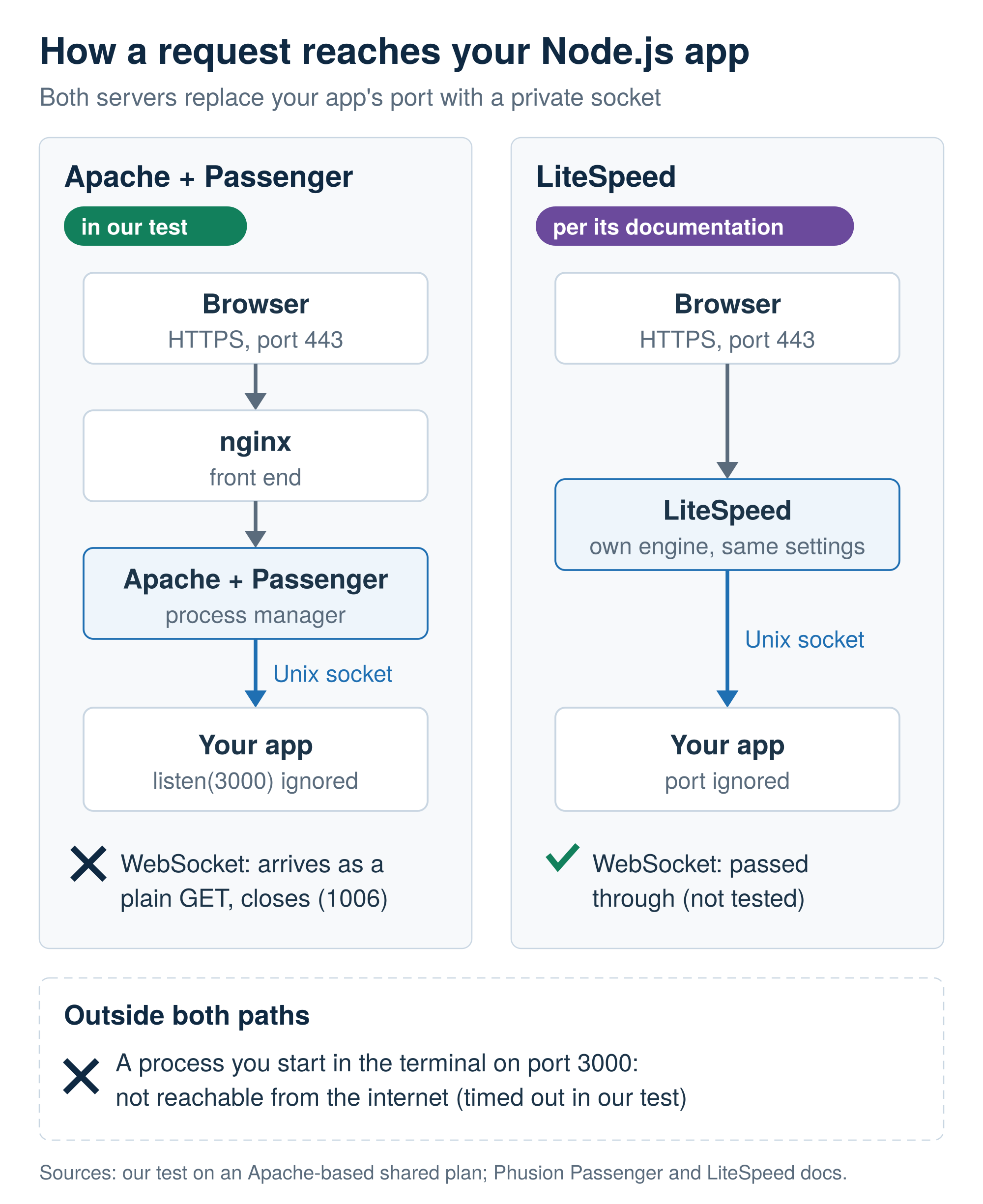 Figure 2. On both servers, a private socket replaces your app’s port; the WebSocket path is where Apache with Passenger and LiteSpeed part ways.
Table 1. listen() is called more than once, EADDRINUSE, and 503 rows come from Passenger, Node.js, and CloudLinux documentation; every other row matches our Apache test.
The log location depends on the web server. On the Apache test plan, leaving the log file field blank meant no stderr.log file, and cPanel’s Errors page showed only some notices. With the field set, every error landed in that one file, each line starting with App <pid> output:. LiteSpeed’s documentation says its servers write Node app errors to stderr.log in the application root. With LiteSpeed’s default settings, Python app errors go to the web server’s main log instead, which customers usually can’t open, so ask the host where to look.
PM2, the process manager many Node tutorials use, repeats work Passenger already does, such as restarting your app after a crash. A PM2 daemon (a background process) you start from the terminal runs outside the web server’s path, so it can’t take public traffic, and its memory and processes count against your account’s limits. Several large hosts don’t allow persistent processes like this on shared plans, and some stop them automatically. In our test, a nohup process ended when the browser terminal closed, while a PM2 daemon and a setsid process ran for about 42 minutes, until the host’s process sweep stopped both. That time reflects when the sweep ran, not a fixed limit.
WebSockets, connections the browser keeps open so the server can push live updates, depend on the web server. Passenger’s maintainers say they don’t work in its Apache module. In our Apache test, with nginx (a second web server that receives each request first) in front, the upgrade request reached Express as a plain GET. A browser WebSocket closed with code 1006 in about 135 milliseconds, three times out of three. Socket.IO can fall back to long polling, repeated ordinary HTTP requests, which we didn’t test; each waiting poll holds a request open, and more than one app copy needs Passenger’s sticky sessions. On LiteSpeed, LiteSpeed’s notes on CloudLinux selector apps say WebSockets pass through automatically to Node apps created with Setup Node.js App, which we didn’t test. Even there, many open connections strain a shared account.
Background workers don’t fit here: a queue consumer or a scraper loop has to keep working between requests, and the process manager stops idle apps. Work that fits a schedule belongs in a cron job (level 1 above), and work that must run all the time needs a VPS. A cron job that uses the app’s packages should call the environment’s own interpreter, such as /home/user/virtualenv/myapp/3.13/bin/python. Cron jobs still run inside the resource limits every shared account runs under.

What About Python? Flask, Django, and FastAPI on Shared Hosting
Python apps use the same process manager: Flask and Django run well through cPanel’s Setup Python App, while FastAPI runs only through an adapter that removes its main advantage. Passenger and LiteSpeed speak only WSGI (Web Server Gateway Interface), the standard way a Python app and a web server pass requests back and forth. Under WSGI, each request gets a worker, one copy of your app’s process, which stays busy until the response is done.
Set up Python App, Virtual Environments, and passenger_wsgi.py
Setup Python App works like Setup Node.js App, with one extra field: an entry point (default application), the name of the object the server runs for each request. Each app gets its own virtual environment, a separate folder of packages, so one app’s upgrade can’t break another. CloudLinux’s Setup Python App guide describes every button. A Flask app takes these steps:
- Open Setup Python App (also under Software) and start a new application.
- Choose the Python version, set the Application root and Application URL, enter a Passenger log file path, and click Create.
- The app tool writes a stub py in the Application root; upload your code and requirements.txt into that folder, next to it.
- Replace the contents of py with the one-line import shown below.
- Under Configuration files, add txt, click Save, then click Run Pip Install. In our test, the first install showed a red error banner even though it had worked.
- Restart the app with the Restart button or tmp/restart.txt, as for Node.
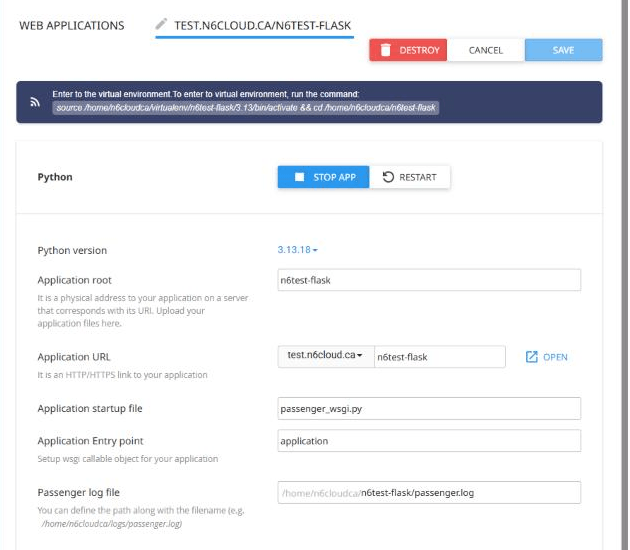
Figure 3. A new Python app on our Apache-based test plan, with the environment command at the top and a log file path filled in.
To host a Python app on shared hosting with Flask, keep the app in app.py as usual, with no changes for the server:
In our test, Flask 3 on Python 3.13 answered with that one-line file, and unlike the Node app in Table 1, it needed no prefix on a sub-path. For Django, the file imports the application from your project’s wsgi.py instead (from myproject.wsgi import application). Django wasn’t part of the test, so that line follows Django’s documentation. The wsgi.py file that startproject creates holds an object named application, and the Application root should be the folder that holds manage.py.
Check the version menu before you plan the app. Django 6.1 needs Python 3.12 or later, and Flask 3.1 needs 3.9 or later; Python 3.10 and older no longer get fixes. Our test plan offered Python 3.10 to 3.13, with 3.13 marked as recommended, plus 2.7 and 3.9, so 3.12 or 3.13 is the choice for a new app.
A small app with few writes can keep its data in a SQLite file in the Application root, outside your public web folder. Beyond that, a MySQL or MariaDB database created in cPanel is the usual route. One account can also run several apps, as our test did with an Express app and a Flask app side by side, but every app draws on the same account’s memory and process limits.
Flask and Django Fit; FastAPI Runs Only Without Its Async Advantage
Flask and Django apps written the usual, synchronous way were built for one request per worker, so they lose nothing. ASGI, WSGI’s asynchronous successor, lets one worker wait on many requests at once and keep connections open, which is why FastAPI normally runs under Uvicorn, an ASGI server. Figure 4 shows the WSGI vs ASGI difference under load.
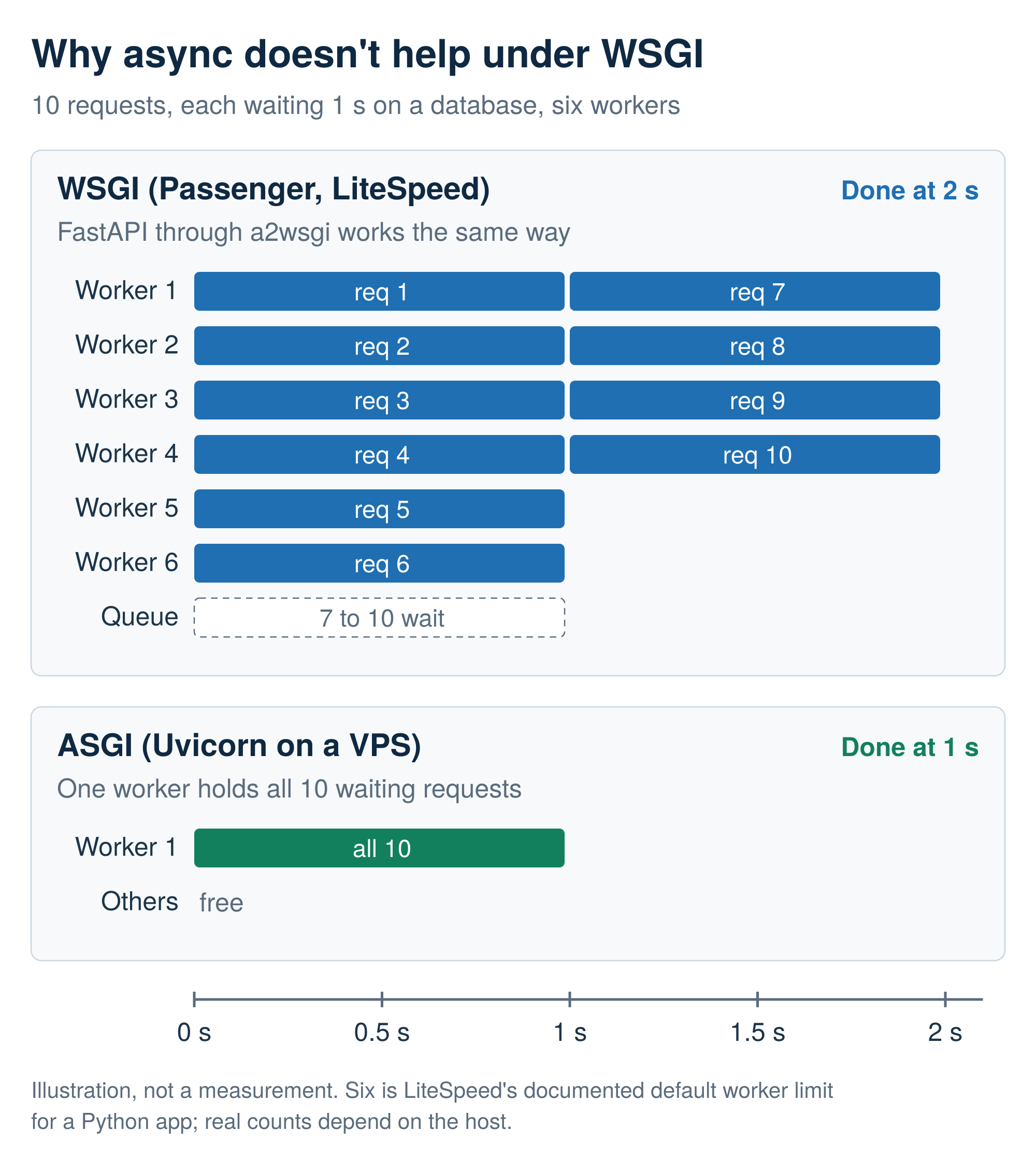 Figure 4. Under WSGI, requests 7 to 10 wait for a free worker and finish a second late; wrapping FastAPI with a2wsgi doesn’t change that.
The a2wsgi package bridges the gap. Its ASGIMiddleware wraps a FastAPI app as a WSGI app inside passenger_wsgi.py:
In our test, the wrapped app answered, and its /docs page loaded. Without the wrapper, the browser got a 502 “Incomplete response received from application”, and the log showed TypeError: FastAPI.__call__() missing 1 required positional argument: ‘send’. That’s what an ASGI app loaded as WSGI looks like.
The wrapper fixes compatibility, not speed. Every request still holds a worker for its whole wait. WebSockets can’t pass through WSGI, and a long-lived stream, such as server-sent events, holds a worker for as long as it stays open. Django’s and Flask’s documentation say the same of their async views under WSGI. Celery and other task queues need a worker running all the time, so they’re a job for a VPS.
Build Locally, Host Static: React, Vue, Astro, and Next.js Without a Node Server
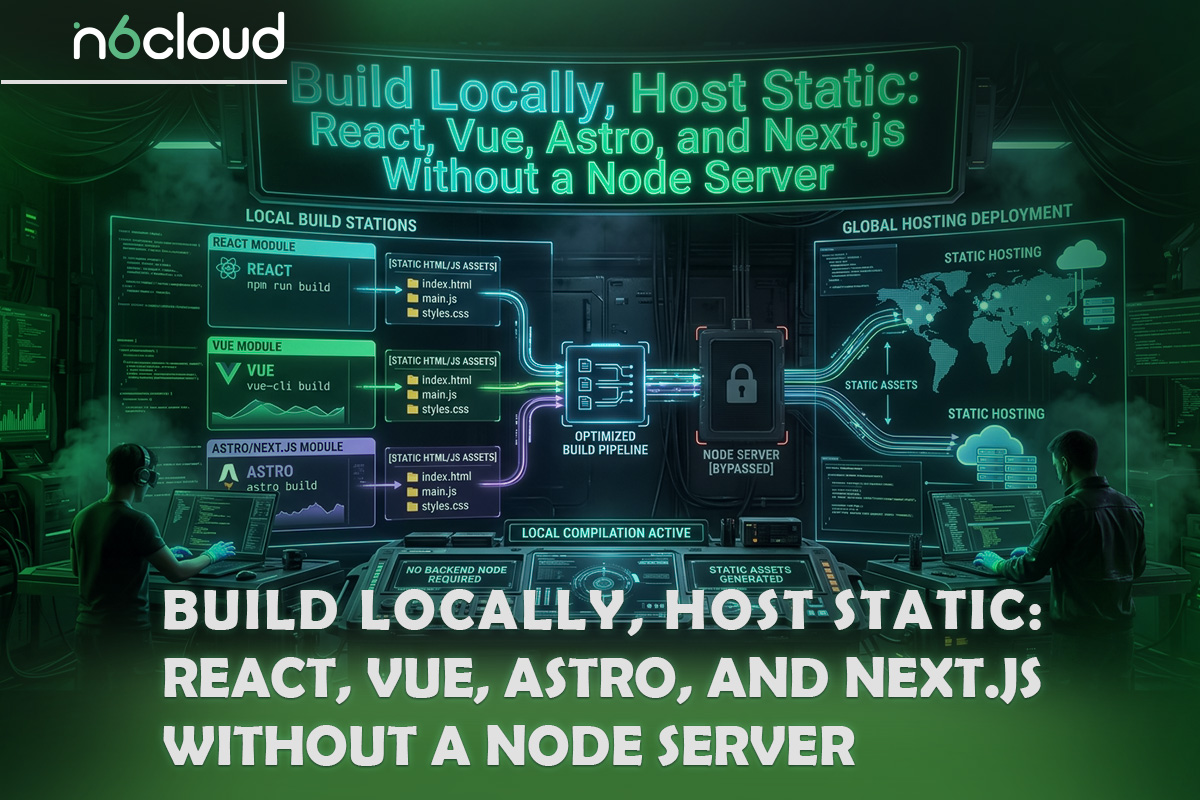
Many front-end projects need Node only to build them, so build on your own computer and upload the HTML, CSS, and JavaScript. Running vite build writes the site to a dist folder, Astro pre-renders pages as static files by default, and Next.js with output: ‘export’ writes an out folder. Any shared plan serves the uploaded contents as ordinary files, and building locally sidesteps the memory limit, which CloudLinux warns can stop npm run build on the server.
A Next.js static export has limits. The Next.js guide to static exports lists what it can’t do, including cookies, redirects, rewrites, Incremental Static Regeneration, default image optimization, Server Actions, and API routes that read the request. If you need those, an output: ‘standalone’ build produces a small server.js, and LiteSpeed documents running it as the app’s startup file. That needs a supported Node version and an app that fits the account’s memory. We found no documentation for it on Apache with Passenger and didn’t test it there, so plan on LiteSpeed or a VPS.
Anything dynamic can live in a small API. The static front end calls an Express or Flask app that runs through the app tool on a subdomain such as api.example.com. Pairing a static site export with a small API keeps cold starts off your home page: a React portfolio’s contact form waits for the app to wake up, but the pages don’t.
Shared Hosting vs VPS vs Cloud Server for Node.js and Python Apps
When you weigh Node.js hosting vs a VPS, the dividing line is the process. Shared hosting fits apps that answer requests and go quiet, and a VPS fits apps that need a process running all the time or root access. A cloud server fits the same apps as a VPS when traffic rises and falls.
Verdict Table: Which Project Fits Which Hosting
Table 2 applies that process test to six common projects, from a portfolio to a scraper. Each reason comes from the sections above. “Fits with limits” means the app runs, but you’ll notice cold starts or the account’s resource limits.
Table 2. Verdicts by project type, based on the behaviour described in this guide.
Two rows carry a second reason. Hosts’ terms of service can also exclude chat apps and scrapers on shared plans, so read them before you build either one. For decisions that aren’t about apps, such as traffic, security, or price, see the full shared vs VPS comparison.
5 Signs Your App Has Outgrown Shared Hosting
Five signs about the app, not the website, tell you shared hosting is now in the way. Most are limits of the platform, not of your plan’s size. If one describes your project, no setting in the app tool will fix it.
- The app needs a process running between requests: a worker, a queue, or a scheduler that cron can’t cover.
- It needs WebSockets or many open connections at once.
- It needs Docker, Redis, or system packages, which need root access; Docker also needs kernel-level access, and on a VPS, a self-hosted deploy platform like Coolify brings back push-to-deploy.
- It needs a runtime version or an ASGI server, such as Uvicorn, that the host doesn’t offer.
- You see repeated 503 errors or memory kills during builds or busy periods (see Table 1).
A VPS gives you a server of your own, within its share of the hardware. With VPS hosting with full root access, you run Node under PM2 or Python under Uvicorn behind Nginx, open WebSockets, and install the packages the app needs. Someone also has to apply security updates, watch disk space, and restart services, and that’s you unless you pay for it. Read whether a managed or unmanaged VPS suits you before you choose.
Traffic that rises and falls points to a cloud server instead. A cloud server billed by the hour can be resized from the control panel, so a ticketing app that’s busy for two weeks before a festival pays for the larger size only during those weeks. The setup work matches a VPS; only the billing follows the load.

Before You Buy: A Node.js and Python Hosting Checklist
If your project landed in the “Fits” column, six questions to the host and three day-one steps show whether it will run there, before you move any real code. Ask the questions in a pre-sales ticket and keep the replies. The day-one steps then catch Table 1’s problems while the app is still small enough to debug.
- Does this plan include Setup Python App and Setup Node.js App, not just the languages?
- Which versions does it offer, and are they still supported (see the version dates earlier)?
- Which web server runs the apps, Apache with Passenger or LiteSpeed? It decides whether WebSockets work.
- Do I get a terminal, and is it web-based or SSH from my own computer with a key?
- How much memory and how many processes does my account get?
- What do the terms of service say about long-running processes and chat apps?
- On day one, deploy a hello-world app, set the Passenger log file, and add a deliberate syntax error to the app’s code to check that the error reaches the log.
- Give a Node app its own subdomain, unless its routes include the sub-path.
- Deploy the real app in steps (install packages, start it, then add one route at a time), and load it again after an idle hour.

Why Trust N6 Cloud for Node.js and Python Hosting?
N6 Cloud sells the Node.js and Python shared hosting described here, so read this section as the host’s own answers to the checklist. Every shared plan lists Node.js, Python, Ruby, and Perl support, and on our test account Node.js and Python came as Setup Node.js App and Setup Python App in cPanel. The plans run CloudLinux Pro with per-account limits and CageFS, which keeps each account in its own file system. This guide’s test ran on an N6 Cloud shared account on an Apache server, so the version menus described in the setup sections are the ones on N6 Cloud’s test server. Every plan also has a web-based terminal, Git, and cron jobs.
The web server depends on the plan. Starter and Business run Apache with nginx in front, the setup where the test showed WebSockets failing, while Lightning Premium and Lightning Ultimate run LiteSpeed, which LiteSpeed documents as passing WebSockets through. N6 Cloud’s terms of service don’t allow interactive chat applications on shared hosting, so a chat app belongs on a VPS either way. The terms also exclude data processing outside of serving web pages, which rules out scrapers. Persistent processes you start yourself, such as PM2, bots, and queue workers, aren’t allowed on shared plans and are stopped automatically. Apps run through the app tools are fine, and so are cron jobs.
Daily backups are kept for up to 30 days, and all N6 Cloud shared hosting servers are in British Columbia. Ticket support runs 24/7, and live chat is open from 9:00 AM to 5:00 PM Pacific Time. An app that runs on one of the five supported environments can move to an N6 Cloud VPS or cloud server, also hosted in Canada. The plans and their features are on the page for shared hosting with Node.js and Python support.