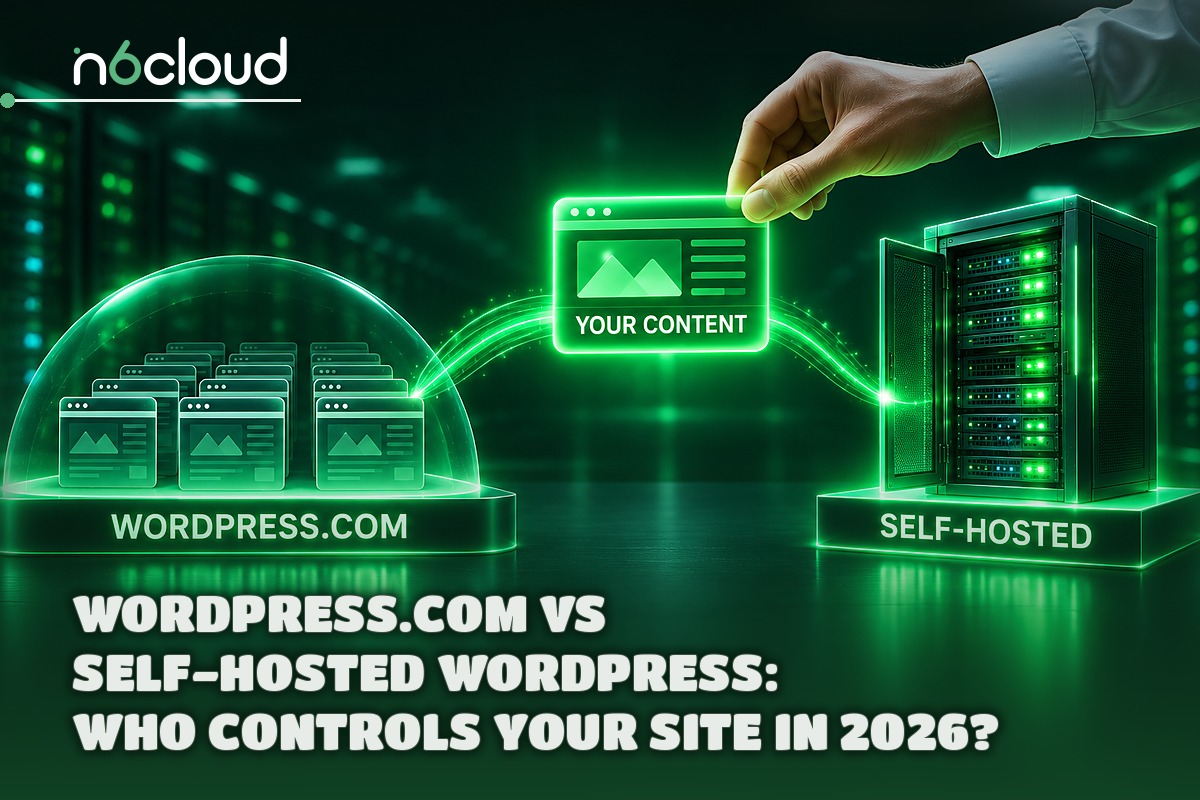
Most advice on WordPress.com vs. self-hosted WordPress still says you need WordPress.com’s Business plan to install a plugin. That changed in April 2026, when plugins came to every paid plan, starting with the cheapest. The choice between WordPress.com and WordPress.org now comes down to control: who runs the server, where your site is stored, what you can restore yourself, and what comes with you when you leave.
Your content is yours on both. What you rent on WordPress.com is the setup around it, including the country your site runs in, and if you skip one setup screen, your first plugin install decides that country for good. N6 Cloud, a Canadian host, wrote this guide, and it says plainly where WordPress.com is the better buy, which for many simple sites it is.
Same Name, Different Products: WordPress.org vs WordPress.com
WordPress.org is the free, open-source software you install on hosting you choose, and people mean self-hosted WordPress when they say that. WordPress.com is a hosted service from Automattic that runs the same software for you on its own servers, with free and paid plans. The software is released under WordPress’s GPL licence, so anyone can download it, change it, and run it on their own server, with no licence fee.
Running it yourself needs a server that meets the WordPress server requirements: a recent version of PHP (the language WordPress is written in), a MySQL or MariaDB database, and HTTPS support. WordPress.org adds that any server supporting PHP and MySQL will do. A host rents you space on such a server, and you install and run the site, which is how WordPress hosting works in practice.
On WordPress.com you don’t rent a server. You open an account on a platform and choose one of five plans: Free, Personal, Premium, Business, or Commerce. The dashboard looks almost the same as on self-hosted WordPress, with the same editor and menus, which is why people mix the two up, but the plan decides what that dashboard lets you do. Those plan rules changed three times in 2026, and the next section sets out what each change means for you.
Can You Install Plugins on WordPress.com? Yes, on Any Paid Plan
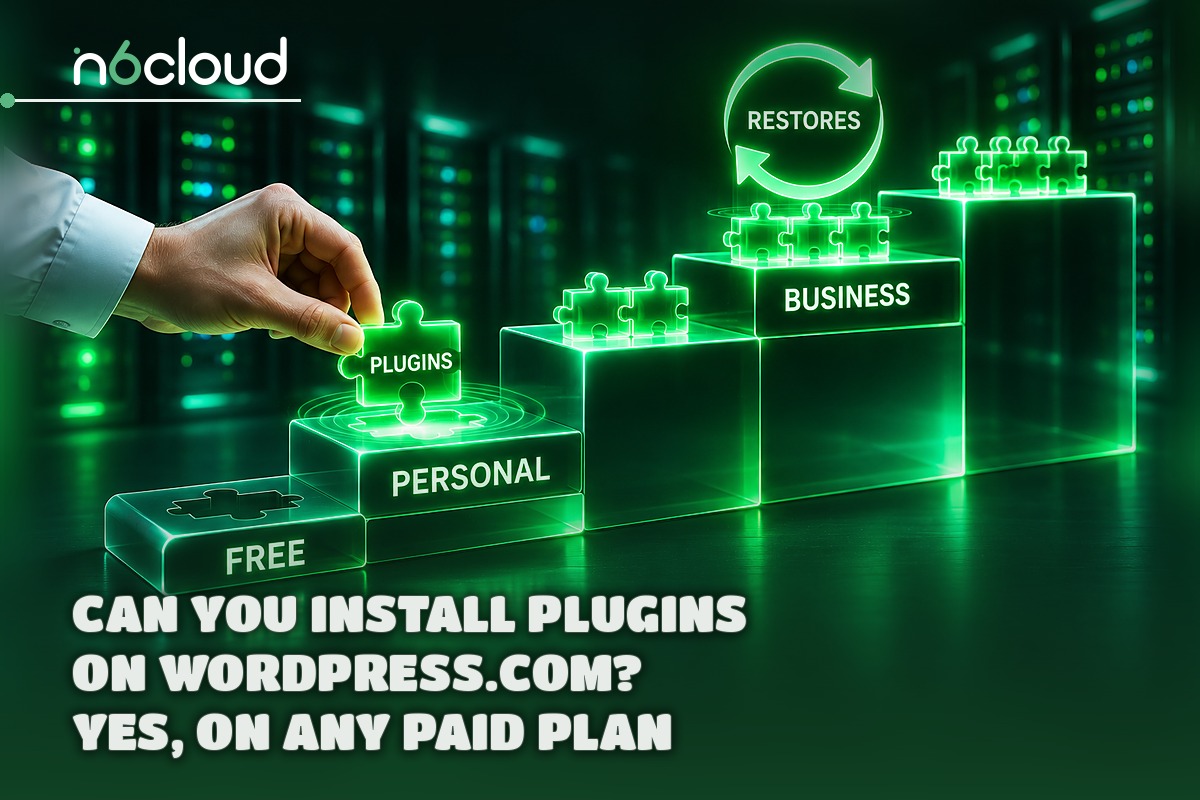
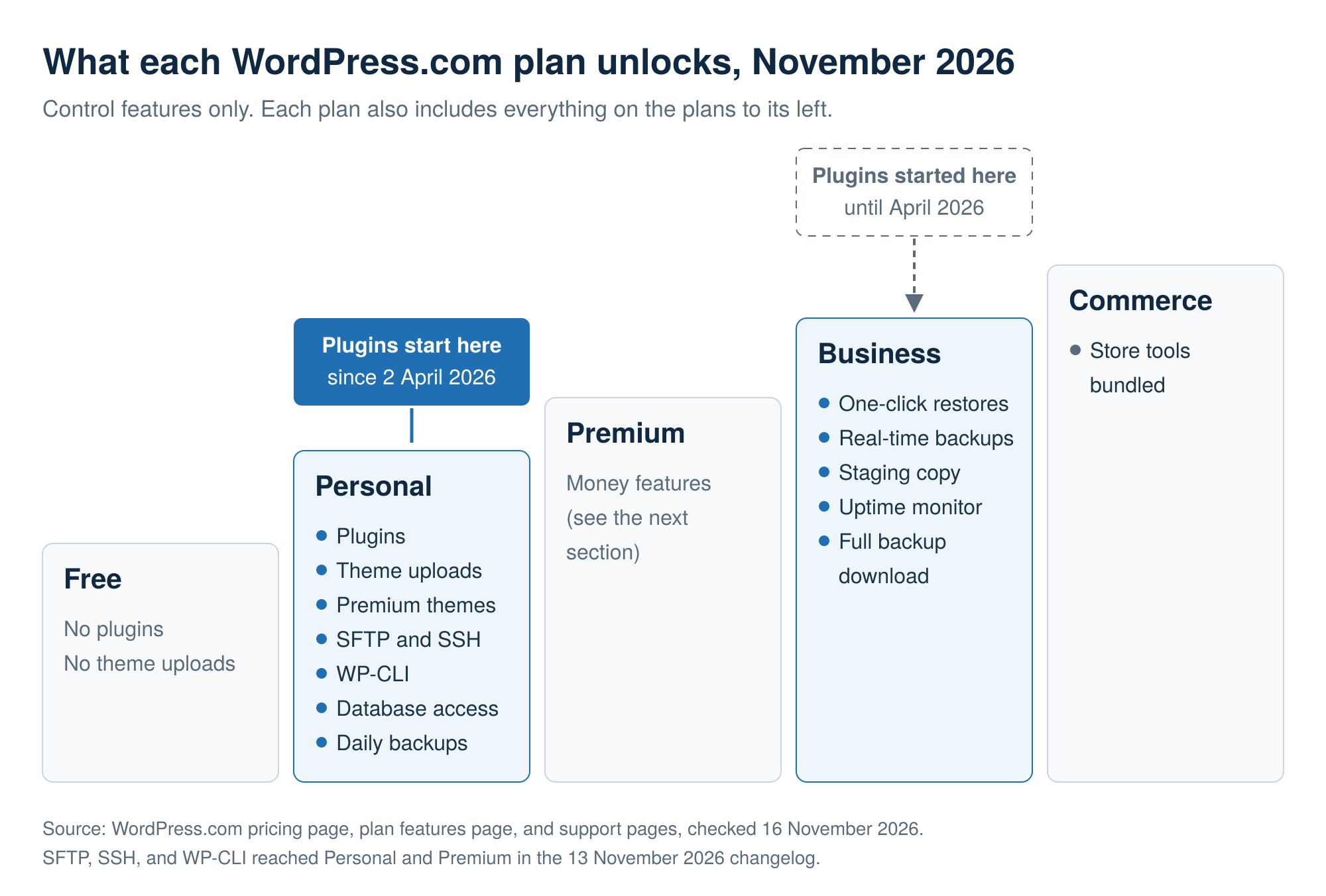
Yes. Since 2 April 2026, every paid WordPress.com plan, starting with Personal, can install plugins, and the Free plan is now the only one that can’t. In October 2026, Personal gained premium themes and the right to upload your own theme. WordPress.com’s changelog of 13 November 2026 then gave Personal and Premium SFTP and SSH (secure ways to reach the site’s files and command line) and other developer tools. Both plans now include database access too.
Many guides still say you need the Business plan for plugins, which was the rule until this year. What Business adds now is the safety net. It brings one-click restores you run yourself, full backup downloads, real-time backups, uptime monitoring, and a staging copy: a private copy of your site where you test changes before visitors see them. Daily backups start at Personal, but only Business and Commerce let you restore from them yourself.
Some limits apply on every plan, because WordPress.com runs one platform for many sites and protects it. A short list of plugins stays blocked “because of the risks they present”, in WordPress.com’s words. It covers caching plugins such as WP Super Cache, some backup tools such as BackWPup, database-heavy plugins such as Post Views Counter, and file or database tools such as File Manager. A blocked plugin uploads but won’t activate, and the platform runs caching, the server, and WordPress core updates itself.
Most small sites never notice these limits. They matter when your site depends on one of those tools, such as a backup plugin your developer already uses, so check WordPress.com’s incompatible plugins list before you pay. Figure 1 shows which plan unlocks each control, from plugins to staging.
WordPress.com vs Self-Hosted WordPress at a Glance
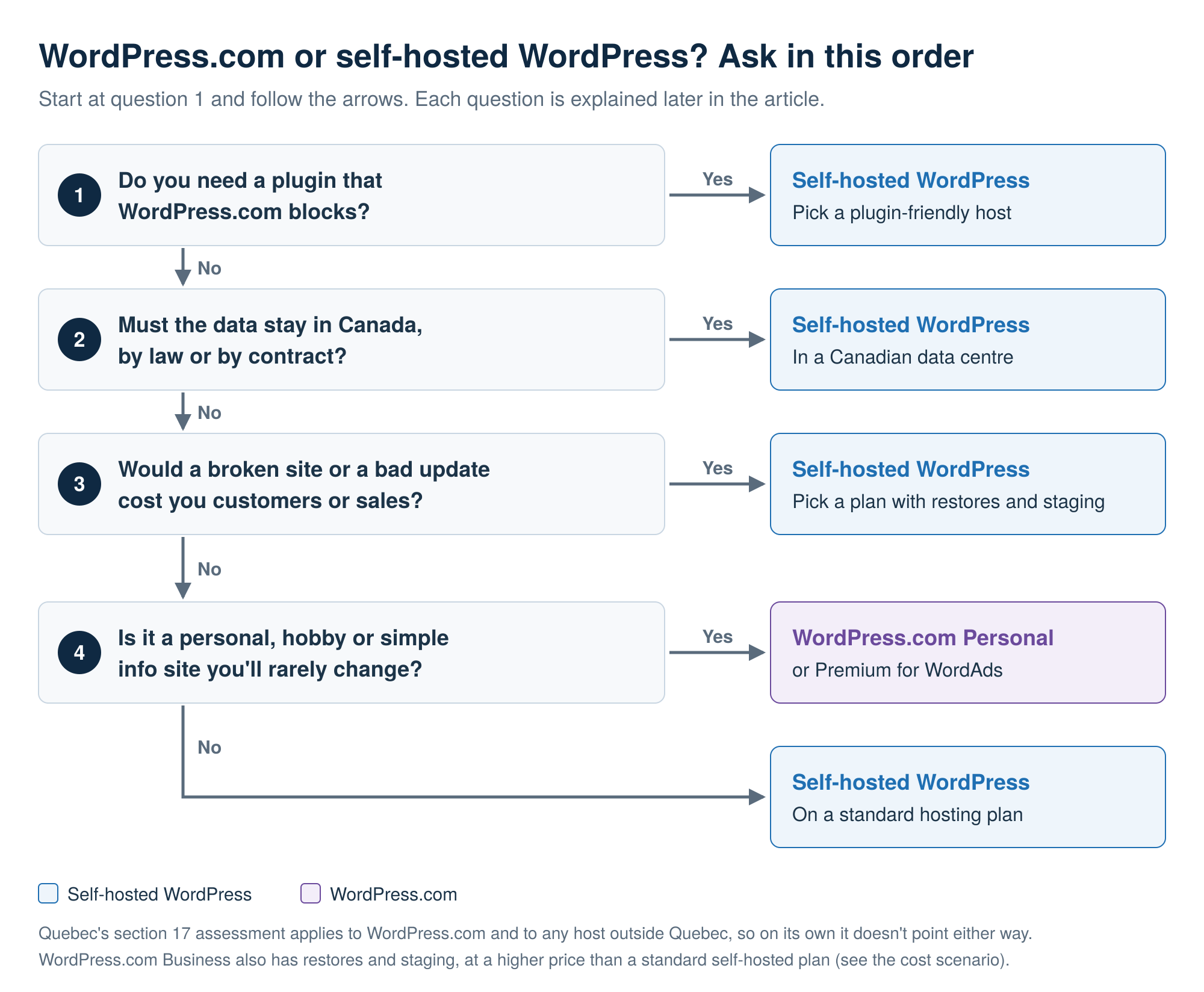
Feature for feature, the two paths now overlap, and the differences that matter most are server control, data location, restores, and the exit. The self-hosted column describes self-hosting in general, because the details depend on the host. Figure 2 at the end of this section turns the differences into four questions to ask in order.
Table 1. WordPress.com and self-hosted WordPress, row by row (WordPress.com plan rules as of November 2026).
The money rows change plan by plan. The Free plan shows WordPress.com’s own ads, and any paid plan removes them. To earn from ads yourself, WordAds (WordPress.com’s ad program) needs Premium or higher plus a custom domain, while networks such as Google AdSense work from Personal up through code in the site’s header.
WordPress.com’s own payment and paid-subscription features also take a fee: 10% on Free, 8% on Personal, 4% on Premium, 2% on Business, and 0% on Commerce, plus Stripe’s processing fee. The free WooCommerce plugin runs on any paid plan, and a classic theme’s footer credit comes off only on Business or Commerce. On self-hosted WordPress, the only cut is your payment processor’s.
The Real Cost Over 3 Years
For a simple site, WordPress.com Personal is the cheapest path over three years, and no self-hosted plan in this comparison beats it. Self-hosting becomes the cheaper option once the site needs the features WordPress.com keeps for Business. The two parts below show how: first, what each path charges for, then the bill for one small business site.
What Each Path Charges For
WordPress.com charges one plan price that covers the software, hosting, and the platform’s upkeep, so your bill depends on the features you need. Prices exclude tax, and billing yearly costs much less than monthly. Personal is CAD 12 a month on monthly billing but CAD 5 a month billed yearly (USD 9 and USD 4).
The jumps that remain buy other features. Billed yearly, Premium is CAD 10 a month and Business CAD 33 a month (USD 8 and USD 25), more than six times the Personal price. That second jump is the one most growing sites face, since Business is where restores and staging begin.
Self-hosting splits the bill into a hosting plan, a domain, and any premium plugins. A custom domain costs money on either path. A plugin bought from its developer also costs the same on WordPress.com Personal and up, from free for Contact Form 7 to about USD 100 a year for a premium licence such as Bookly Pro.
Two costs are easy to miss on the self-hosted side. Many hosts sell the first year at a discount and renew higher, which is what WordPress hosting costs after year one covers with market ranges. The other is your time, because the upkeep WordPress.com does for you becomes yours, as the maintenance section shows.
A 3-Year Cost Scenario for a Five-Page Business Site
Picture a five-page site for a small business: Home, About, Services, a Contact page with a form, and a Book page that uses a free booking plugin. WordPress.com Personal runs both plugins, so it’s the cheapest way to keep this site online for three years. It costs CAD 162 on a 3-year term or CAD 216 billed yearly, including the domain. If that’s all the site needs, Personal is the sensible buy.
The picture changes when the owner also wants restores they run themselves and a staging copy. On WordPress.com, that means Business, at CAD 864 to 1,224 over three years. An entry-level shared WordPress plan includes both. N6 Cloud’s WordPress Hosting Starter costs CAD 309.93 over three years billed yearly, about a quarter of WordPress.com Business billed the same way. Every N6 Cloud shared total in Table 2 is under half the WordPress.com price. WordPress.com Business does include extras these plans lack, so the two aren’t identical. Its real-time backups, priority support, and built-in global CDN (a network that serves copies of your pages from many locations worldwide) aren’t built into these plans.
The closest like-for-like option is a managed WordPress plan, where the host also runs the updates and backups. N6 Cloud’s Managed WordPress Lightning Startup includes staging and restores you run yourself, and costs CAD 777.93 billed yearly or CAD 525.93 on the 3-year term, about 61% to 64% of the WordPress.com price. Table 2 shows the total, and Figure 3 shows how the cost breaks down year by year.
Table 2. 3-year totals for the five-page site, including a .com domain, in CAD (USD in brackets).
N6 Cloud’s shared plans cost less when billed yearly than on the 3-year term because of the first-year discount. Starter billed yearly is CAD 2.99 a month in year one, then CAD 8.99, while the 3-year term is CAD 7.99 throughout. WordPress.com includes the domain free in year one on yearly and 3-year plans, then charges CAD 18 (USD 13) a year, while N6 Cloud’s .com costs CAD 19.43 (USD 14.57) every year. Prices were checked on 16 November 2026, exclude tax, and assume today’s yearly prices at renewal.
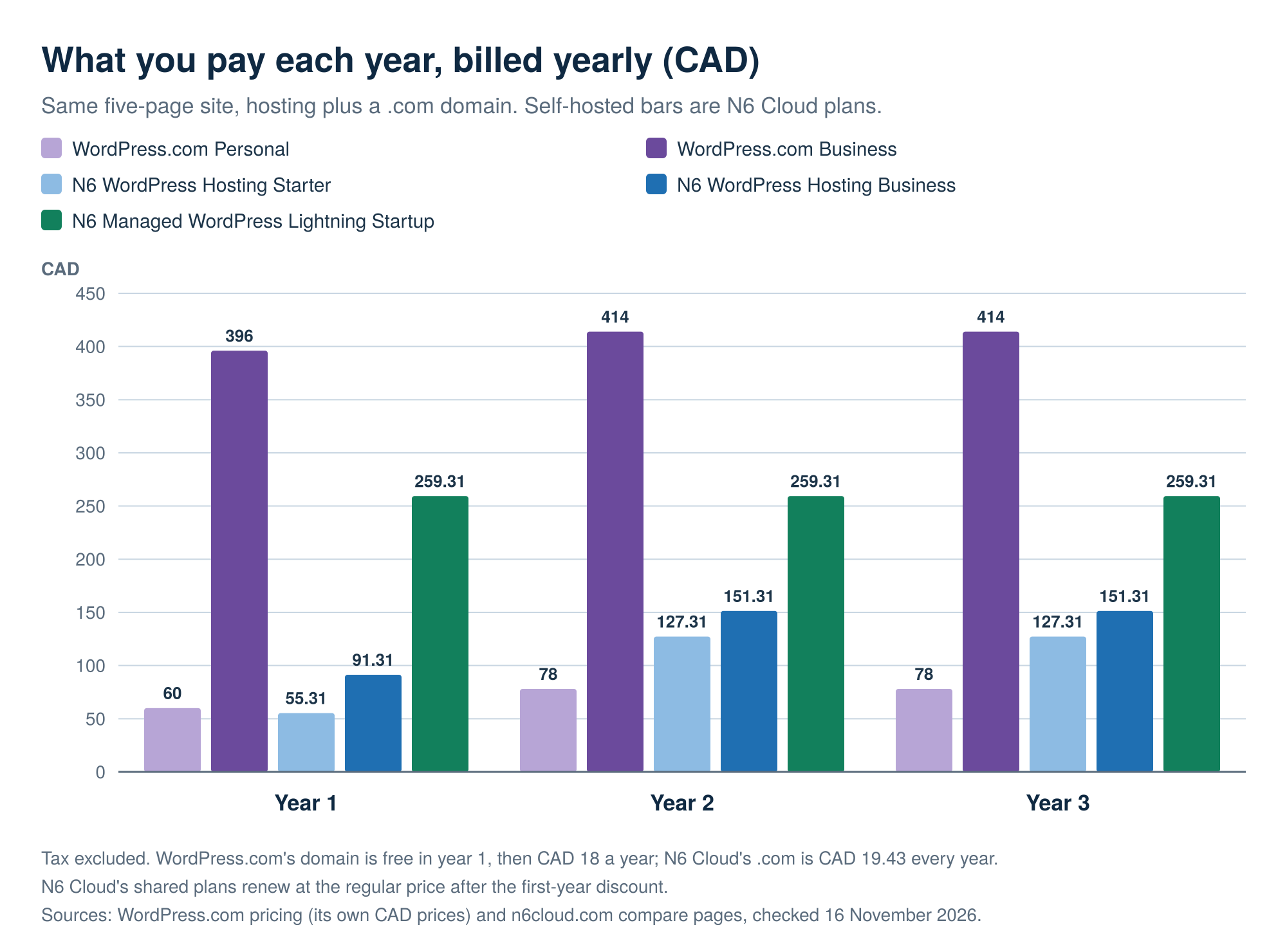
Choose the path by the features the site will need in year three, not by the year-one price. A site that never needs a restore or a staging copy belongs on Personal. A site that will need them costs less to self-host, even after paying for the domain every year.
Who Maintains What? Updates, Security, and Backups on Each Path
On WordPress.com, the platform does most of the upkeep and sets the rules, while on self-hosted WordPress, the upkeep is yours, unless you pick a host that takes on the routine part. Table 3 splits the jobs. Many hosts include backups, restores, and free SSL certificates (the files that give a site its padlock and HTTPS address), but checking that they work stays with you.
Table 3. Who maintains what on each path.
The self-hosted column turns into a routine. Before each update, take a fresh backup and test the update on a staging copy, which is how you update WordPress safely. Keep one copy of your backups off the server as well as the host’s own, so a single problem can’t take out both. Watch for security alerts, confirm the SSL certificate renews, and restore a backup to a staging copy now and then to prove it works.
There’s also a middle path. With managed WordPress hosting, you keep the self-hosted setup and its controls, including your own plugins and a data centre you choose, while the host handles updates, testing, and backups. It costs more than a standard plan, as the cost scenario showed. It suits owners who’d rather pay than spend their evenings on upkeep.
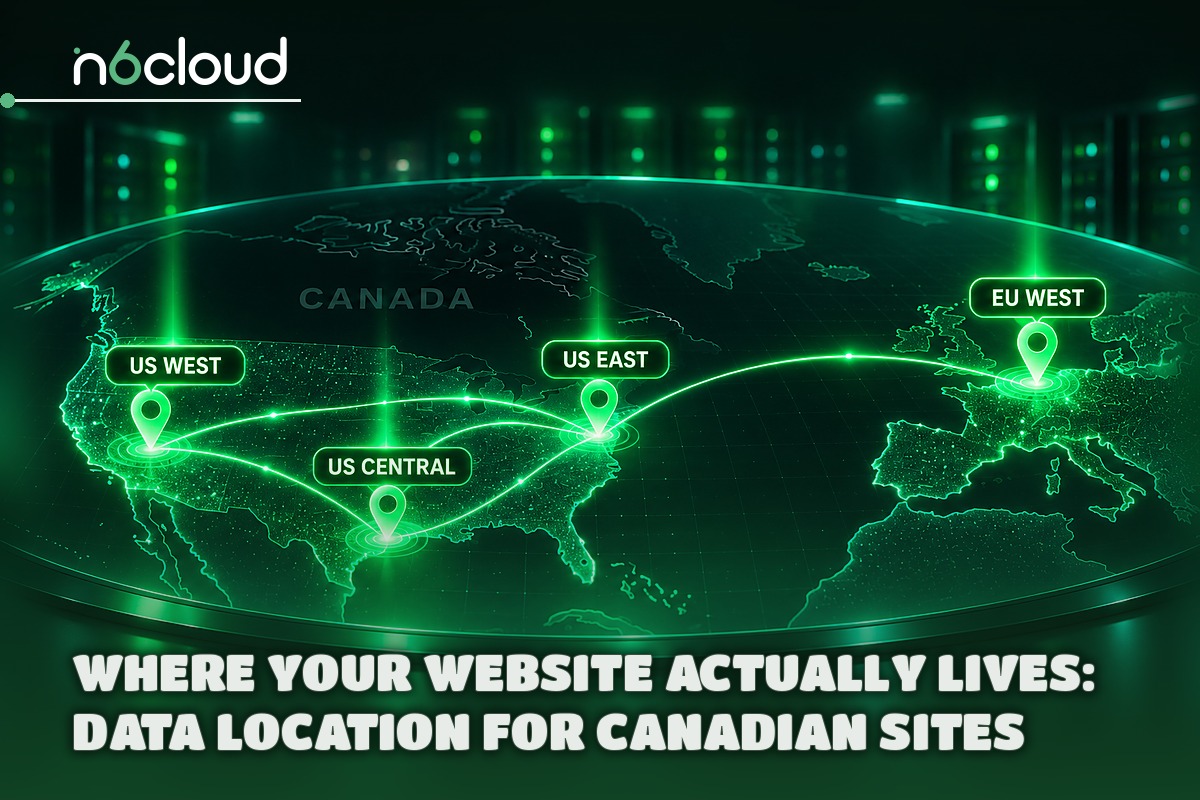
Where Your Website Actually Lives: Data Location for Canadian Sites
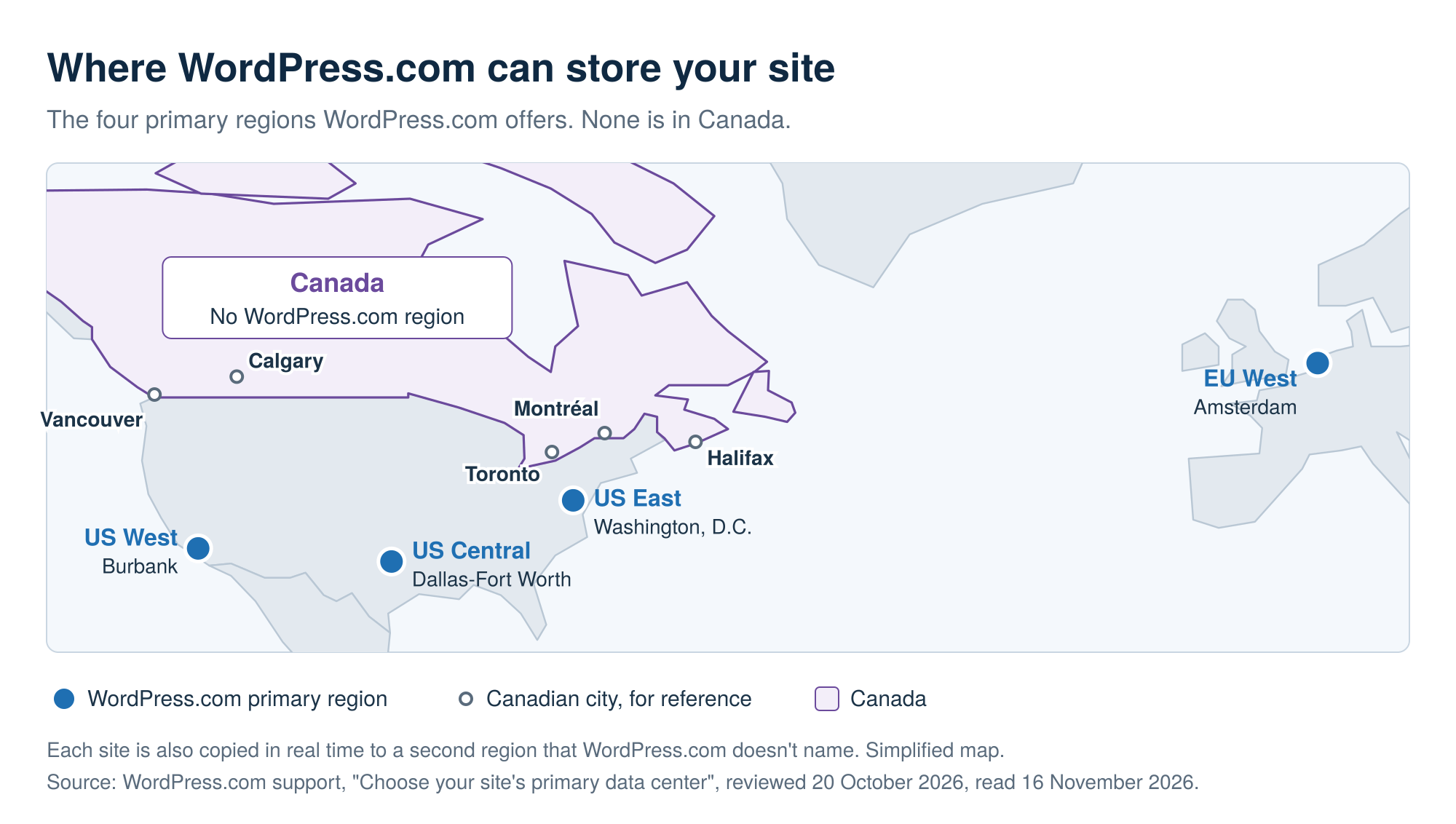
A paid WordPress.com site’s primary region is one of four, three in the United States and one in the Netherlands, and none is in Canada. For most small sites, that’s legal and works well. Some owners, though, have rules, contracts, or customers that make location matter more than price.
WordPress.com Lets You Pick a Region, Not a Country
WordPress.com offers a one-time choice of four regions that determines where a paid site’s main copy is stored. WordPress.com calls this the “primary data center”. The choices are US West in Burbank, California; US Central in Dallas-Fort Worth, Texas; US East in Washington, D.C.; and EU West in Amsterdam, the Netherlands.
The choice appears once, when the site’s hosting features (plugins, SFTP, and similar tools) are first switched on. Installing your first plugin or uploading a theme turns them on and places the site where WordPress.com chooses it, and you can’t change the region afterward. If location matters to you, pick the region before your first plugin install.
WordPress.com also copies each site in real time to a second data centre in a different region. It doesn’t publish which one, or where Free-plan sites live. Pages that can be cached are also served from 28 or more locations worldwide, which speeds them up but means copies sit in many countries.
When Location Matters: Canadian Privacy Rules, Contracts, and Speed
Most private businesses in Canada don’t have to store data in Canada, but privacy law still applies to where it goes. Even a five-page site collects personal information: contact form entries, bookings, comments, and newsletter sign-ups. For PIPEDA, the federal privacy law that covers most private businesses, the Office of the Privacy Commissioner of Canada says the law “does not prohibit” sending personal information to another country for processing. Your business stays accountable, though. It must use “contractual or other means to provide a comparable level of protection” and tell people in clear language, ideally when it collects their information, that it may be processed in another country.
Quebec goes further. Under section 17 of Quebec’s private-sector privacy act, a business must do a privacy impact assessment and sign a written agreement before personal information leaves Quebec, including when a provider outside the province stores it. For a Quebec business, both paths need the assessment and a written agreement with the provider, because WordPress.com and any host outside Quebec, including one in BC, are outside the province. What changes is what the assessment weighs, since it considers the laws where the data goes: US or Dutch law on WordPress.com, Canadian law with a host elsewhere in Canada.
Some rules are stricter still. Nova Scotia public bodies and service providers that store or manage their personal information must keep it in Canada, with a few exceptions. Health information has its own privacy laws in many provinces and territories, and some client contracts require Canadian storage. This is general information, not legal advice.
Distance matters for speed too. Every request a cache can’t answer, such as a form submission or a logged-in page, travels to the data centre and back, so a nearer data centre answers those pages faster. Figure 4 shows that distance cuts both ways. WordPress.com’s Washington, D.C. region is physically closer to Ontario, Quebec, and the Maritimes than a data centre on Canada’s west coast, and Burbank is nearest to Vancouver. For speed alone, choose by where your visitors are.
If location matters for your site, ask any host three questions before you sign up. Where are the files, databases, and backups stored? Do any copies leave Canada, for example through a CDN? Where do your form, email, and analytics services keep their data? A host offering WordPress hosting in Canadian data centres should answer the first two in writing.
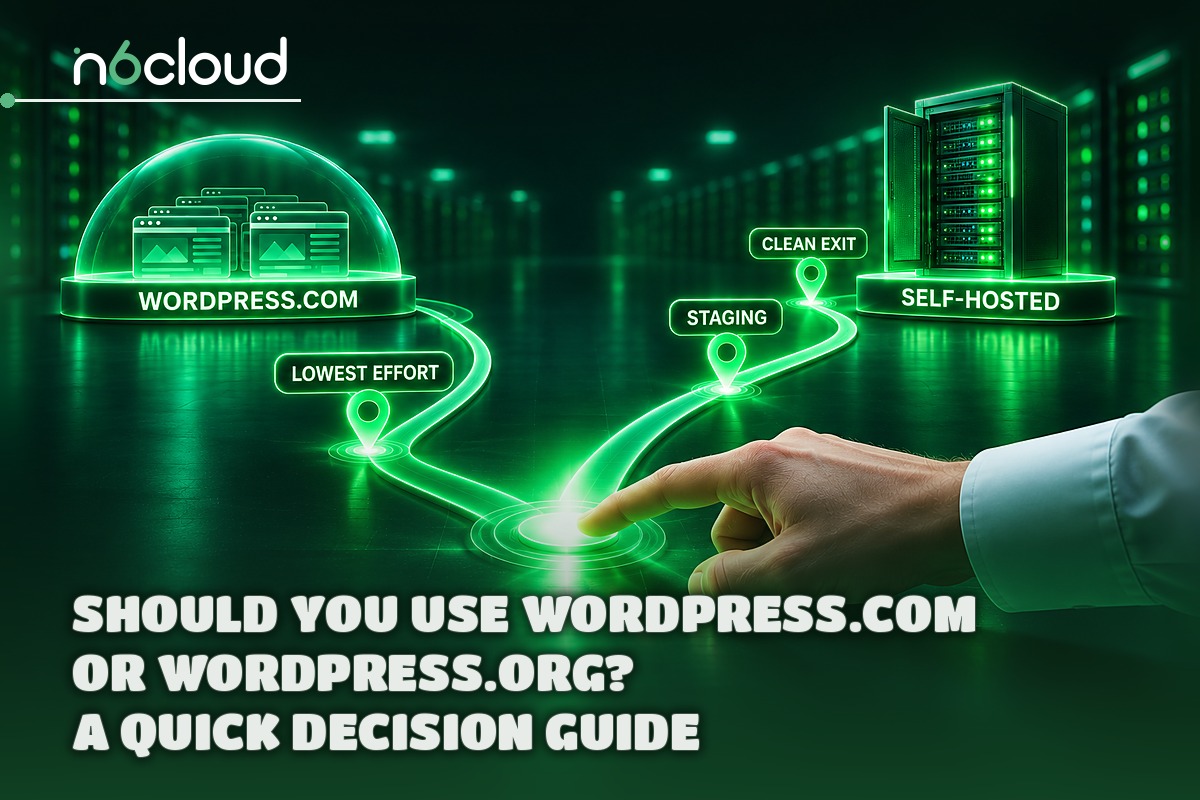
Should You Use WordPress.com or WordPress.org? A Quick Decision Guide
Choose WordPress.com if you want the cheapest, lowest-effort way to run a simple site and none of the controls in this guide matter to you. Choose self-hosted WordPress if you need restores and staging without paying for Business, a plugin WordPress.com blocks, a Canadian data centre, or a clean exit. Figure 2 near the top asks the same questions in order.
WordPress.com suits a personal blog, a hobby site, a nonprofit’s information pages, or a small business site that rarely changes. If you’d rather never think about servers, Personal does the job for less than any self-hosted plan in the cost scenario. A food blogger starting from zero can begin on Personal, move up to Premium for the money features in the comparison table, and move the blog later if it grows.
Self-hosted WordPress suits a business site that changes often and needs a staging copy, or a booking or store site that wants backups it can restore whenever something breaks. It also fits a site that expects to outgrow a platform, since leaving then means copying files and a database you already control. If upkeep is the worry, a managed plan keeps those controls and hands the routine work to the host. For a Quebec business, location alone doesn’t settle it, because Quebec’s assessment applies on both paths.
Already on WordPress.com? What Moves and What Doesn’t
You can move a WordPress.com site to self-hosted WordPress from any plan, including Free, with WordPress.com’s export file and the WordPress Importer. WordPress.com’s export guide says the file carries posts, pages, comments, categories, and tags, plus links to your media rather than the files. The importer then downloads each file from the old site, so the old site has to stay public until the import finishes. On a paid plan, SFTP and database access give you a second route that copies the whole site.
In N6 Cloud’s test, a small Free-plan site was exported with WordPress.com’s Tools > Export and imported into a fresh WordPress install on an N6 Cloud Managed WordPress account. The site had 10 posts, 5 pages, 12 images, 3 comments, a menu, custom colours, and two Jetpack forms on its Contact and Book pages. It was one run on one small site, so it shows what arrives, not how long a larger move takes.
Table 4. What arrived in N6 Cloud’s test after importing a Free-plan export file.
The content came across intact, and the remaining work was design and settings. For a five-page site like the one in the cost scenario, plan around the forms: the Book page arrived with its text but showed no form until one was rebuilt. A Free plan owner doesn’t need to buy Personal to move out with their images, as long as the old site stays public.
A few jobs sit outside the export file. Subscribers move with Jetpack’s Subscriber Migration Tool after you install the free Jetpack plugin on the new site. A domain registered or transferred in the last 60 days can’t be transferred again yet. Links to the old .wordpress.com address keep working only with WordPress.com’s Site Redirect, at CAD 17 (USD 13) a year. The cutover itself (DNS, SSL, and testing) is covered in how to move WordPress without downtime.
Why Trust N6 Cloud With Your Self-Hosted WordPress Site?
N6 Cloud is a Canadian host based in British Columbia, and its WordPress plans include the restores, staging, and migration help this guide says to look for. Its WordPress Hosting runs in Canadian data centres on the West Coast, and your site’s files, databases, and backups stay in Canada. That answers the first of the three host questions above.
Every WordPress Hosting plan takes daily backups, keeps them for 30 days, and lets you restore them yourself in cPanel, the hosting control panel. Staging and cloning tools sit in cPanel too, along with file and database access, a web terminal (a command line in your browser), and WP-CLI, WordPress’s command-line tool. Each plan includes a free AutoSSL certificate that installs and renews itself, and the Lightning plans run on LiteSpeed Web Server, the software that delivers your pages to visitors. Together, those tools let you try a risky change on a staging copy first, and roll the live site back to the previous night’s backup without opening a ticket.
Moving in costs nothing extra, because migration is free on every plan: you open a ticket, and the team moves the site for you. Hosting comes with a 30-day money-back guarantee, and support is available by live chat, phone, and tickets. If self-hosted WordPress fits the site you’ve pictured while reading, compare the plans for Canadian WordPress hosting and start with the one that includes what your site needs.