The sale email goes out at 9:00 AM, and hundreds of shoppers arrive within minutes. The home page loads as quickly as ever, but “Place order” spins, and some shoppers give up before their orders go through. You can still scale WooCommerce hosting in the weeks left: measure what checkout can handle, fix the waste, add capacity before the sale, and scale back once the season ends.
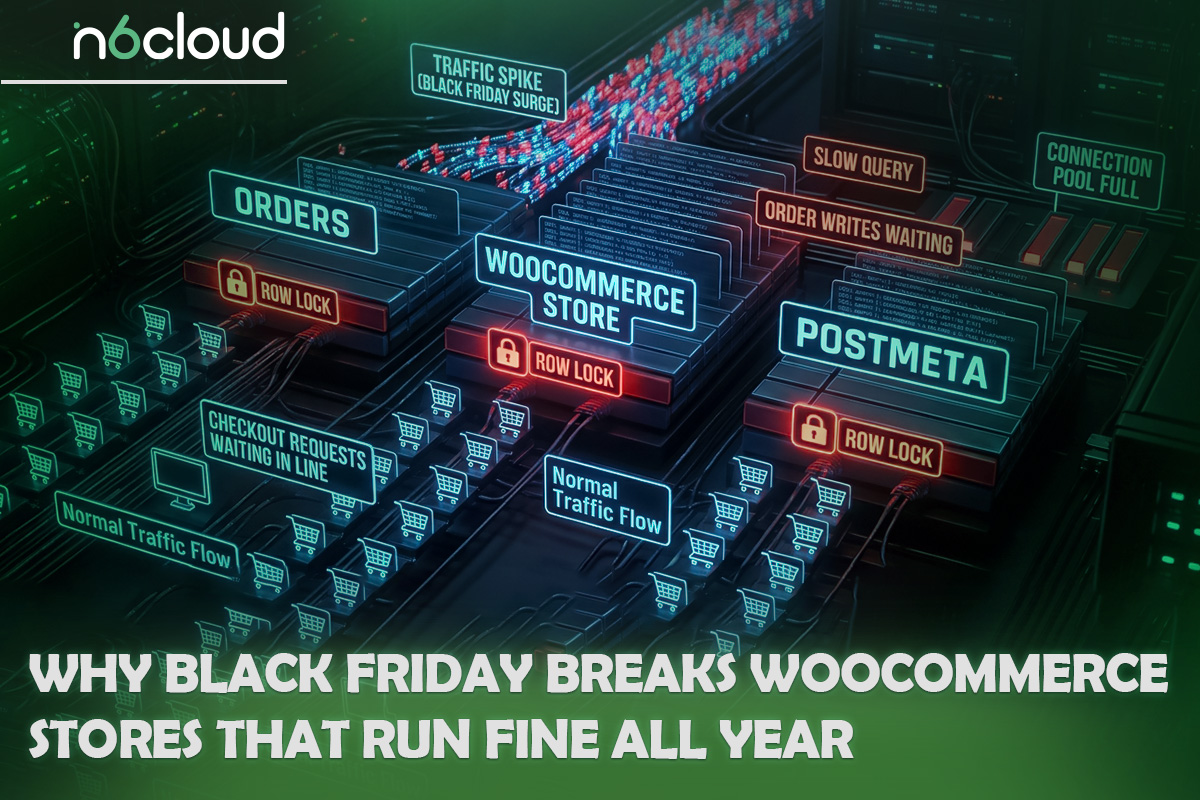
Why Black Friday Breaks WooCommerce Stores That Run Fine All Year
A sale sends many shoppers into the cart and checkout within minutes, and those pages can’t come from a cache. Each one is built by a PHP worker, one of a limited number of server processes that build pages on request, and a busy worker can’t serve anyone else. So checkout runs out of room long before the home page shows any strain.
Plan for Peak Concurrency, Not Monthly Visits
What breaks a store is how many shoppers are in the cart and checkout at the same moment. Those pages, like My Account, are built for each shopper on every visit, so load follows them far more than page views. Monthly traffic hides that number by spreading visits evenly across every minute.
Take a store with 50,000 visits a month, which averages about 1.2 visits a minute. If 400 shoppers reach checkout in the 5 minutes after the sale email, that’s 80 a minute, about 69 times the average. The figures are illustrative, so use your own list size and last year’s orders.
A sale also changes visitor behaviour. On a normal day, most browse cached product pages and leave, but on sale day a bigger share come to buy and head straight for checkout. So in a WooCommerce traffic spike, uncached load grows faster than visits, and the sale-hour burst is what to size for.
What One Hour Offline Costs on the Biggest Sales Day
You can estimate what a lost sale hour would cost from three of your own numbers. Multiply your average hourly revenue on a normal day by your sale-day multiplier, then by the hours checkout was down or crawling. For the multiplier, divide the revenue of last year’s busiest sale hour by that of an ordinary hour. For scale, Adobe’s Cyber Week figures put US online spending on Black Friday 2025 at USD 11.8 billion, about 2.8 times the average day of its USD 257.8 billion November and December. That whole-day, US-wide figure only shows the scale, so use your own busiest sale hour in the formula.
A crashed checkout loses orders when they matter most. In Baymard Institute’s survey of US online shoppers who had abandoned a checkout, 17% said the site had errors or crashed. In WooCommerce’s 2024 merchant survey, 46% of stores said Black Friday, Cyber Monday, and the holidays bring in up to 30% of their annual sales.
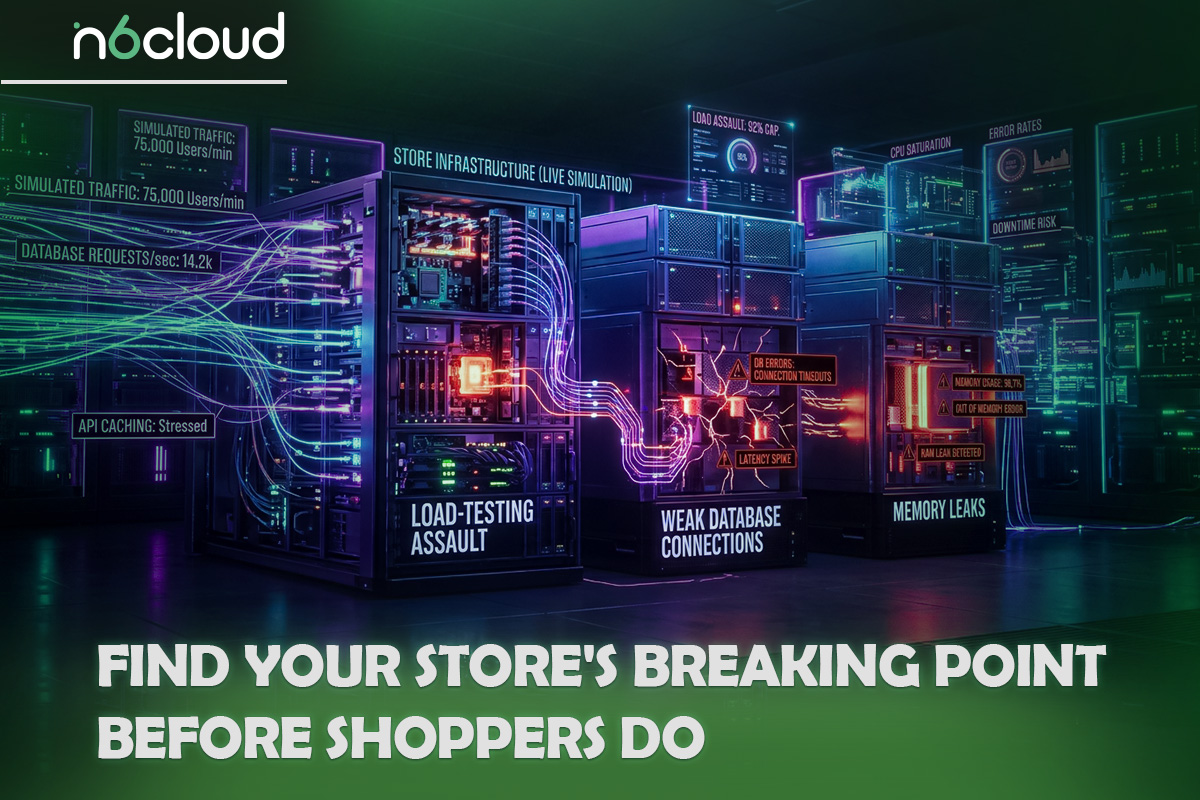
Find Your Store’s Breaking Point Before Shoppers Do
Load-test a copy of your store through checkout, increase shoppers until checkout slows past your limit, and turn that point into a capacity number for your sale. Never test the live store, because a load test creates orders. Put the copy on a separate server too, because a staging copy on the same plan shares the live store’s resources.
Load-Test a Real Buyer Journey, Not the Homepage
A load test simulates many shoppers at once and records how long each step takes. A useful one follows a buyer from a product page through the cart, the checkout, and the order, because a home page test only measures the cache. Free tools such as k6 load testing let you script those steps and set how many shoppers follow them.
Enable a test payment method such as Cash on delivery so no payment provider receives fake orders. Stores set up since WooCommerce 8.3 use the Cart and Checkout blocks, which talk to the server through the Store API. It expects a security token (a nonce) with each cart change and every checkout request, so the script must pass it back the way a browser does.
Raise the load in steps of 5, 10, 20, and 40 shoppers, pausing a few seconds between pages and a few minutes per step. Judge every step by two numbers: place-order p95 under 3 seconds, and errors under 1% of requests. The p95 is the time that 95 of every 100 orders beat, so it shows what your slower shoppers wait. Watch CPU and memory as the test runs, and note the first step that fails.
Have your host or a developer run the test on a separate copy if you’re on a managed plan with no technical help. Ask the host for your plan’s PHP worker limit too. If no test is possible, make the fixes in the next section and time your checkout by hand, as described below.
Turn Test Results Into a Capacity Number
Little’s Law turns your expected crowd and one checkout’s response time into the number of PHP workers busy at once: busy workers equal uncached requests per second multiplied by the seconds each request takes. To find the response time, time one shopper’s checkout at a quiet hour in your browser’s Network tab (the request’s “Waiting” time), with an empty cart, a full cart, and a coupon. Keep the slowest as your pre-sale baseline.
Take the 400 shoppers from earlier. Each makes about 5 uncached requests: adding to the cart, viewing the cart, loading the checkout, placing the order, and seeing the confirmation. That’s 2,000 requests in 300 seconds, or about 6.7 per second. In our test on 3 November 2026, the checkout page took a median of 685 milliseconds to start arriving on a cloud server with 2 vCPU and 2 GB of RAM. Round that to 0.7 seconds and use it for every request, which errs on the safe side because cart requests are faster: 6.7 × 0.7 is about 5 busy workers.
Shoppers don’t arrive evenly, so add 50 to 100% headroom: 5 × 1.5 = 7.5 and 5 × 2 = 10, so plan for about 8 to 10 workers. In our test, 20 shoppers sent about 6 uncached requests a second, close to this example. Checkout crossed the 3-second line with only about 5 of the 10 workers busy on average, because the processor ran out first, so treat the estimate as a starting point and let the test confirm it.

Fix the Store Before You Buy More Servers
Before adding capacity, remove the work that takes PHP workers away from paying shoppers. That means uncached requests from plugins and themes, background jobs that run while people shop, and bots hitting checkout. These fixes cost time, not money, and they still help on a bigger server.
Cut the Uncached Work: Cart Fragments, Heavy Plugins, and Slow Queries
A few plugins and theme features add uncached requests to cached pages, and the best-known is cart fragments. It’s a WooCommerce script that fetches the latest cart contents in a separate request, so even a cached page costs a PHP worker. Since WooCommerce 7.8, it loads only where the classic Cart widget appears. Storefront and some other classic themes put that widget on every page, while the Mini-Cart block doesn’t use the script.
To check, press F12 on a product page, open the Network tab, and look for a request containing wc-ajax=get_refreshed_fragments. For the rest, the free Query Monitor plugin lists slow, duplicate, and failing database queries and outside calls by plugin or theme. In sale month, fix only the worst offender. Disable or replace it on staging, re-run the load test, and keep the change if checkout gets faster. Leave the full list of WooCommerce speed fixes for January.
Get Background Jobs Out of the Shopper’s Way
Two changes keep scheduled work out of checkout’s way during the sale, and a third should wait until after it. WP-Cron, WordPress’s scheduler, normally runs when a visitor loads a page, which adds work to shopper requests at the busiest moment. A server cron job runs it on a timer instead: schedule wp-cron.php every minute or every few minutes, then add define( ‘DISABLE_WP_CRON’, true ); to wp-config.php.
Before the sale, go through the Scheduled Actions screen under WooCommerce > Status. Repair or remove the plugin behind any job that keeps failing, and run a past-due backlog at a quiet hour. That queue, Action Scheduler, runs one batch at a time by default, and its documentation warns that running more at once “can substantially increase server load and take down a site”.
The change that waits is the switch to High-Performance Order Storage (HPOS), WooCommerce’s dedicated order tables. WooCommerce > Settings > Advanced > Features shows which storage your store uses, and if it still keeps orders the old way, leave the switch until January. Moving existing orders runs as background jobs, and every extension has to be compatible first, which is the wrong work for sale month.
Keep Static Files and Card-Testing Bots Off Your Server
Every request that doesn’t come from a real shopper should stop before it reaches PHP. A CDN (content delivery network) keeps copies of your images, stylesheets, and scripts on servers near shoppers. It won’t speed up checkout, but it handles those file requests during a spike, which is how a CDN takes load off your server.
Card testing is the bigger sale-day threat. Criminals place many small orders with stolen card numbers to learn which cards work, and each attempt runs a full, uncached checkout. Stripe lists “infrastructure strain” among the effects, and WooCommerce names the usual sign: a large increase in failed orders.
WooCommerce’s own checkout rate limit is off by default. Once you turn it on under WooCommerce > Settings > Advanced > Features, it allows at most 3 checkout attempts every 60 seconds from each IP address, or from each account for logged-in shoppers. It covers the block checkout and the Store API behind it, which card testers also call directly, but not the older shortcode checkout. Behind a CDN or a load balancer, it must read each visitor’s real address, or it can treat all your shoppers as one. That’s a one-time change for your developer, who turns on proxy support in WooCommerce’s rate-limit options.
Add a CAPTCHA or Cloudflare Turnstile to checkout, and avoid donation or “name your price” products with no minimum, as WooCommerce advises. Stripe warns that rules based on one signal, such as IP addresses, usually aren’t enough. Cloudflare’s free plan includes a single rate-limiting rule, so if you use it, point that rule at checkout. Keep WooCommerce’s guide to card-testing attacks handy.
How to Scale WooCommerce Hosting: Vertical vs Horizontal
Vertical scaling gives your one server more CPU and memory, and horizontal scaling adds servers and a load balancer, a traffic director that spreads requests across them. Almost every store should start with vertical. A bigger server helps with whichever limit checkout hits first: the processor or the PHP workers. On a managed plan, the host sets the worker limit per plan and doesn’t always list it, so ask what the next size adds. On a server you manage, it’s a setting that stays put when you add CPU. Each extra worker needs memory, so if workers are the limit, CPU and RAM have to grow together.
In our test on 3 November 2026, the same load test ran on the 2 vCPU, 2 GB server, then on 4 vCPU and 4 GB after a resize, both with 10 PHP workers. The smaller size kept place-order p95 under 3 seconds up to 10 shoppers, and the larger up to at least 40, the highest step tested. At 40 shoppers, the larger size completed 113 orders a minute against 57. The processor was the limit: it was fully busy at 20 shoppers on the smaller size, while memory never went above about 820 MB on either size. Neither size returned an error. Under overload, this checkout slowed down instead of failing, which is why the sale-day triggers watch response time first. Figure 1 shows where each size crossed the 3-second line.
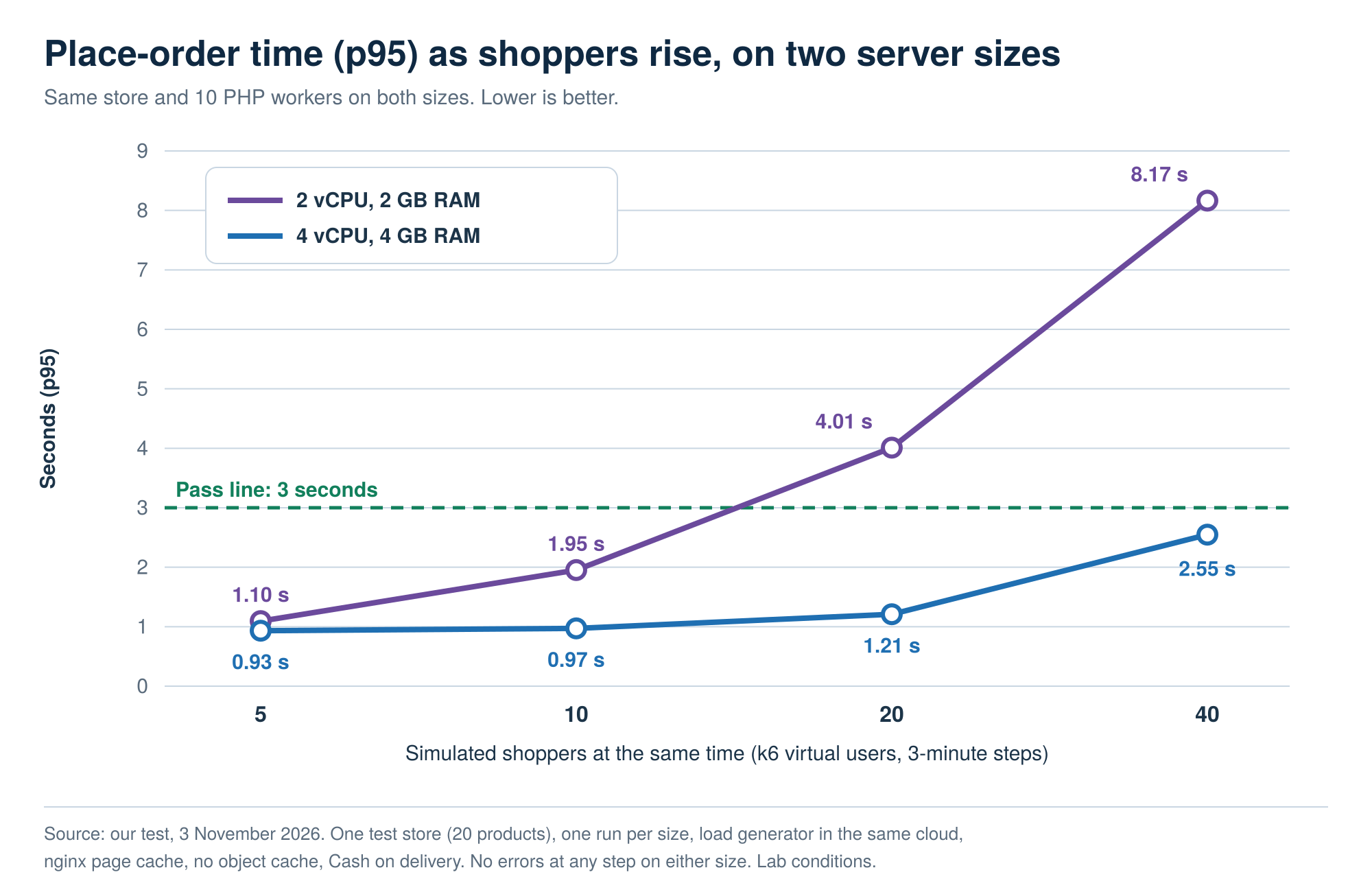 Figure 1. On the smaller size, p95 roughly doubled with each step after 10 shoppers, while the larger size stayed near 1 second up to 20.
How we tested: one test store with 20 simple products, an Nginx page cache, no object cache, and Cash on delivery. There was one run per size, 3 minutes per step, from a load generator in the same cloud, so internet delay isn’t included. Treat the shape of the results, not the exact numbers, as what carries over: a store with more products and plugins is likely to reach its limit sooner, so test your own.
The decision rule follows from that: if your load test still fails at your target after the fixes above, size up before the change freeze. On a managed plan, that means moving up to WooCommerce hosting with more headroom, which on most plans is a permanent change. On your own server, it’s a resize, timed as the next section describes.
Horizontal scaling suits very high volume, or a store that can’t afford a single server failure. Cart sessions already live in the database, so servers sharing one database share carts. What needs work is one uploads folder, one object cache, cache purges that reach every server, and scheduled jobs on one server only. Hosts that offer cloud servers behind a load balancer make it possible. Most small and mid-size stores never need it.
Rent the Peak, Don’t Own It: Scaling Up for BFCM and Back Down After
If your store runs on a cloud server billed by the hour, you can size it up a week or more before Black Friday and back down after Cyber Monday (together, BFCM). You pay for the extra capacity only while you use it. Fixed-term hosting plans usually move up a size but often can’t come back down mid-term, so treat adding CPU and RAM to your current plan as a permanent decision.
When to Scale Up, and When to Stop Touching the Server
Resize 7 to 10 days before the sale; use the next few days to prove the new size and your rollback, then freeze every change until after Cyber Monday. The lead time matters because on some platforms a resize request can take up to a day to process, and the re-test may find something to fix. A resize also stops the server, which may stay off until someone starts it again, so plan for a short outage.
In our test, the resize up to 4 vCPU and 4 GB took a few minutes, and the server then stayed off until someone started it. The store was offline longer than the resize itself. Pick your quietest hour, with someone at the controls to start the server, load the store, and place a test order. Just before, take a snapshot, a saved copy of the server’s disk. Ours took about 20 seconds without interrupting the store, and it was disk-only, because on that platform a snapshot that includes memory is deleted when the server is resized.
Then rehearse a restore: put last night’s backup on a staging copy and time it, because a backup you’ve never restored is a guess. On a cloud server you manage, backups are your job, and automated ones are often a paid add-on. Check that yours are switched on and finishing.
The freeze starts once the re-test passes, about a week before the sale, and runs until after Cyber Monday. It means no plugin, theme, or WordPress updates except security fixes, automatic updates paused, and one named person approving any exception. Afterwards, apply the waiting updates one at a time, with a tested rollback plan for each.
Keep the Extra Capacity Through Cyber Monday, Then Check Your December
Black Friday isn’t the only peak, so keep the extra capacity at least through Cyber Monday. In 2026, Black Friday is 27 November, Cyber Monday is 30 November, and Boxing Day falls on Saturday, 26 December. In Adobe’s US online data, Cyber Monday is the bigger day: its 2026 forecast is USD 15.1 billion against USD 12.9 billion for Black Friday.
Canadian card data adds a December peak. Our comparison article sums up Moneris data on the busiest card-payment days in Canada: the days just before Christmas come close to Black Friday, while Boxing Day brings in less than half. Those figures count card payments in stores and online together, so check last December’s orders by day. If last December stayed busy, keep the larger size until Christmas; if orders dropped after Cyber Monday, size down then. A store with its own Boxing Day sale can size up again for those days. Figure 2 lines these steps up against the season.
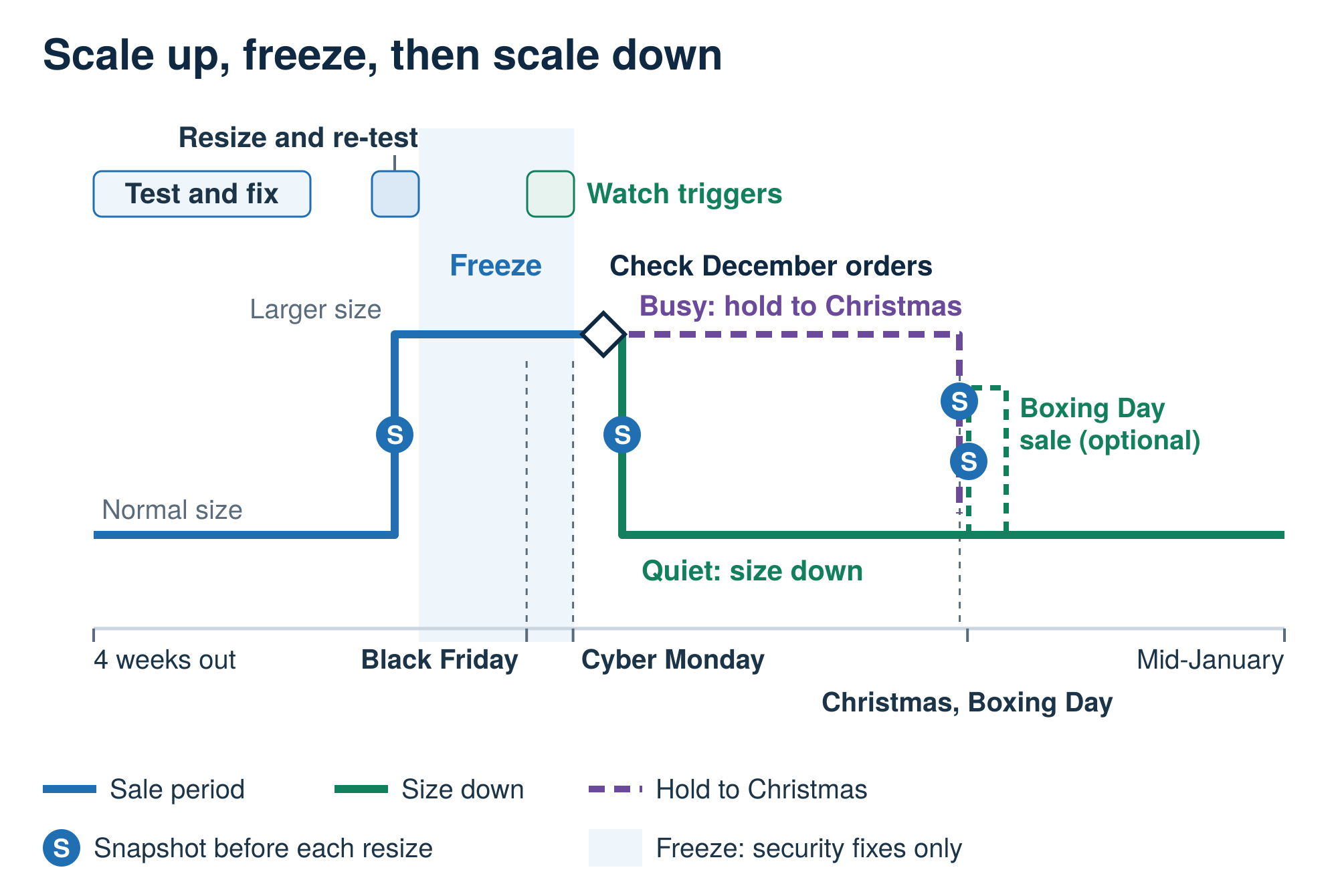 Figure 2. The extra capacity covers about 2 weeks if it comes down after Cyber Monday, or about 5 weeks if your December orders keep it until Christmas (sale days from Adobe and Moneris data).
Scaling Back Down Without Losing Orders, Data, or Speed
Shrinking is safe when nothing is in flight. Before you size down, take a disk snapshot and check Scheduled Actions for a growing Pending list or new failures. Make sure no orders sit in Pending payment and the latest order emails went out, then pick the quietest hour of the week.
Then use the path your platform supports. If it resizes down in place, pick the smaller size: CPU and memory come down, but disks usually can’t shrink, so don’t enlarge the disk for a sale unless you need the space. If it can’t resize down, restore the snapshot to a smaller new server and pause orders while you point the domain at it, or ask your host’s support to make the move.
In our test on 4 November 2026, the resize back down to 2 vCPU and 2 GB kept the store offline for 1 minute 43 seconds, including starting the server by hand. All 1,358 test orders were there afterwards, and the newest opened with its items. The scheduled jobs, order tables, IP address, and 30 GB disk were unchanged.
Check your own store the same way, then compare checkout times with your pre-sale baseline after a day of normal traffic. Right after our resize, the checkout page’s median time to start arriving was 795 milliseconds, up from 685 before the season, on a freshly started server with larger order tables. If the smaller size still struggles after a few days, the store has grown, and the right size is in between.
A 4-Week Countdown, Even If You’re Starting Late
Four weeks is enough to prepare WooCommerce for Black Friday if each week has one job, and with less time, the order of the jobs tells you what to keep. Table 1 is a Black Friday checklist you can copy, with each task pointing to the section that explains it. Start at whichever row matches today.
A slow checkout turns into errors when something hits a hard limit. On shared and managed plans, reaching the entry-process cap (the number of requests an account may run at once) returns a 508, and a full PHP worker queue usually returns a 503. A slow payment gateway causes timeouts, and card-testing bursts or a failing plugin add their own errors. Your host’s error log or resource graph for that hour shows which, and what a 508 or 503 error is telling you explains the limits.
Table 2’s triggers are starting points from this article’s test line, not industry standards. Adjust them to your own baseline: if your checkout normally answers in under a second, a jump to 2 seconds is already worth a look. Name one decision-maker and a backup before the day, and note your host’s support line and your payment provider’s contact. To spread the first rush, send the sale email in batches of a few thousand addresses. “Roll back” means the smallest action that brings checkout back, in this order: pause the promotion, block the bots, undo the last change, then add capacity.

Why Trust N6 Cloud to Help You Scale WooCommerce Hosting?
N6 Cloud is a Canadian company based in British Columbia, with a team that has more than 20 years of web hosting experience. Its servers sit in data centres in BC, and support is available 24/7. The test in this article ran on N6 Cloud Servers, with results as measured.
For WooCommerce Black Friday hosting that’s managed for you, N6 Cloud’s WooCommerce plans include one-click installation through WP Toolkit and the LiteSpeed web server, whose LiteSpeed Cache skips checkout pages. Redis object caching, a staging copy for testing changes, and daily backups kept for 30 days come with them. They work with Cloudflare’s free CDN, migration is free with expert help, and plans move up a size as the store grows.
For renting the peak, N6 Cloud Servers bill by the hour and can be resized up or down from the control panel. A resize changes CPU and memory and stops the server until you start it again, so allow a few minutes offline. The disk can grow but never shrink. Up to three snapshots and the load balancers are free, and you set up load balancers and the firewall in the same panel. You get full root access, so you run WooCommerce and its updates, and automated backups are an optional add-on. Both options carry a 99.9% uptime commitment. If the store needs more room, start with N6 Cloud’s hosting built for busy WooCommerce checkouts.