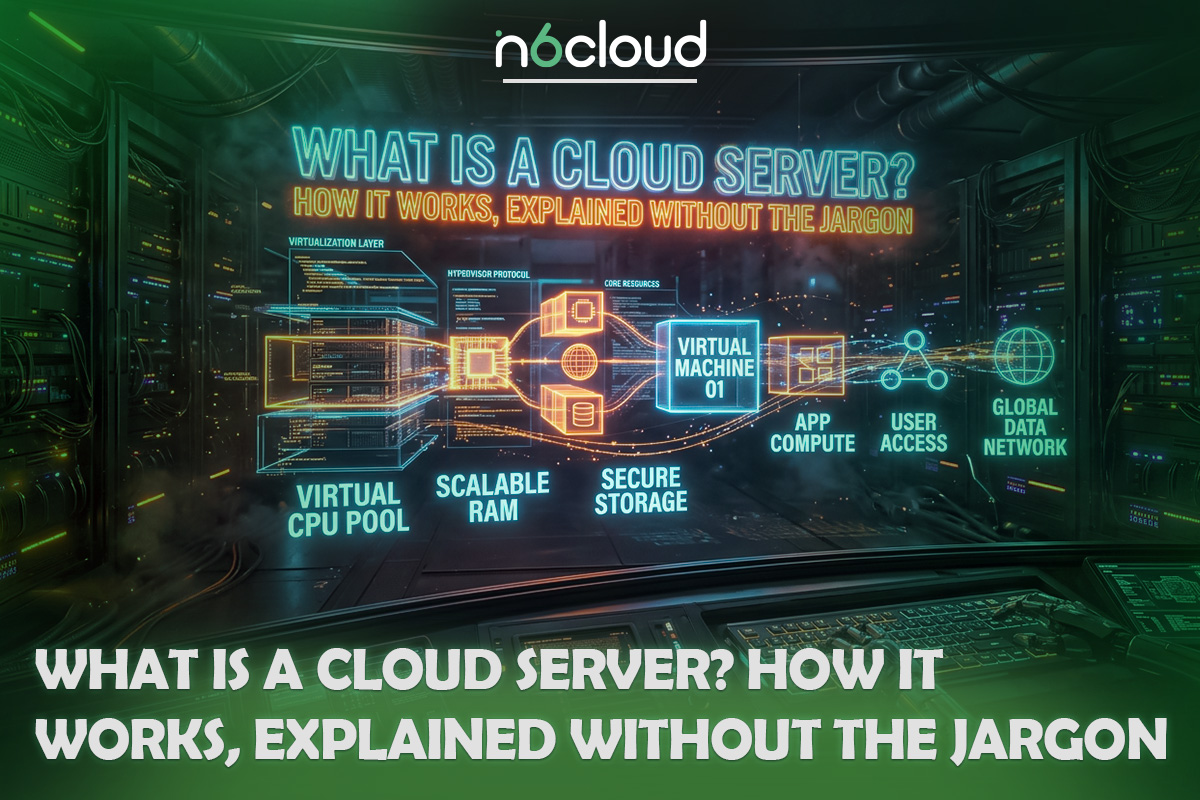
A cloud server is a virtual computer you rent over the internet, usually paid for by the hour. If searching “what is a cloud server” turned up only jargon, a simpler picture helps. Owning a dedicated server is like owning a house, and a VPS is an apartment on a lease. A pay-as-you-go cloud server is a hotel room you can swap for a bigger or smaller one and pay for by the night. Keep that picture in mind, and the hourly bill and the choice between the three get much easier to follow.
What Is a Cloud Server? The 30-Second Answer
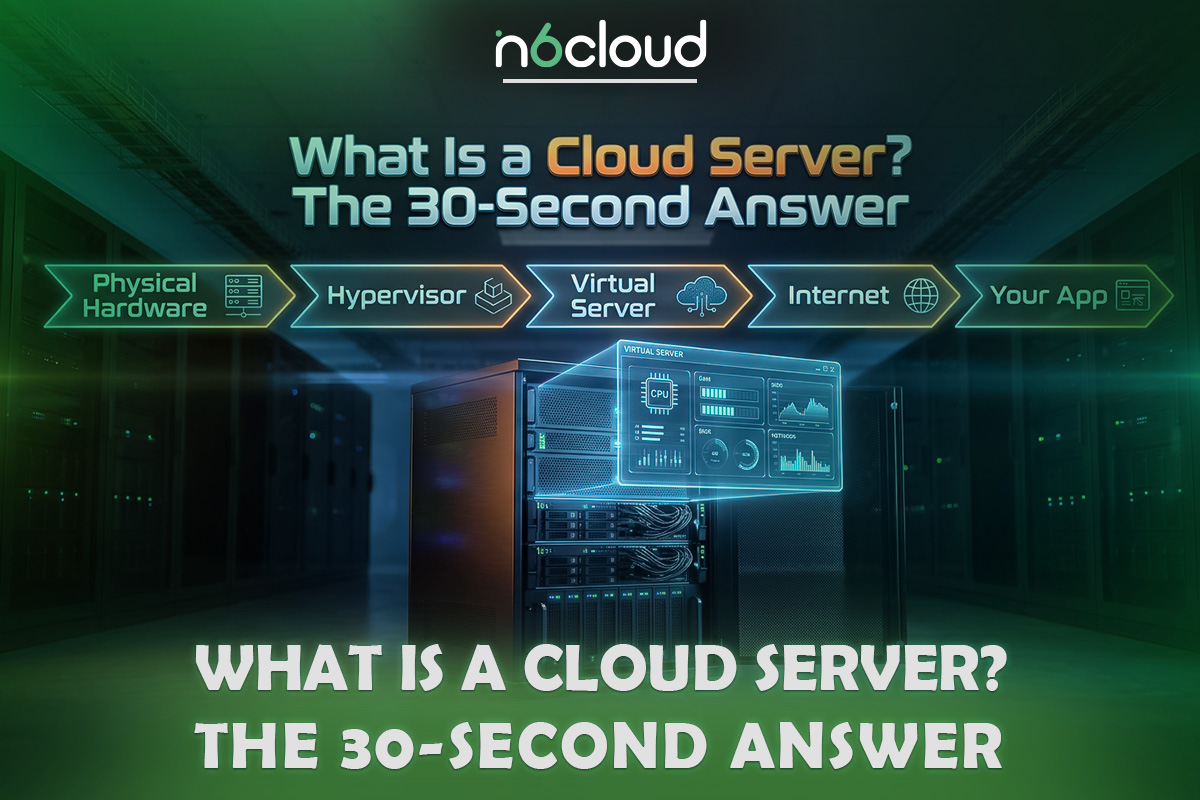
A cloud server is a virtual machine that runs on a provider’s physical servers and storage network. You choose its processor, memory, and disk, install the software you want, access it over the internet, and pay by the hour. You create, resize, or delete it in a control panel.
The standard reference is the NIST definition of cloud computing, published by the US National Institute of Standards and Technology in 2011 and still current. Two of its five traits matter most here. On-demand self-service lets you create a server without asking anyone, and measured service meters usage, which drives the hourly bill.
NIST doesn’t define a “cloud server” as such: it’s the layer NIST calls Infrastructure as a Service (IaaS), where you control the operating system, storage, and apps, but not the hardware. Cloud storage, such as Dropbox, keeps files, and a cloud app, such as Gmail, is software someone else runs. A cloud server is the computer underneath, which you run yourself, and the guide to the IaaS, PaaS, and SaaS service models compares the layers.
The main types of cloud servers follow three of NIST’s four deployment models. Public cloud servers run on a provider’s shared platform, and this article describes them. Private clouds serve one organization, and hybrid setups mix both. Table 1 explains the 10 terms you’ll meet on almost every cloud provider’s sign-up page.
How Does a Cloud Server Work? Follow One Server From Click to Live
A cloud server works in three layers. A hypervisor splits physical machines into virtual ones, a control panel builds your server from an image, and on many platforms its disk sits apart on a storage network. That last layer explains most of what follows, from resizing to the bill.
The Physical Machines and the Building Manager (the Hypervisor)
Every cloud server is a slice of a real physical server. In a data centre, racks hold rows of these machines, each with far more processor cores and memory than one small website needs. The provider divides each machine into virtual machines and rents them out.
The software that does the dividing is the hypervisor. Think of it as the building manager who divides one building into separate, locked units. A neighbour can’t walk into your unit or read your memory, and each vCPU is a share of processor time the hypervisor schedules for your server. The guide to how a hypervisor divides one physical server explains the different kinds.
What makes this a cloud, rather than one divided machine, is the pool. The provider runs many physical machines as one system, so a new server can go on any of them that has room. That’s why you pick a size when you create a server, never a particular machine.
What Happens in the Minute After You Click “Create”
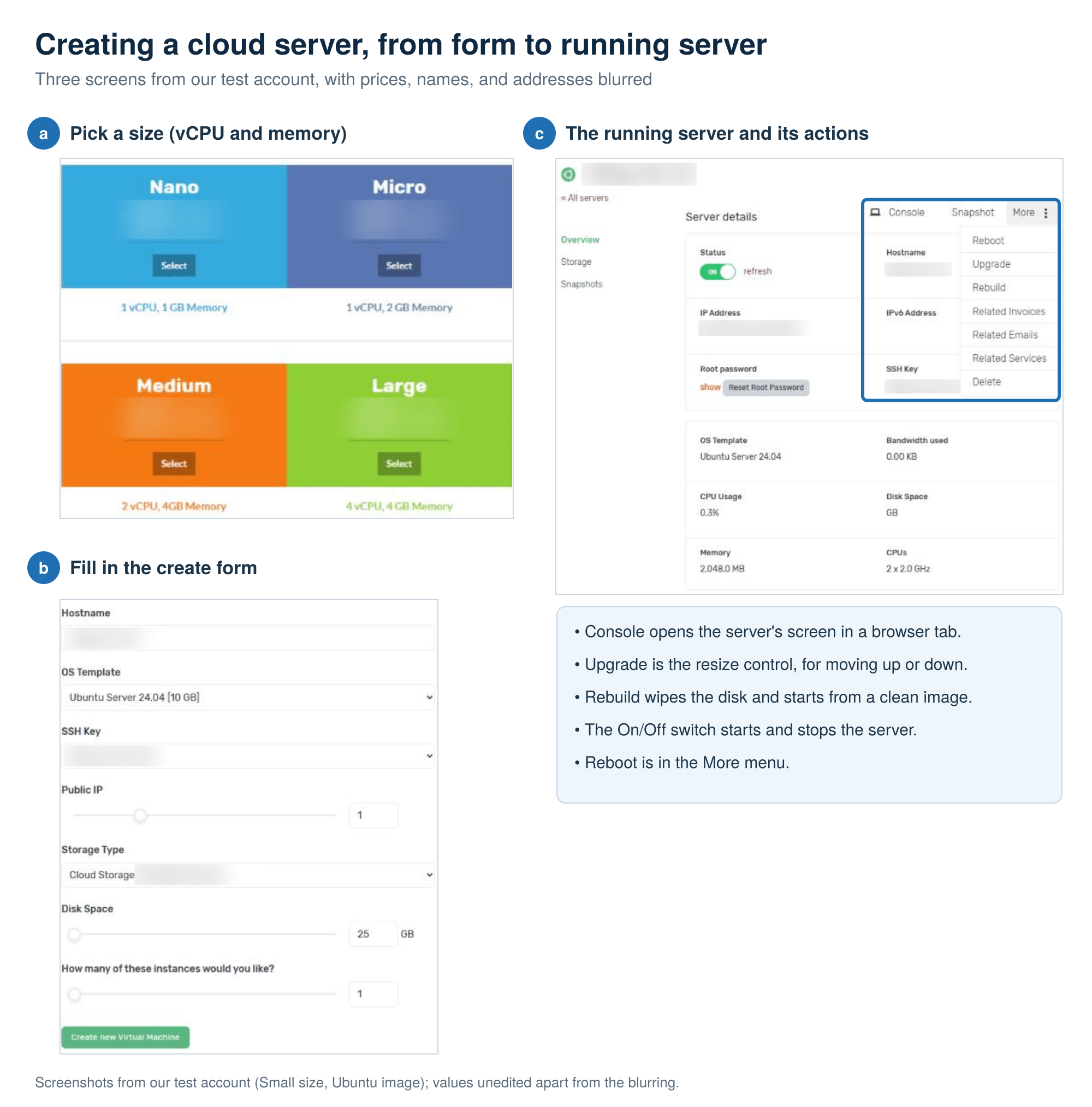
Creating a cloud server takes one short form. Field names differ a little between providers, but the order is much the same:
- Pick a size, which sets the vCPU and RAM (see what a vCPU actually guarantees).
- Name the server and pick an operating system image.
- Choose your SSH key.
- Choose how many public IP addresses it gets and how big its disk is.
- Click Create, then log in over SSH with your key.
Between clicking Create and logging in, the platform finds a machine with room, creates the disk from the image, boots the server, and attaches its address. In our test, a small server (2 vCPU, 2 GB of memory, 25 GB disk) was ready for an SSH key login a median of 54 seconds after we clicked Create. The three runs took 52, 54, and 58 seconds. We used an Ubuntu image and tried to log in every 3 seconds from a second server, in one location on one afternoon, so a larger image or busier platform may take longer. In separate runs timed against the panel’s status, a new server showed as running after 34 and 36 seconds, but the operating system needed a little longer to accept a login. Figure 1 shows the form and the finished server in our test account.
Why Your Data Lives Apart From the Server
On many cloud platforms, your server’s disk doesn’t sit inside the physical machine that runs it. It sits on a storage area network (SAN), a separate set of storage machines that the servers reach over a fast private network. To your server, it looks like an ordinary disk.
Many of those storage systems use RAID 10, which writes each piece of data to a mirrored pair of drives, so one failed drive loses nothing. That data redundancy comes from the storage design, not from anything you set up. The storage network works like the hotel’s luggage room: your bags stay there when you move to a bigger room, so changing rooms doesn’t mean packing.
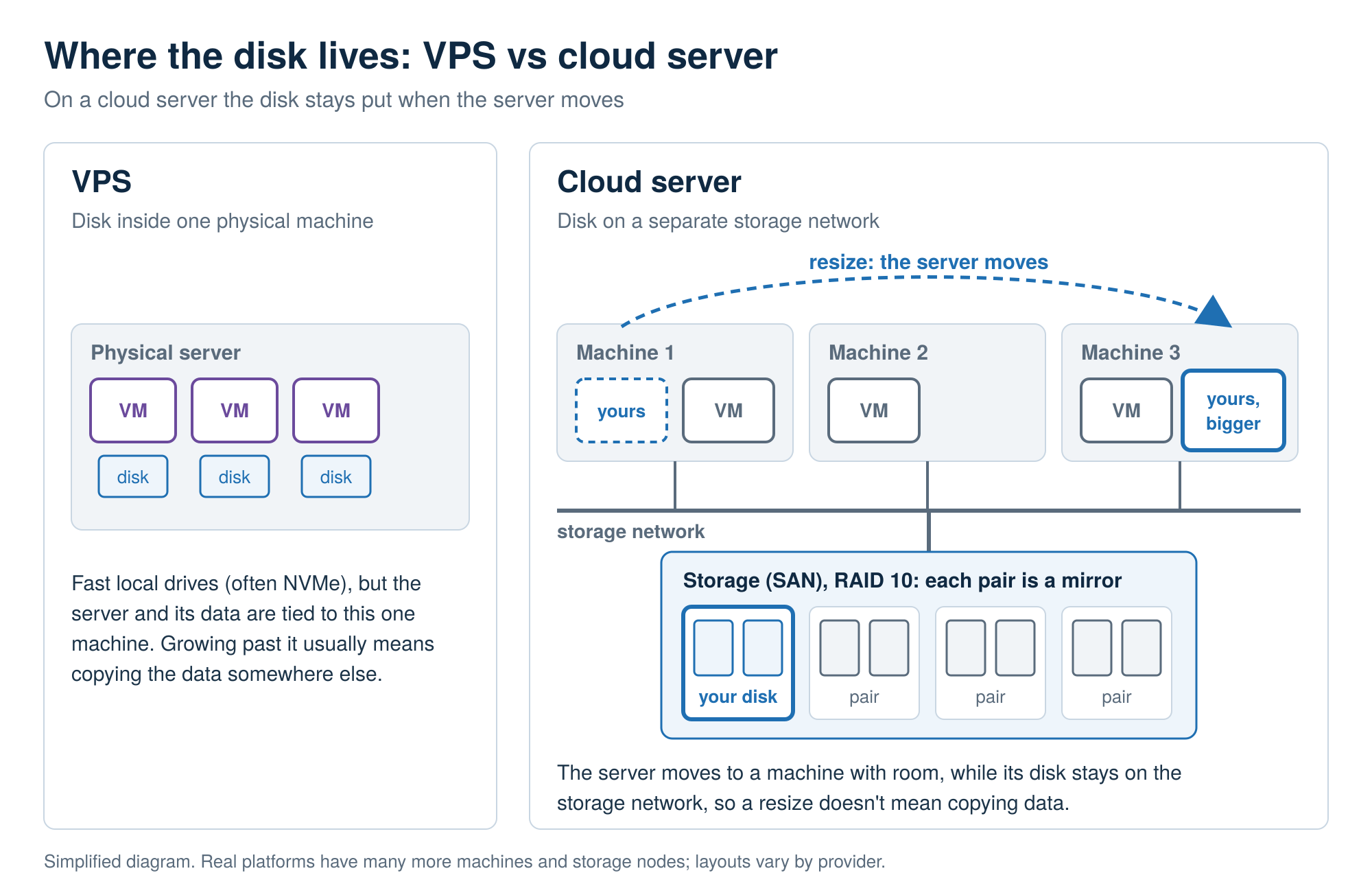
Three things follow, as Figure 2 shows. A resize can move your server to another machine without copying its disk, and storage can get its own line on the bill. This’s also the main difference from many VPS plans, which keep the disk on a single machine.
What Comes With a Cloud Server on Top of the Server Itself
Because the server is software and its disk often sits on shared storage, a cloud platform can offer extras a single machine never had: safety nets, networking, and control features, all in one panel. Table 2 lists the ones you’ll use first. It also marks which are standard and which are worth asking about.
Safety Nets: Snapshots, Scheduled Snapshots, and Backups
A snapshot is a restore point for the whole disk, taken when you ask for it, while a backup is an automatic copy kept on a separate system for a set period. On some platforms, it saves the memory too. Take one before an operating system update or any change you aren’t sure about.
A backup adds distance and time. Copies go to separate storage on a timetable and are kept for a retention period, such as 30 days, so older good copies are still there when a problem is noticed late. Many backup services also let you restore one file or folder instead of rolling back the whole server. Scheduled snapshots sit in between. On some platforms, you set them hourly, daily, weekly, or monthly and choose how many to keep, but you usually keep only a few, and each one rolls back the whole disk.
Picture two bad days. On the first, an update breaks your website at lunchtime, and you roll back to the morning’s snapshot in minutes. On the second, you find a file was damaged three weeks ago, and only a backup still holds a good copy.
Networking: Private Networks, Firewall Rules, Load Balancers, and Extra IPs
A private network connects your servers on internal addresses that the internet can’t reach, so a database on it never needs a public address. In our test, a server’s pings to a second server on the same private network came back in about half a millisecond (0.56 ms on average over three pings). That’s fast enough for a typical page to query a database on a second server without a delay visitors would notice.
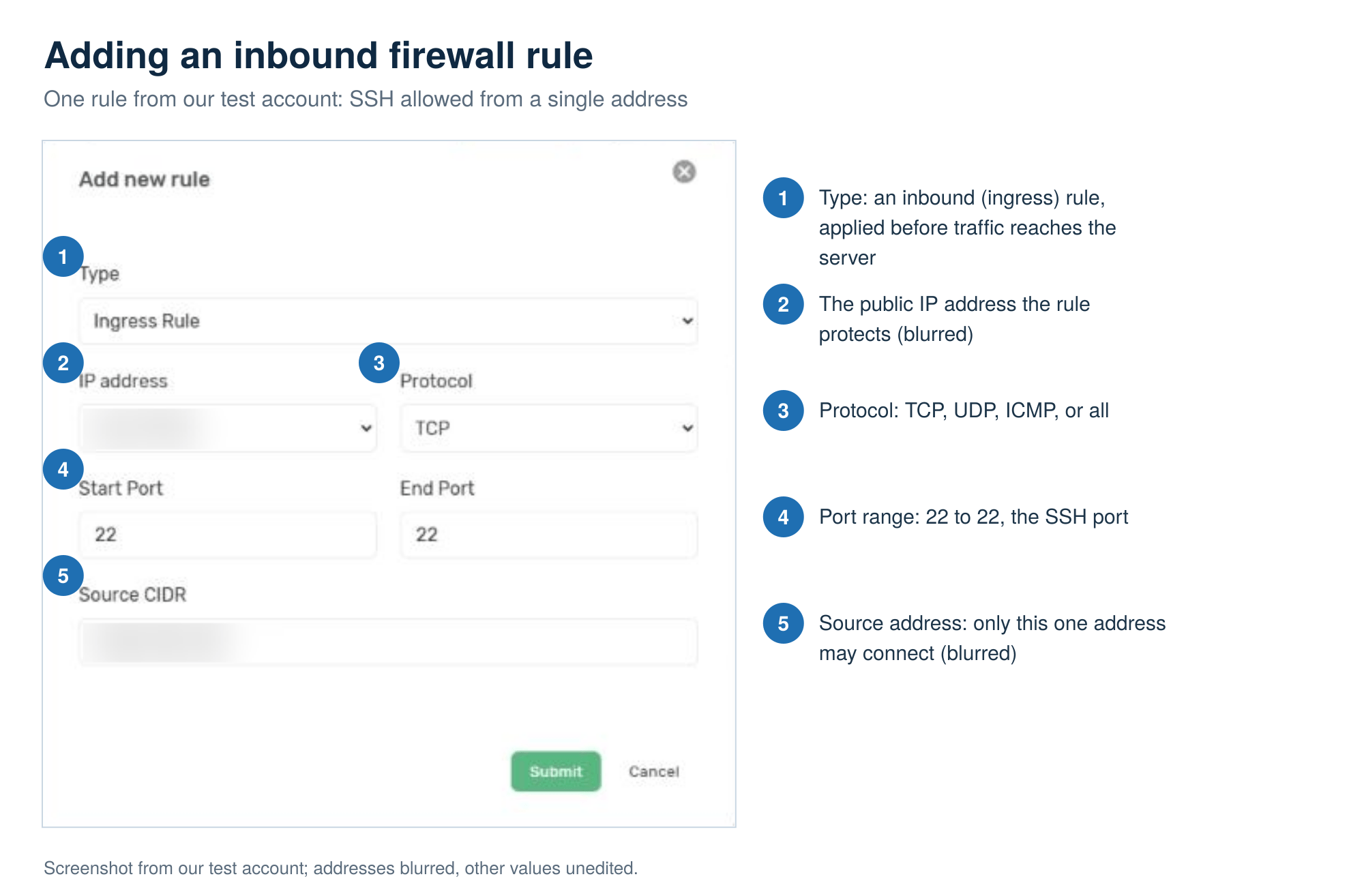
Firewall rules filter traffic at the platform, outside the server, by protocol, port, and source address. A port is a numbered door on the server, one per service: web pages use 80 and 443, and SSH uses 22. In that web-and-database setup, inbound rules would open the web ports and keep the database closed. They still hold if a setting inside the server is wrong.
A load balancer gives visitors one public address and shares it across two or more servers. Extra IP addresses let one server answer on more than one address, which some mail setups need. Some platforms also offer a remote-access VPN, an encrypted connection that lets your office computer join the private network as if it were in the data centre.
Control: Resizing Up and Down, Rebuilds, and a Browser Console
From the panel, you can resize a cloud server in either direction, reinstall it from a clean image, and access it through a browser console. Resizing is what sets a cloud server apart from most fixed plans. You move to a bigger size when traffic grows and back down when it falls.
In our test, moving a small server up to the next size with more memory took about 17 seconds, and moving it back down took about 2 minutes 13 seconds. Both times the server was left switched off, and it was running again within about 15 seconds of being turned on. Plan a resize for a quiet moment, expect a short outage, and check afterwards that the new size took effect and the server is on again.
The limit to plan for is the disk. On many platforms, a disk can grow but can’t be made smaller, so the size you pick at creation becomes your minimum. Start with a modest disk and add space when you need it, since a larger disk also means a larger storage line.
A rebuild wipes the disk and installs a clean image, so take a snapshot or copy your files off first. The browser console shows the server’s screen in a browser tab and works even when SSH is broken or a firewall rule has locked you out. Start, stop, and reboot are plain power controls.
Cloud Server vs VPS vs Dedicated Server: Which Is Which?
All three give you a server with root access, so the choice comes down to everything around it. They differ in whether you share the hardware, where your data lives, and how you pay. Table 3 lines them up, and the two sections below explain the differences.
Cloud Server vs VPS: The Difference Is Under the Hood
A VPS and a cloud server are usually both virtual machines. Each runs its own operating system, gives you root access, and shares a physical server through a hypervisor. Once you’re logged in, you’d struggle to tell the apartment from the hotel room, because the difference sits underneath.
The difference is where the disk lives. A VPS usually keeps its disk inside the one physical server it runs on, often on NVMe drives, a fast kind of solid-state drive, as with VPS hosting on local NVMe storage. Local drives are quick, but they tie the server to that machine. A cloud server’s disk often sits on a storage network instead, making it easier to move and resize.
That choice changes how you pay and grow. You rent a VPS by the month or year, with lower rates on longer terms, while a cloud server is metered by the hour. A VPS can often grow but not shrink, while a cloud server can usually scale down too. Steady work that runs all year suits the apartment, and work that changes or doesn’t last suits the hotel room.
Cloud Server vs Dedicated Server: A Hotel Room vs the Whole House
A dedicated server is a whole physical machine that’s yours alone, with no hypervisor dividing it. With a dedicated server of your own, every core, stick of memory, and drive works only for you. For heavy, constant work, such as a large database busy all day, that gives the most consistent performance.
The trade-off is speed and flexibility. Setup often takes days rather than minutes, because real hardware has to be prepared. You pay the same each month whether it’s busy or idle, and resizing means changing or replacing hardware. In the opening picture, that’s owning the house: the whole building is yours, and buying one takes time.
A traditional server in your office goes further. You buy the hardware upfront and pay for power, cooling, an internet line, spare parts, and the person who fixes it. That’s like owning the house and being the plumber too, and it’s the biggest difference between a cloud server and a traditional server.
What You Actually Pay For: Reading the Hourly Meter
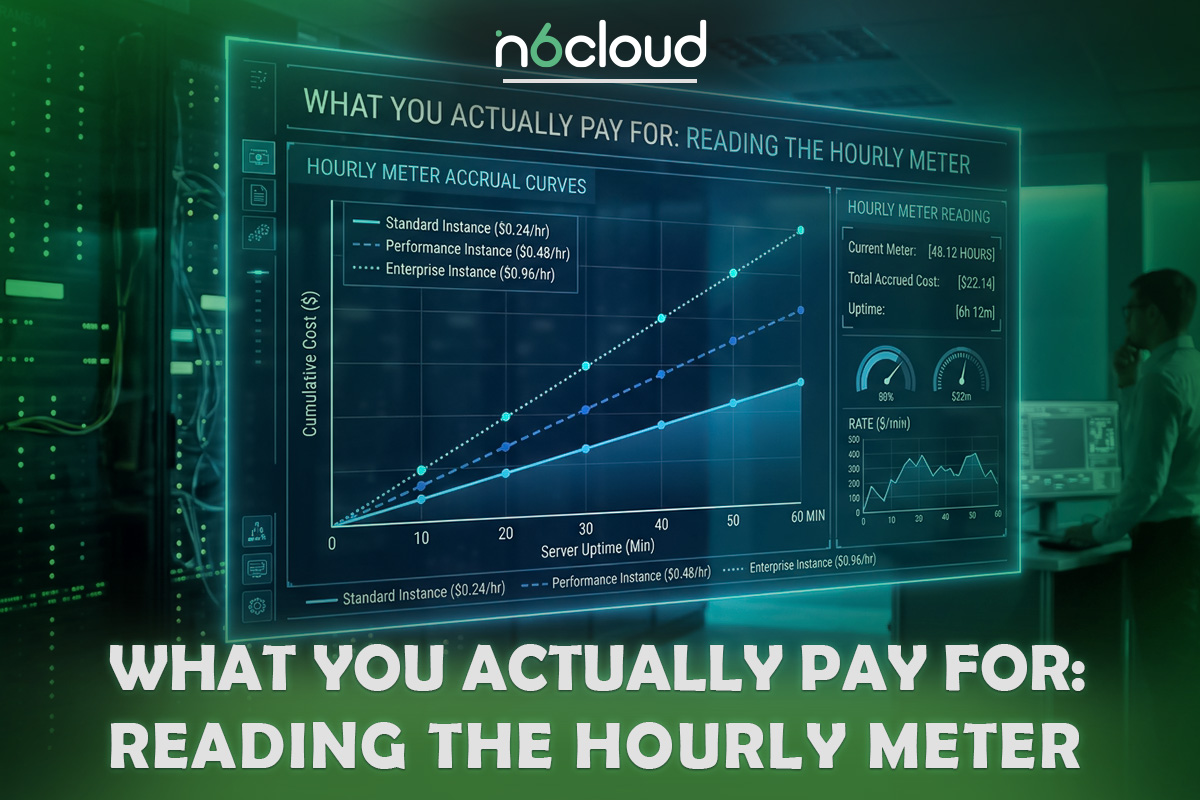
You pay for a cloud server’s size by the hour, for its disk by the gigabyte-hour, and for some extras separately. Each line is hours multiplied by a rate, and sales tax (GST or HST, plus PST or QST in some provinces) goes on top where it applies. A gigabyte-hour (GB-hour) is one gigabyte of disk kept for one hour, usually charged on the disk size you chose rather than the space you’ve filled. Those extras include backups, extra IP addresses, and data transfer over the allowance. In our test account, the usage page listed the size, each disk, and each extra public IP address as separate lines, each with its own hours and cost.
Here’s how the lines add up, using a rounded example rather than any provider’s price list (real rates are in the FAQ). Take CAD 0.01 an hour for the size alone (2 vCPU and 2 GB of memory, with no disk included), plus storage at CAD 0.0002 per GB-hour for a 25 GB disk. A 48-hour weekend test that’s then deleted costs CAD 0.48 for compute plus CAD 0.24 for storage, or CAD 0.72 (USD 0.54). Left running for a 30-day month (720 hours), it costs CAD 7.20 plus CAD 3.60, or CAD 10.80 (USD 8.10).
Some providers base listed monthly prices on 720 hours, so a 31-day month costs a little more, while many cap hourly charges at a monthly maximum. The hourly model rewards servers that exist only while they’re needed, so delete a test server once you’ve finished with it. The full-month figure is the one to compare with a fixed plan.
Benefits and Limits of Cloud Servers, and When One Is Right for You
The benefits of cloud servers (fast setup, resizing both ways, hourly billing, and snapshots) pay off when your needs change or don’t last. Table 4 shows five common cases, each with the thing to watch. For steady, simple, or very heavy work, something else usually fits better.
The right-hand column is where most problems start. A server that misses updates, allows password logins, or leaves a database port open is exposed, no matter how well the data centre is run. The provider doesn’t manage what’s inside, so those gaps stay open until you close them.
That brings back the choice from the section above: run the server yourself, or pay someone to. VPS buyers face the same choice, and the guide on whether to manage the server yourself sets out what each option costs. If you take it on, start with the day-one settings in the FAQ.
A Quick Checklist Before You Launch
Five decisions made before you click Create save most of the trouble later. Each takes minutes now and is much harder to change once customers rely on the server. For a Canadian business, the first is where the data will live.
- Data location. Check which city the data centre is in. Canada’s federal private-sector privacy law (PIPEDA) doesn’t forbid storing personal information outside Canada. You stay accountable, must ensure comparable protection, and must tell customers it may be processed abroad. Hosting in Canada is the simpler position, not a PIPEDA requirement.
- Operating system. Pick a long-term support image version and note it, because it decides how long you get security updates.
- Backups. Decide how you’ll back up the server before launch, not after the first problem.
- Who manages it. Settle who handles the right-hand column of the responsibility split.
- Size and clean-up. Start small and resize later. After you delete a test server, check the IP addresses page and release any public IP left behind, because in our test the address stayed in the account both times.
Why Trust N6 Cloud for Your Cloud Server?
N6 Cloud is a Canadian company based in British Columbia, with more than 20 years of experience in web hosting. Its cloud servers are hosted in Vancouver, so your servers and their storage sit in a Canadian data centre, and support is available 24/7. Its storage is a SAN built on RAID 10 arrays of solid-state drives. You get up to three free snapshots, a snapshot schedule, optional automated backups as an add-on, and extra storage volumes. Every server gets a private network, and you can add inbound and outbound firewall rules, port forwarding (sending one public port to a server on the private network), load balancers, and a remote-access VPN.
You can scale up or down anytime and start, stop, reboot, reinstall, or rebuild a server from the panel. You also get a browser console, full root access, and SSH keys. Each server has its own public IPv4 address (the older, most widely used kind), with reverse DNS so the address can point back to your domain name, and more addresses if needed. The service carries a 99.9% uptime guarantee with a prorated account credit, on request, for unscheduled downtime.
N6 Cloud also sells VPS hosting on NVMe storage, the cheaper choice at the same size for a server that runs all month. Its dedicated servers typically take 2 to 14 days to deploy. What N6 Cloud’s cloud servers don’t do is run your server for you. The operating system, the software, and the security inside it are yours. If that suits your work, you can compare sizes and create one from N6 Cloud’s Canadian cloud servers with hourly billing.