
A plan that costs less than a sandwich a month sounds like it must hide a catch. For a first website, the usual starting point is shared hosting, where many sites split the cost of one server, and it works well for most small sites. There’s a catch, though, and it sits in the limits each account runs under, which plan pages rarely name. N6 Cloud runs shared servers itself, so this guide names those limits, what they cause, and what renewal costs.

What Is Shared Hosting?
Shared hosting is a type of web hosting where many websites live on one server and split the cost of its hardware, software, and upkeep. Each site gets its own private account, but everyone shares the server’s processor, memory, storage, and network connection. That split is why shared plans are usually the lowest-cost way to put a website online with a paid host.
Think of an apartment building. Each unit has its own lock and breaker panel, so a neighbour can’t walk in or black out your unit. The elevators are shared, though, and on a busy morning a neighbour moving furniture can still keep you waiting for the elevator.
What you share is the machine itself: the physical server, its operating system, and often one IP address (the numeric address computers use to find a server). What stays yours is everything you put on it, such as your files, databases, email accounts, and settings. Other customers can’t open any of it, and you can’t open theirs.
This kind of hosting sits at the low-cost, low-control end of the hosting ladder. Above it come VPS hosting (a virtual server with resources set aside for you), cloud servers, and, at the top, a physical server of your own. Each step costs more and asks more of you, and the guide to how the four hosting types compare sets them side by side.
How Does Shared Hosting Work?
Every shared server does two jobs at the same time. First, it routes each visitor’s request to the right account among the many on one machine. The second is fencing each account inside its own share, so that one site can’t take over the server.
What Happens When Someone Opens Your Website
A visit to your site is four quick hand-offs. The first three take a tiny fraction of a second and work the same way for every site, so you’ll rarely think about them. Here’s the path a request takes from typed address to finished page:
- The browser looks up your domain. It asks the Domain Name System (DNS), the internet’s address book, for the IP address that belongs to your domain.
- The request reaches the shared server. That address often serves many domains, so it doesn’t say which site the visitor wants.
- The web server picks your account. It reads the domain name sent with the request and hands the request to your account.
- Your site builds or fetches the page. Your code and database put the page together, or a saved (cached) copy is sent back to the browser.
This is called name-based hosting: the domain name, not the IP address, picks the account. That’s why neighbours often share an IP address, which the drawbacks section returns to. Only step 4 uses your account’s processor time and memory, where the limits come in.
How Providers Keep Neighbours Apart: Resource Limits and Account Isolation
The best-known weakness of sharing a server is the noisy neighbour problem. One busy or badly built site slows every other site on the machine. Modern shared servers fence each account with behind-the-scenes software you don’t have to set up; on N6 Cloud’s servers, that’s CloudLinux Pro.
CloudLinux puts a fence around each account, called a Lightweight Virtual Environment (LVE), and builds it into the core of the server’s operating system. Each fence has its own ceilings for processor time, memory, and a few other resources. A site that suddenly gets busy is held at its own ceiling, where it slows down or shows error pages, instead of dragging the whole server down (CloudLinux documentation).
A CloudLinux feature called CageFS handles privacy. It puts each user in its own “cage”, a private view of the server in which other accounts, their files, their running programs, and the server’s configuration files can’t be seen (CloudLinux documentation). If a neighbour’s site is hacked, the cage makes your files much harder to reach.
Some parts can’t be fenced: every account still shares the storage system, the network connection, and the core of the operating system (the kernel). A neighbour’s heavy disk use or a traffic flood can still slow your site, like the shared elevator. Per-account ceilings make the noisy neighbour problem smaller, not zero, as Figure 1 shows.
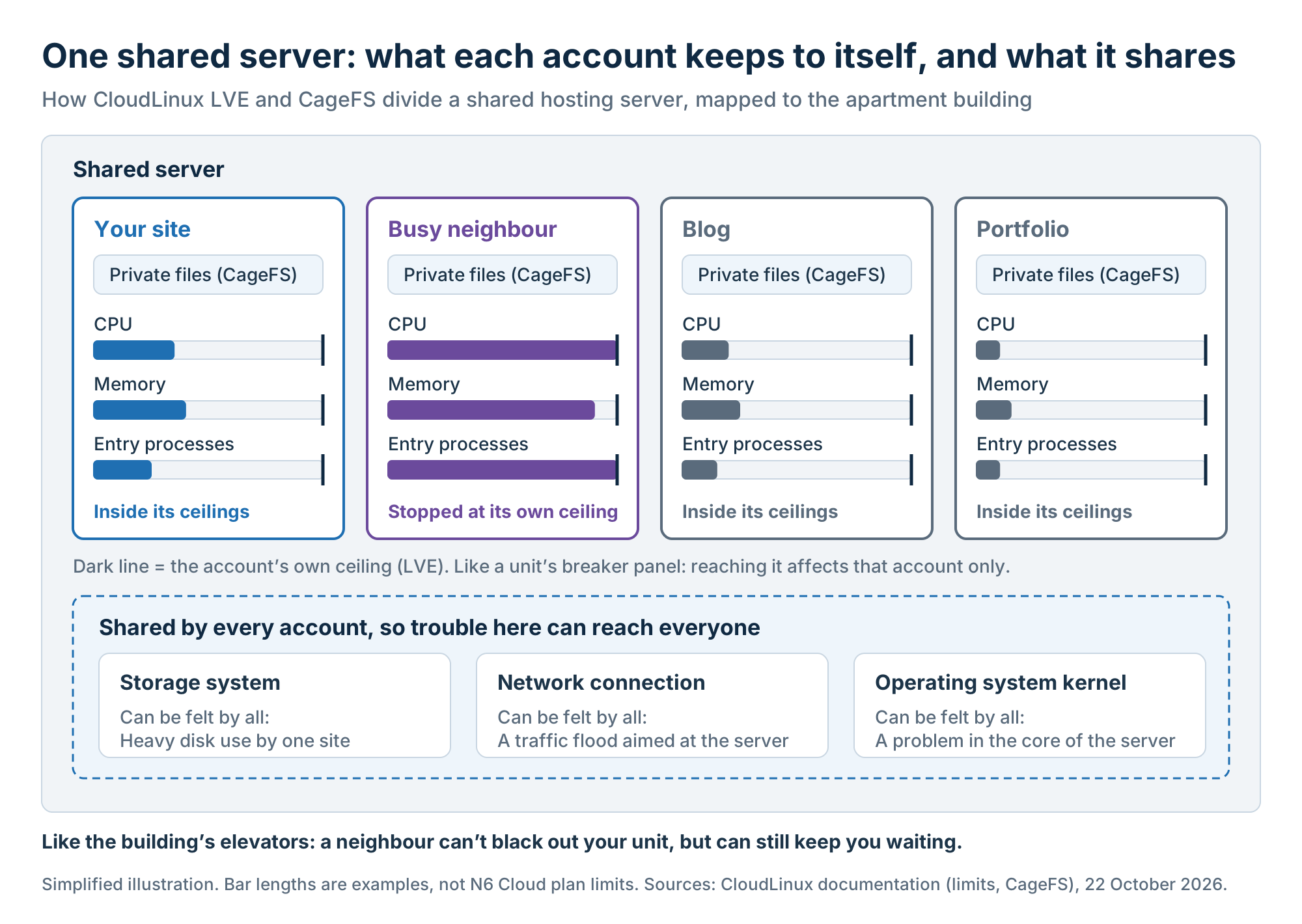 Figure 1. Each account’s ceilings and files are walled off, but every account on the server still shares the storage system, the network connection, and the kernel.
The Fine Print: What “Unlimited” Really Means
Plan pages lead with generous numbers, such as storage, bandwidth, and websites. The numbers that decide how a site behaves when it’s busy are further down the page, or missing. Reading them closely also explains the word “unlimited” and the price you’ll pay in year two.
The Limits That Actually Matter: CPU, Memory, Entry Processes, and Inodes
Four ceilings decide what a shared site can do: processor time, memory, entry processes, and inodes. Each fails in its own recognizable way. Table 1 shows the three that N6 Cloud publishes for each plan, using Starter, its entry plan. Entry processes, the fourth, are explained below the table.
Table 1. Starter values from N6 Cloud’s compare page for its shared plans, checked on 22 October 2026. What happens at each limit: CloudLinux documentation.
Entry processes cause the most confusing error. An entry process is one request your site is working on right now, usually a page being built by PHP, the language WordPress is written in. The limit caps how many your site can work on at the same moment. One request too many gets error 508, which CloudLinux calls “Resource Limit Reached” (CloudLinux documentation). The visitor sees a short error page, usually titled “Resource Limit Is Reached”, in place of your site.
That’s why traffic is about bursts, not monthly totals. Visits spread across a month rarely overlap much, but a newsletter link that sends many people to one uncached page within a minute can reach the ceiling. Cached pages are lighter, because no script has to build them.
On CloudLinux servers, cPanel’s Resource Usage tool shows how close your account comes to these ceilings. For each resource, it shows your usage, your limit, and a count of faults- the moments your account hit a ceiling (CloudLinux documentation). A Snapshot tab records what was running when a limit was hit, often pointing to the plugin or script behind it.
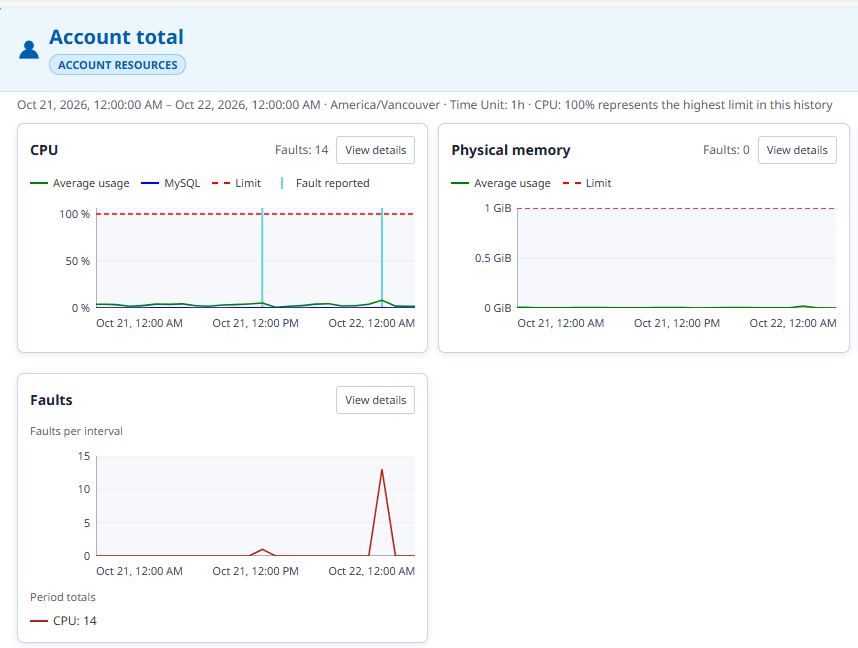
Figure 2. Average CPU on one account stayed low all day on 21 October 2026, yet the account hit its CPU ceiling 14 times, 13 of them between 9 and 10 PM. Shared anonymously with permission.
An hourly average spreads brief ceiling spells across 60 minutes, so short bursts almost vanish from the line, while the faults count shows them. A CPU fault means the account hit its CPU ceiling for that moment, which slows pages down; it doesn’t produce an error page. This is one account on one day, and the screen doesn’t show whether visitors noticed or what caused the burst. On your own Resource Usage page, check the faults before the averages. If pages were slow but Resource Usage shows no faults for that time, your account probably didn’t hit its CPU, memory, or entry-process ceilings. The cause is then more likely your site’s code or the parts of the server everyone shares, which is a question for your host’s support team.
What “Unlimited” Means on a Shared Plan
On a shared plan, “unlimited” covers the things that are cheap for a host to give, such as bandwidth, storage, websites, and email accounts. It doesn’t cover processing power, which is the scarce part of a shared server. Hosts that publish limits list fixed CPU and memory per plan. N6 Cloud uses the word too. Every shared plan has unmetered bandwidth (no fixed monthly cap on data sent to visitors), and the Lightning plans, its top two shared tiers, add unlimited storage and websites.
N6 Cloud’s terms of service say “unlimited” and “unmetered” mean that “your use of our resources cannot be greater than that of consumers in a comparable condition” (N6 Cloud Terms of Service). In plain words, you can’t use more than customers in a similar situation usually do, so “unlimited” doesn’t mean as much as you might like. The terms add that shared hosting “is not intended for highly resource-intensive sites”. Some uses are banned, including streaming that goes beyond what the website itself needs, huge photo or video galleries, and online file serving over FTP. Using the account to back up computers or files unrelated to the website is also banned.
Storage makes a good worked example. A Lightning plan with “unlimited storage” still has the inode cap in Table 1, so a site with huge numbers of small files can reach that ceiling before it fills the disk. The CPU and memory ceilings still apply too. When a plan says unlimited, read the host’s terms and look for its published limits.
Intro Price vs Renewal Price: Budget for Year Two
The price on a hosting banner usually covers only the first term, and you often have to prepay one to four years to get it. When that term ends, the plan renews at the regular rate, which can be several times higher. Year two is the number to budget for.
To put numbers on that pattern, N6 Cloud checked the published prices of eight shared plans from three large hosting providers on 22 October 2026. Introductory prices ran from about CAD 3 to CAD 20 a month, on prepaid terms of 12 to 48 months, and renewal prices from about CAD 13 to CAD 60 a month. Renewal cost 1.5 to 6 times the introductory price, as Figure 3 shows, plan by plan.
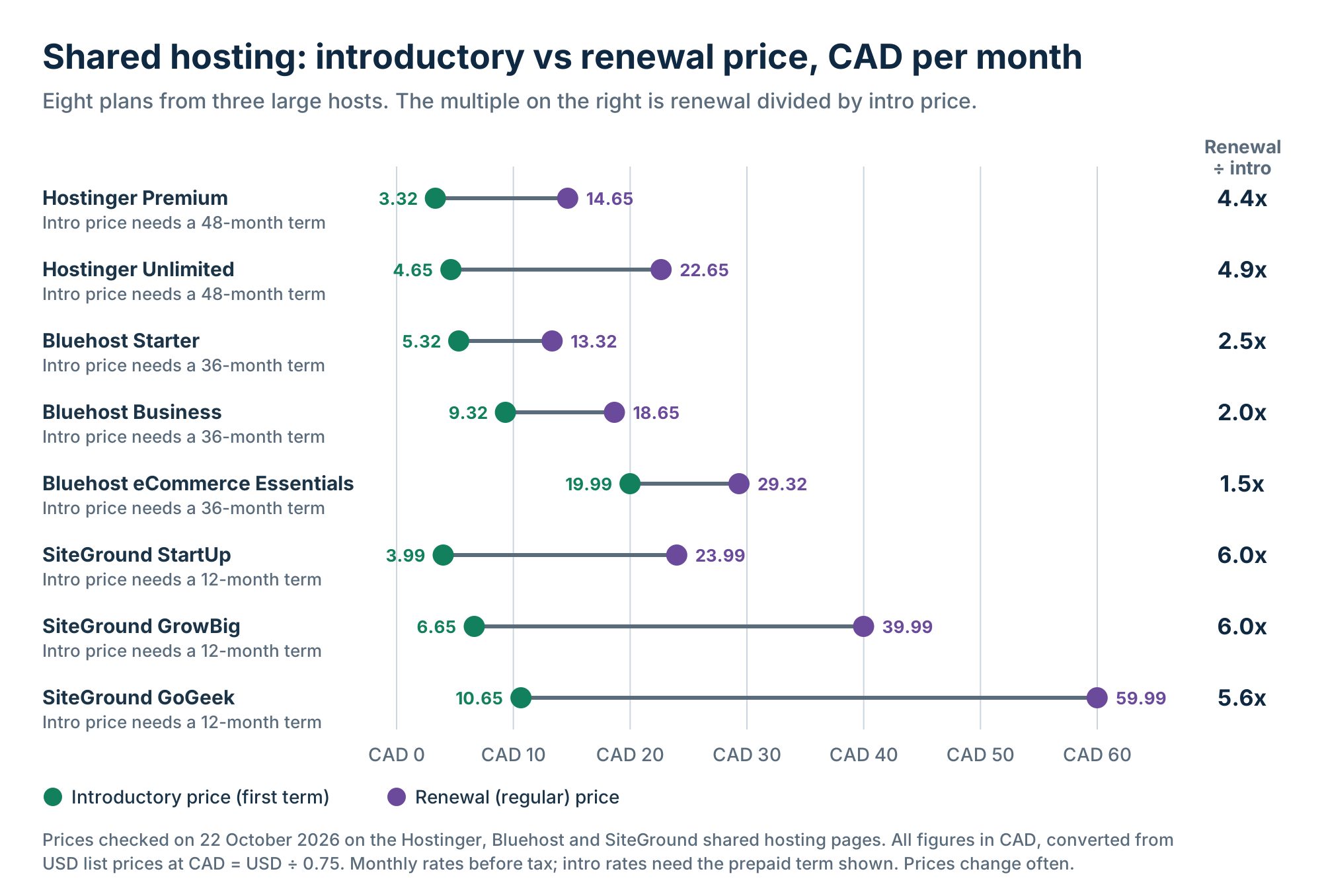 Figure 3. Renewal prices ran 1.5 to 6 times the introductory price, and the plan with the lowest intro price wasn’t the one that renewed lowest.
N6 Cloud’s shared plans follow the same first-year discount pattern, so the same check applies to them. Before you pay for any plan, including N6 Cloud’s, find the renewal price on its plan page, the prepaid term the advertised price requires, and the money-back terms. The breakdown of how renewal prices change the total is the three-year arithmetic.
Shared Hosting Pros and Cons
Every advantage of this kind of hosting comes from splitting one server’s cost and care across many customers. Every drawback comes from that same split, seen from the other side. With the limits and renewal prices above in mind, you can judge the trade-off for your site.
The Real Advantages
The main advantage is the price that split makes possible: a share of one server, with its licences, power, and staff, costs a fraction of a whole one. You also don’t have to maintain the server because the hosting provider installs security patches, monitors the hardware, and replaces failed parts. For a small business owner, that’s time you can spend on your customers instead.
The tools are built for people who’ve never run a server. cPanel, a common control panel, lets you add email accounts, upload files, and set up databases by pointing and clicking. One-click installers such as Softaculous set up WordPress and many other apps in a few minutes. Most hosts include automatic backups, so one mistake doesn’t have to mean starting over. They also include a free SSL certificate, which enables HTTPS and encrypts the connection between your site and its visitors.
The Drawbacks to Weigh Before You Sign Up
The first drawback is headroom: your site gets the ceilings in Table 1 and no more. You also don’t get root access, the administrator login that controls the whole server, so you can’t install your own server software or change server-wide settings. On N6 Cloud’s shared plans, you get a web-based terminal for your own account instead.
A shared IP address affects email more than it affects Google. Because many sites send mail from the same address, one account that sends spam can hurt delivery for others on that IP. Setting up your domain’s email authentication records, SPF and DKIM, helps receiving servers trust your mail, and current versions of cPanel include an Email Deliverability tool that can create them. In a search, Google’s John Mueller said no ranking algorithm he knows looks at shared IPs (Search Engine Journal, 2020). He added that shared hosting “does not negatively affect your site in Google Search” (Search Engine Journal, 2021). A slow, overloaded server can still be harder for Google to crawl (Google Search Central).
Security is the last trade-off. Account isolation limits how far an attack can spread, but no fence protects a site from its own weak spots, such as an outdated plugin or a weak password. A low-cost host that skips isolation leaves every account more exposed. Your part of the job is covered in N6 Cloud’s guide on how to secure a shared hosting account.

Who Should (and Shouldn’t) Use Shared Hosting
It’s a good choice for most small business websites, because their traffic sits far below the ceilings in the fine print section. The fit depends not on business size but on how the site behaves at its busiest moment, which for a local shop or clinic is usually quiet by server standards. The next two sections show where the line falls.
A Great Fit: Blogs, Portfolios, Local Businesses, and New WordPress Sites
Sites with steady, modest traffic and standard software get everything they need from a shared plan. Picture a bakery in Kamloops with a menu, hours, and a contact form, visited 200 or 300 times a week, or a wedding photographer in Halifax whose site is mostly galleries. Both show the same pages to almost everyone, so those pages can be cached and rarely need to be built from scratch.
Their visits are spread across the day, so the entry-process ceiling stays far away. A blog works the same way, because most readers open the same recent posts. The photographer has to watch image sizes and file counts, but a few thousand photos sit well inside the inode limit in Table 1.
New WordPress sites belong here too. WordPress runs on standard shared plans and installs in a few minutes, so a new blog or business site can start small. N6 Cloud’s WordPress hosting plans use the same tier names and storage sizes as its shared plans. You move up only when the numbers in Resource Usage say it’s time.
Not a Good Fit: Busy Stores, Custom Apps, and Root-Access Needs
This kind of hosting stops fitting when a site needs more than its ceilings or more control than an account allows. Busy stores are the most common case, since carts and checkouts are built per shopper and can’t be cached. A sale or holiday rush puts direct pressure on entry processes and CPU, as the guide on when an online store outgrows shared hosting explains. Custom applications are the other case. Software that needs its own server packages, a background service you install and keep running yourself, or root-only settings won’t run in a shared account.
If you’re already on a shared plan, four checks show whether you’ve reached its limits:
- Faults in Resource Usage. Faults show up at busy times.
- Repeated error pages. Visitors keep seeing 508 or 503 pages.
- A slow first response after caching. Time to first byte (TTFB), how long the server takes to start sending a page, stays above 0.8 seconds, the top of Google’s rough guide for good. Free tools such as WebPageTest measure it, and Google’s PageSpeed Insights shows it for sites with enough real-visitor data.
- Software you can’t install. You need server changes an account can’t make.
One of these on a single busy day can often be fixed inside your plan. Start with a page-caching plugin or your host’s built-in cache, and remove any heavy plugin you can live without. If the checks keep failing, a higher shared tier raises your CPU and memory ceilings, often before a VPS is needed. When even that isn’t enough, the usual next step is VPS hosting, which adds root access but means you, or a managed plan, look after the server.
Why Trust N6 Cloud to Explain Shared Hosting?
This guide comes from a host, so weigh it accordingly. N6 Cloud sells shared plans, and the servers described above are its own: cPanel accounts on CloudLinux Pro, fenced in as the isolation section explains. Those servers are in data centres in British Columbia, so your site and its data stay in Canada, and pages reach visitors in Western Canada with less delay (lower latency) than from servers farther away.
Every account is covered by Imunify360, server security software that scans files for malware and blocks common attacks. Sites sit on SSD SAN storage with RAID 10: solid-state drives in a storage area network (SAN), a separate storage pool the servers share. Data is copied across several drives, so one failed disk doesn’t take a site down. Nightly backups are kept for up to 30 days, but keep your own copy too, because the included backup is mainly for disaster recovery.
N6 Cloud commits to 99.9% uptime each month, with service credits on request below that. That still allows about 43 minutes of unplanned downtime in a 30-day month, and scheduled maintenance isn’t counted. Every shared plan includes free SSL and a 30-day money-back guarantee, and new customers get free site migration.
A growing site can move up without changing host. The Lightning plans run LiteSpeed, a web server with built-in page caching; beyond them are Managed WordPress, VPS, Cloud Servers, and Dedicated Servers. N6 Cloud’s shared web hosting page links to the full specification for each plan, including its CPU, memory, and file limits. Check those against the ceilings above.